Empler AI is a powerful Chrome extension designed to revolutionize professional and business workflows. It offers a user-friendly interface with various AI-powered features, including ready-to-use templates for multiple platforms, customizable workflows, and content generation capabilities. Empler AI aims to increase productivity, save time, and strengthen user engagement across various online platforms.
Empler AI | AI Workflows with GPT & More
Next-Generation AI Tool For Better Outcomes.
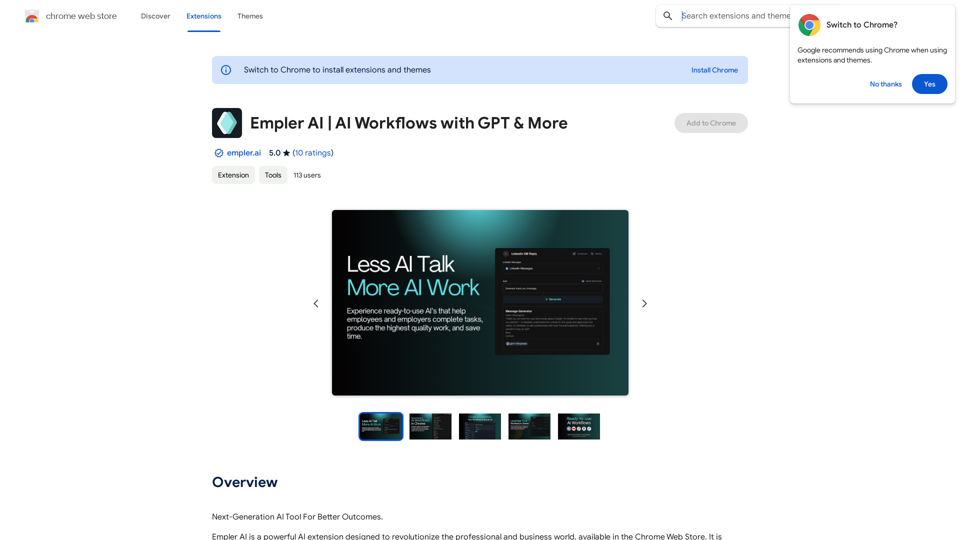
Introduction
Feature
AI-Powered Content Generation
Empler AI utilizes advanced AI models like GPT, Claude, and Mixtral to create high-quality content quickly and efficiently for various purposes.
Multi-Platform Compatibility
The extension provides ready-made templates for LinkedIn and other platforms, allowing users to automate workflows across different online environments.
Customizable Workflows
Users can create and customize their own workflows through the Empler AI website, which are automatically added to the Chrome plugin.
Ready-to-Use Templates
Empler AI offers a wide range of pre-made templates for various tasks, including:
- Web-based tools: Rewriter, Summarizer, Explainer, Translator, Grammar Checker, Paragraph Merger, Text Shortener, and Sentence Expander
- LinkedIn-specific templates: For posts, articles, profiles, and messages
User-Friendly Interface
The extension provides an intuitive experience suitable for users of all skill levels.
Flexible AI Models
Users can choose from multiple AI models, including GPT and Mixtral AI, to suit their specific needs.
Workflow Sharing
Created workflows can be shared with other users, promoting collaboration and efficiency.
Scheduled Automation
Workflows can be set to run instantly or on a time-based schedule, allowing for regular background operations.
FAQ
How do I use Empler AI?
- Install the extension from the Chrome Web Store
- Navigate to the desired platform (e.g., LinkedIn)
- Input information into form fields or use the Goal field
- Click the Generate button to receive AI-generated responses
What are the privacy and security measures of Empler AI?
Empler AI prioritizes user privacy by:
- Not sharing data with third parties
- Avoiding advertisements
- Providing a detailed privacy policy on their website
How can I create custom workflows?
Custom workflows can be created at https://empler.ai, featuring:
- Customizable form fields
- Various workflow elements (AI models, web scrapers)
- Over 50 ready-to-use prompts
- The ability to chain multiple AI tasks
What are the benefits of using Empler AI?
- Time savings through automated content creation and engagement
- Increased productivity via workflow automation
- Enhanced network expansion and brand strengthening
How can I get support for Empler AI?
For support, users can contact the Empler AI team at [email protected].
Related Websites
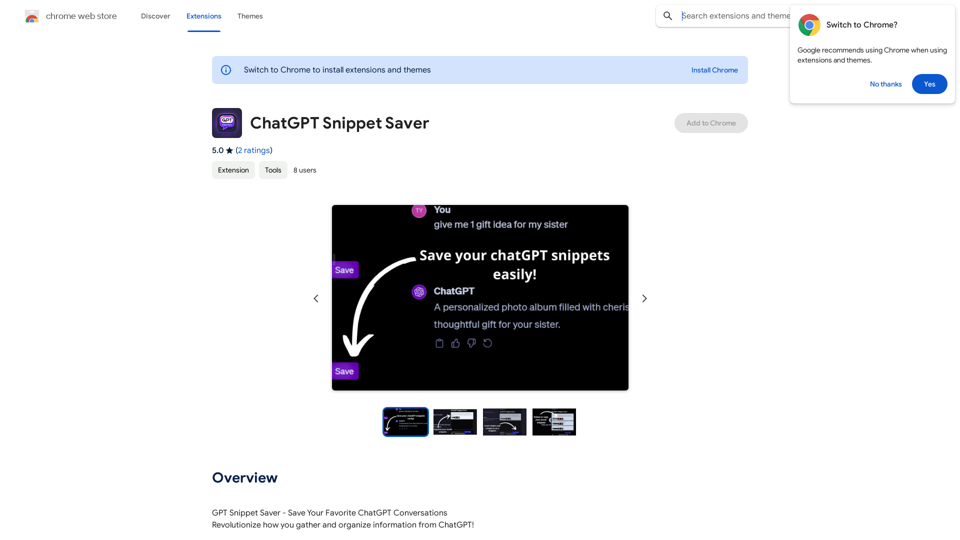
ChatGPT Snippet Saver This is a simple tool to save snippets from your ChatGPT conversations. How to Use: 1. Copy the text snippet you want to save from your ChatGPT conversation. 2. Paste the text into the input box below. 3. Click the "Save Snippet" button. Your snippet will be saved to your local storage. You can access your saved snippets later by clicking the "View Saved Snippets" button.
ChatGPT Snippet Saver This is a simple tool to save snippets from your ChatGPT conversations. How to Use: 1. Copy the text snippet you want to save from your ChatGPT conversation. 2. Paste the text into the input box below. 3. Click the "Save Snippet" button. Your snippet will be saved to your local storage. You can access your saved snippets later by clicking the "View Saved Snippets" button.GPT Snippet Saver - Save Your Favorite ChatGPT Conversations Revolutionize how you gather and organize information from ChatGPT! - Effortlessly capture and store your most valuable ChatGPT interactions. - Organize your saved conversations by topic, date, or any custom tag. - Easily search and retrieve specific snippets from your saved history. - Share your favorite ChatGPT insights with others. - Never lose track of a brilliant idea or helpful response again.
193.90 M
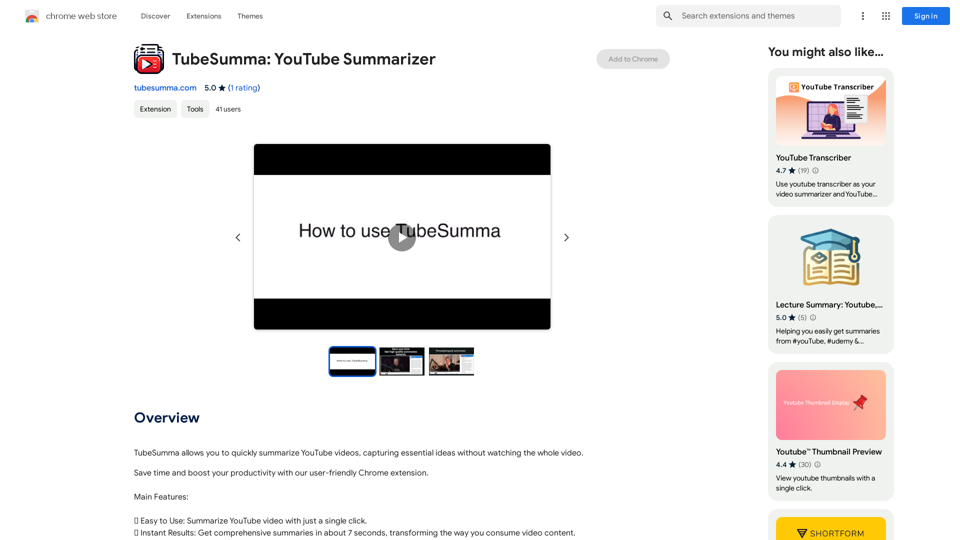
TubeSumma lets you quickly summarize YouTube videos, grabbing the main points without having to watch the entire thing.
193.90 M
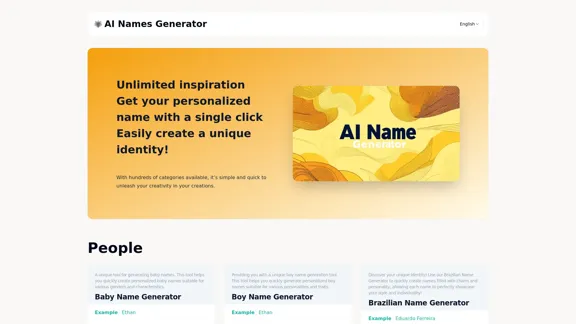
Explore our name generator to easily create unique names! Whether it's for a business name or a character name, we offer a wide variety of options, and each name comes with a detailed meaning. Try it now to discover creative names that add charm to your projects or pets!
6.03 K
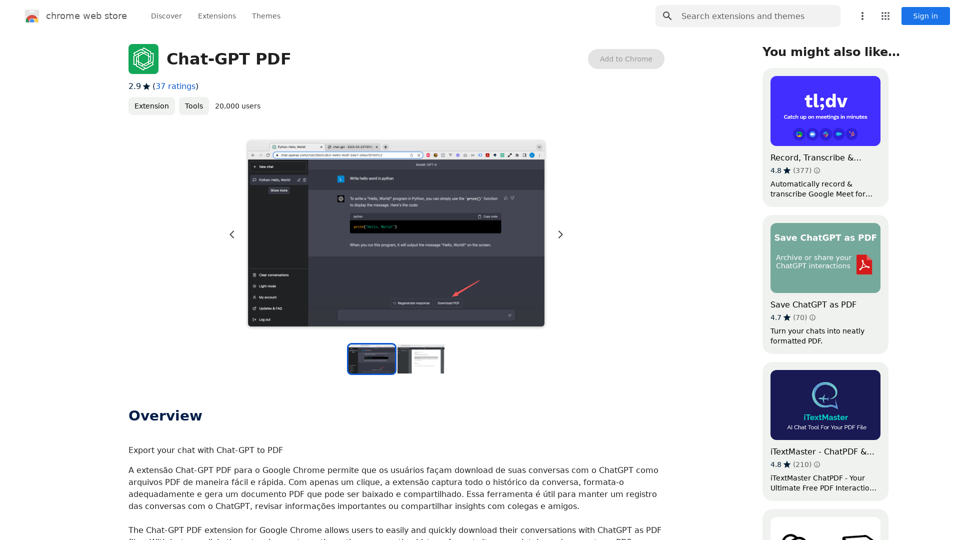
Chat-GPT PDF What is Chat-GPT PDF? Chat-GPT PDF is a tool that allows users to generate PDF files from Chat-GPT conversations. This innovative tool enables users to save and share their conversations in a more organized and visually appealing format. How does Chat-GPT PDF work? The process is simple and straightforward. Here's a step-by-step guide: 1. Copy the conversation: Copy the entire conversation from the Chat-GPT platform. 2. Paste the conversation: Paste the copied conversation into the Chat-GPT PDF tool. 3. Customize the layout: Customize the layout, font, and design of the PDF file according to your preferences. 4. Generate the PDF: Click the "Generate PDF" button to create a downloadable PDF file. Features of Chat-GPT PDF Chat-GPT PDF offers several features that make it an essential tool for users: * Customizable layout: Customize the layout, font, and design of the PDF file to suit your needs. * Easy sharing: Share the PDF file with others via email, social media, or messaging apps. * Offline access: Access your conversations offline, even without an internet connection. * Organization: Organize your conversations in a neat and tidy format, making it easier to review and reference. Benefits of Chat-GPT PDF The benefits of using Chat-GPT PDF are numerous: * Improved productivity: Save time and increase productivity by having all your conversations in one place. * Enhanced collaboration: Collaborate with others more effectively by sharing conversations in a clear and concise format. * Better organization: Keep your conversations organized, making it easier to review and reference them later. Conclusion Chat-GPT PDF is a game-changer for anyone who uses Chat-GPT regularly. With its ease of use, customization options, and benefits, it's an essential tool for anyone looking to get the most out of their conversations.
Chat-GPT PDF What is Chat-GPT PDF? Chat-GPT PDF is a tool that allows users to generate PDF files from Chat-GPT conversations. This innovative tool enables users to save and share their conversations in a more organized and visually appealing format. How does Chat-GPT PDF work? The process is simple and straightforward. Here's a step-by-step guide: 1. Copy the conversation: Copy the entire conversation from the Chat-GPT platform. 2. Paste the conversation: Paste the copied conversation into the Chat-GPT PDF tool. 3. Customize the layout: Customize the layout, font, and design of the PDF file according to your preferences. 4. Generate the PDF: Click the "Generate PDF" button to create a downloadable PDF file. Features of Chat-GPT PDF Chat-GPT PDF offers several features that make it an essential tool for users: * Customizable layout: Customize the layout, font, and design of the PDF file to suit your needs. * Easy sharing: Share the PDF file with others via email, social media, or messaging apps. * Offline access: Access your conversations offline, even without an internet connection. * Organization: Organize your conversations in a neat and tidy format, making it easier to review and reference. Benefits of Chat-GPT PDF The benefits of using Chat-GPT PDF are numerous: * Improved productivity: Save time and increase productivity by having all your conversations in one place. * Enhanced collaboration: Collaborate with others more effectively by sharing conversations in a clear and concise format. * Better organization: Keep your conversations organized, making it easier to review and reference them later. Conclusion Chat-GPT PDF is a game-changer for anyone who uses Chat-GPT regularly. With its ease of use, customization options, and benefits, it's an essential tool for anyone looking to get the most out of their conversations.Exporting Chat History to PDF You can export your chat history with Chat-GPT to a PDF file using the following methods: #Method 1: Browser Print Function 1. Open your chat conversation with Chat-GPT in a web browser. 2. Press `Ctrl + P` (Windows) or `Cmd + P` (Mac) to open the print dialog box. 3. Select "Save as PDF" as the printer destination. 4. Choose a location to save the PDF file and set the file name. 5. Click "Save" to export the chat history to a PDF file. #Method 2: Online PDF Conversion Tools 1. Copy the entire chat conversation by pressing `Ctrl + A` (Windows) or `Cmd + A` (Mac) and then `Ctrl + C` (Windows) or `Cmd + C` (Mac). 2. Go to an online PDF conversion tool, such as SmallPDF or Convertio. 3. Paste the chat conversation into the conversion tool's text box. 4. Select the PDF format and click "Convert" to generate the PDF file. 5. Download the PDF file to your computer. #Method 3: Browser Extensions 1. Install a browser extension, such as Print Friendly & PDF or FireShot, that allows you to save web pages as PDF files. 2. Open your chat conversation with Chat-GPT in a web browser. 3. Click the browser extension's icon in the toolbar. 4. Select the "Save as PDF" option and choose a location to save the file. 5. Click "Save" to export the chat history to a PDF file. By following these methods, you can easily export your chat history with Chat-GPT to a PDF file for future reference or sharing.
193.90 M
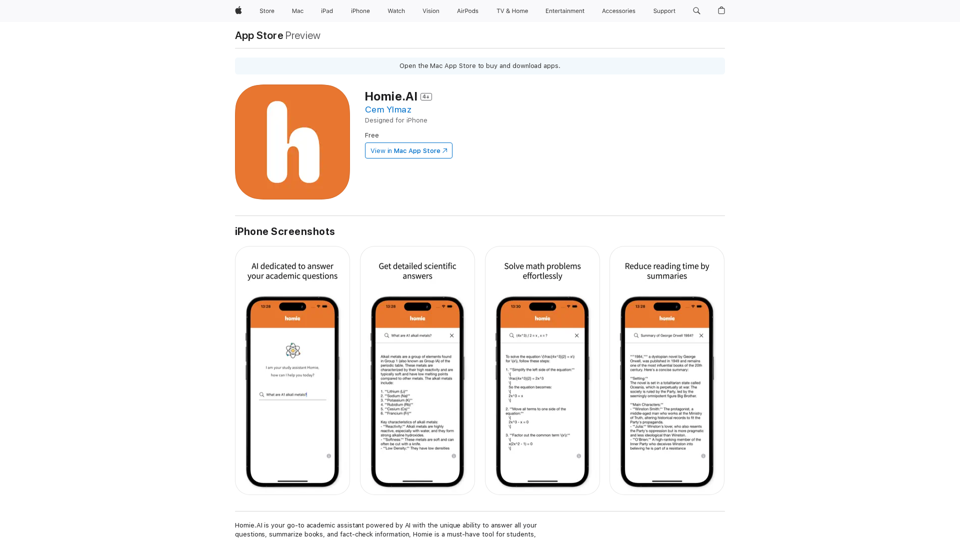
Homie.AI is your go-to academic assistant powered by AI with the unique ability to answer all your questions, summarize books, and fact-check information, Homie is always here to help you with your academic needs.
124.77 M
Please provide the text you want to translate into English.
Please provide the text you want to translate into English.This extension empowers users with AI, swiftly producing answers, replies, and essays on any topic.
193.90 M