Open-source RightAI Tools Directory
  • Discover AI
  • Submit
  • Startup
  • Blog
Open-source RightAI Tools Directory
Discover the best AI tools of 2025 with the RightAI Tools Directory!

Friend Links

AI Anime GeneratorToolsApp AI

Support

Tap4
Privacy policyTerms & ConditionsContact Us
Loading...
loading...

Door Insight AI Assistant

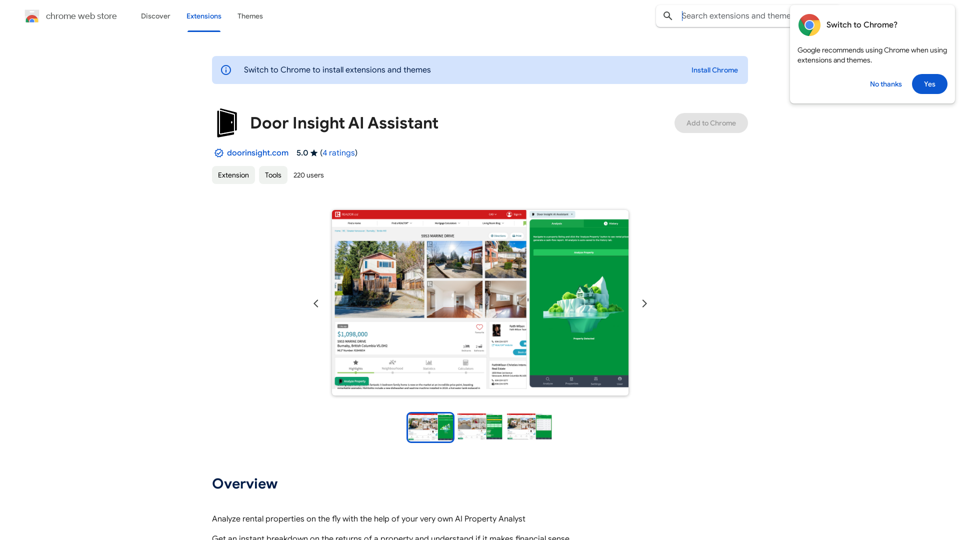
Analyze rental properties in real time with your personal AI Property Analyst.
Visit Website
Door Insight AI Assistant
Visit Website

Introduction

Door Insight AI Assistant is a powerful AI-driven platform designed for real estate analysis. It offers instant property evaluations, providing users with comprehensive financial breakdowns and return assessments. This tool is particularly useful for analyzing rental properties, making it an invaluable resource for real estate professionals and investors.

Feature

Rent Estimate

Door Insight AI Assistant leverages Canada's largest rent database to provide accurate rent estimates for any property.

Cap Rate Calculation

The platform automatically calculates the capitalization rate, a crucial metric for real estate investors to assess property profitability.

Monthly Cash Flow Analysis

Users receive detailed breakdowns of monthly cash flows for properties, offering clear insights into potential returns.

Comprehensive Expense Consideration

The tool factors in all associated property expenses, ensuring a thorough understanding of financial performance.

Report Generation

Door Insight AI Assistant enables users to generate on-the-fly reports, delivering detailed property financial performance breakdowns.

Browser Extension

The platform is easily accessible through a browser extension, providing instant access to its AI-powered tools for real estate analysis.

Daily Free Usage

Users can benefit from daily free uses of the AI-powered tools, allowing exploration of various real estate analysis tasks.

Data Security and Privacy

Door Insight AI Assistant prioritizes user data security and privacy, ensuring information is not used for training purposes and offering account deletion options.

FAQ

How many users have benefited from Door Insight AI Assistant?

Thousands of real estate professionals have utilized Door Insight AI Assistant to make informed decisions when analyzing rental properties.

What are the benefits of subscribing to Door Insight AI Assistant?

Subscribing grants additional benefits and extended access beyond the free usage limits, making it an essential tool for real estate professionals.

How can I maximize my use of Door Insight AI Assistant?

By leveraging the daily free uses of Door Insight AI Assistant's AI-powered tools, you can explore a vast range of AI-powered tools to support various tasks in real estate analysis.

Latest Traffic Insights

  • Monthly Visits

    193.90 M

  • Bounce Rate

    56.27%

  • Pages Per Visit

    2.71

  • Time on Site(s)

    115.91

  • Global Rank

    -

  • Country Rank

    -

Recent Visits

Traffic Sources

  • Social Media:
    0.48%
  • Paid Referrals:
    0.55%
  • Email:
    0.15%
  • Referrals:
    12.81%
  • Search Engines:
    16.21%
  • Direct:
    69.81%
More Data

Related Websites

Integrating Copilot (Bing Chat)
View Detail

Integrating Copilot (Bing Chat)

Integrating Copilot (Bing Chat)

🗨️ Microsoft Copilot provides answers alongside Google search results.

193.90 M
AI Prompt Manager
View Detail

AI Prompt Manager

AI Prompt Manager

AI Prompt Manager: Store and manage GPT prompts. Sleek user interface, easy search and sharing. Maximize the potential of GPT.

193.90 M
Converting JPG Images to Text

Converting a JPG image to text is a process known as Optical Character Recognition (OCR). This technology enables you to extract text from images, scanned documents, and photos. Here's how to do it:

Method 1: Online OCR Tools

You can use online OCR tools to convert JPG images to text. Here are the steps:

1. Upload your JPG image: Go to an online OCR tool website, such as Online OCR Tools or OCR.space, and upload your JPG image.
2. Select the language: Choose the language of the text in your image.
3. Click on "Convert": The tool will convert the image to text.
4. Download the text: You can download the extracted text as a Word document, PDF, or plain text file.

Method 2: Google Drive

You can also use Google Drive to convert JPG images to text. Here's how:

1. Upload your JPG image: Upload your JPG image to Google Drive.
2. Right-click on the image: Right-click on the uploaded image and select "Open with" > "Google Docs".
3. The image will be converted: Google Docs will automatically convert the image to text.
4. Edit and download: You can edit the extracted text and download it as a Word document or PDF.

Method 3: Adobe Acrobat

If you have Adobe Acrobat installed on your computer, you can use it to convert JPG images to text. Here's how:

1. Open Adobe Acrobat: Open Adobe Acrobat on your computer.
2. Create a new document: Create a new document and click on "Tools" > "Recognize Text".
3. Select the image: Select the JPG image you want to convert.
4. Click on "Recognize": Adobe Acrobat will convert the image to text.
5. Edit and save: You can edit the extracted text and save it as a Word document or PDF.

These are the three methods to convert JPG images to text. Choose the method that works best for you!
View Detail

Converting JPG Images to Text Converting a JPG image to text is a process known as Optical Character Recognition (OCR). This technology enables you to extract text from images, scanned documents, and photos. Here's how to do it: Method 1: Online OCR Tools You can use online OCR tools to convert JPG images to text. Here are the steps: 1. Upload your JPG image: Go to an online OCR tool website, such as Online OCR Tools or OCR.space, and upload your JPG image. 2. Select the language: Choose the language of the text in your image. 3. Click on "Convert": The tool will convert the image to text. 4. Download the text: You can download the extracted text as a Word document, PDF, or plain text file. Method 2: Google Drive You can also use Google Drive to convert JPG images to text. Here's how: 1. Upload your JPG image: Upload your JPG image to Google Drive. 2. Right-click on the image: Right-click on the uploaded image and select "Open with" > "Google Docs". 3. The image will be converted: Google Docs will automatically convert the image to text. 4. Edit and download: You can edit the extracted text and download it as a Word document or PDF. Method 3: Adobe Acrobat If you have Adobe Acrobat installed on your computer, you can use it to convert JPG images to text. Here's how: 1. Open Adobe Acrobat: Open Adobe Acrobat on your computer. 2. Create a new document: Create a new document and click on "Tools" > "Recognize Text". 3. Select the image: Select the JPG image you want to convert. 4. Click on "Recognize": Adobe Acrobat will convert the image to text. 5. Edit and save: You can edit the extracted text and save it as a Word document or PDF. These are the three methods to convert JPG images to text. Choose the method that works best for you!

Converting JPG Images to Text Converting a JPG image to text is a process known as Optical Character Recognition (OCR). This technology enables you to extract text from images, scanned documents, and photos. Here's how to do it: Method 1: Online OCR Tools You can use online OCR tools to convert JPG images to text. Here are the steps: 1. Upload your JPG image: Go to an online OCR tool website, such as Online OCR Tools or OCR.space, and upload your JPG image. 2. Select the language: Choose the language of the text in your image. 3. Click on "Convert": The tool will convert the image to text. 4. Download the text: You can download the extracted text as a Word document, PDF, or plain text file. Method 2: Google Drive You can also use Google Drive to convert JPG images to text. Here's how: 1. Upload your JPG image: Upload your JPG image to Google Drive. 2. Right-click on the image: Right-click on the uploaded image and select "Open with" > "Google Docs". 3. The image will be converted: Google Docs will automatically convert the image to text. 4. Edit and download: You can edit the extracted text and download it as a Word document or PDF. Method 3: Adobe Acrobat If you have Adobe Acrobat installed on your computer, you can use it to convert JPG images to text. Here's how: 1. Open Adobe Acrobat: Open Adobe Acrobat on your computer. 2. Create a new document: Create a new document and click on "Tools" > "Recognize Text". 3. Select the image: Select the JPG image you want to convert. 4. Click on "Recognize": Adobe Acrobat will convert the image to text. 5. Edit and save: You can edit the extracted text and save it as a Word document or PDF. These are the three methods to convert JPG images to text. Choose the method that works best for you!

It is an online tool that uses Optical Character Recognition (OCR) to make it possible to extract text from images in JPG format.

193.90 M
TLDR.AI
View Detail

TLDR.AI

TLDR.AI

Say goodbye to information overload

193.90 M
corrAI - Correct and Translate
View Detail

corrAI - Correct and Translate

corrAI - Correct and Translate

Allows you to correct or translate text without changing the meaning, style, and original ideas.

193.90 M
MIA - Writing Assistant
View Detail

MIA - Writing Assistant

MIA - Writing Assistant

Write Faster, Better, and More Engaging Content On LinkedIn and Medium Tired of staring at a blank page? We've all been there. But what if you could write compelling content for LinkedIn and Medium with ease? Here's how: * Find Your Niche: What are you passionate about? What do you know a lot about? Focus your writing on topics that genuinely interest you. * Craft a Killer Headline: Your headline is your first impression. Make it catchy, clear, and benefit-driven. * Structure for Success: Use headings, subheadings, and bullet points to break up your text and make it easy to read. * Tell a Story: People connect with stories. Weave narratives into your content to make it more engaging. * Keep it Concise: Get to the point quickly. People have short attention spans, so respect their time. * Use Visuals: Images, videos, and infographics can break up text and make your content more visually appealing. * Proofread Carefully: Typos and grammatical errors can damage your credibility. Always proofread your work before publishing. * Promote Your Content: Share your articles on social media and engage with your audience in the comments. By following these tips, you can write faster, better, and more engaging content for LinkedIn and Medium.

193.90 M
Blinkist AI
View Detail

Blinkist AI

Blinkist AI

Extract the most important information from articles, PDFs, podcasts, and YouTube videos.

193.90 M
Octoparse VOC - AI Review Research & Analysis 

This is a document outlining the research and analysis conducted on user voice (VOC) data using Octoparse's AI capabilities.
View Detail

Octoparse VOC - AI Review Research & Analysis This is a document outlining the research and analysis conducted on user voice (VOC) data using Octoparse's AI capabilities.

Octoparse VOC - AI Review Research & Analysis This is a document outlining the research and analysis conducted on user voice (VOC) data using Octoparse's AI capabilities.

AI Consumer Review Research Extension by Octoparse.

193.90 M