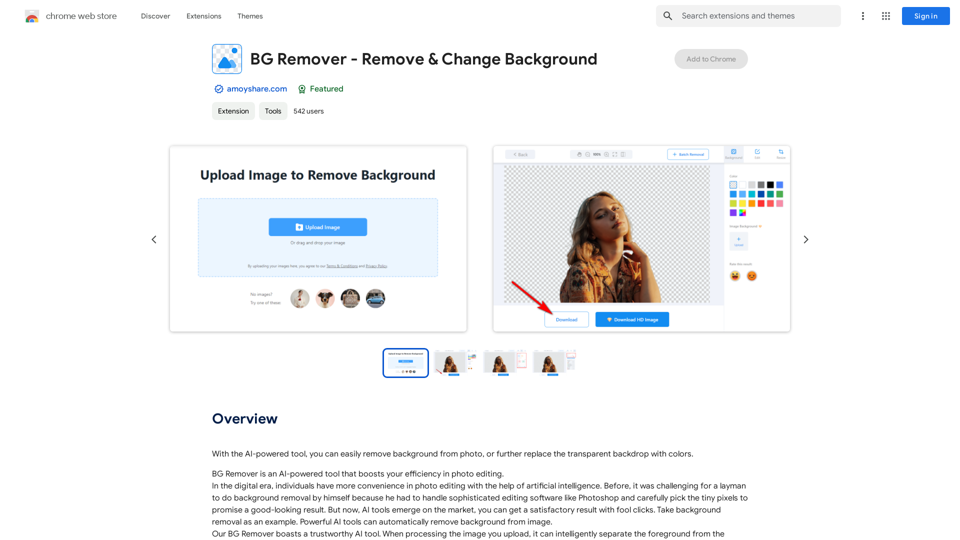
BG Remover is an AI-powered tool designed for effortless background removal from photos. It offers a user-friendly interface, allowing users to achieve professional-looking results with just a few clicks. This tool is versatile, catering to e-commerce, personal use, and graphic design needs. BG Remover stands out for its efficiency, precision, and time-saving capabilities, making photo editing accessible to everyone.
BG Remover - Remove and Change Background
With the AI-powered tool, you can easily remove the background from a photo, or further replace the transparent backdrop with colors.
Introduction
Feature
AI-Powered Background Removal
The tool utilizes advanced artificial intelligence to precisely cut out subjects from backgrounds within seconds, ensuring clean and accurate results.
User-Friendly Interface
BG Remover boasts an intuitive layout with a prominent "Upload image" button, making the process straightforward for users of all skill levels.
Time-Saving Solution
Eliminates the need for manual pixel selection, delivering impeccable removal results quickly and efficiently.
Batch Processing
Offers batch background removal for up to 50 images simultaneously, ideal for e-commerce and bulk editing needs.
Versatile Applications
Suitable for e-commerce product photos, personal use (e.g., social media profile pictures), and graphic design projects.
Free to Use
BG Remover is a free extension, requiring no subscription or payment for usage.
Transparent Background Output
Processed images are provided with a transparent background, ready for further editing or use.
FAQ
How does BG Remover work?
BG Remover employs AI technology to automatically detect and remove the background from uploaded images, providing a transparent backdrop for the main subject.
Is BG Remover suitable for professional use?
Yes, BG Remover is suitable for professional use, especially in e-commerce and graphic design. Its batch processing feature allows handling up to 50 images at once, making it efficient for large-scale projects.
Can I add a new background after removing the original one?
While the main feature is background removal, many users utilize the transparent output to add new backgrounds in other editing software, enhancing their photos for various purposes like social media profiles.
What file formats are supported by BG Remover?
The specific file formats supported are not mentioned in the provided content. It's recommended to check the tool's documentation or support page for detailed information on compatible file types.
Is there a limit to the number of images I can process?
For batch processing, BG Remover allows up to 50 images at a time. There's no mentioned limit for individual image processing.
Related Websites
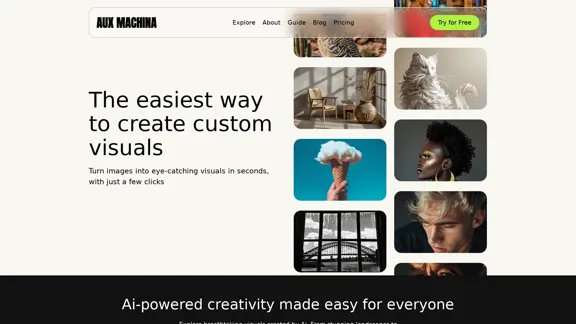
Ai Workout Generator ===================== What is an AI Workout Generator? An AI workout generator is a tool that uses artificial intelligence to create personalized workout plans tailored to an individual's fitness goals, fitness level, and preferences. How does it work? The AI workout generator uses machine learning algorithms to analyze a user's input data, such as their fitness goals, fitness level, and exercise preferences. It then generates a customized workout plan that includes a series of exercises, sets, reps, and weights tailored to the user's specific needs. Benefits of using an AI Workout Generator * Personalized workouts: The AI workout generator creates a workout plan that is tailored to the user's specific fitness goals and fitness level. * Time-saving: The AI workout generator saves time by eliminating the need to research and create a workout plan from scratch. * Increased motivation: The AI workout generator provides a sense of accountability and motivation, as users are more likely to stick to a workout plan that is tailored to their specific needs. * Improved results: The AI workout generator helps users achieve their fitness goals faster and more efficiently, as the workout plan is optimized for their specific needs. How to use an AI Workout Generator 1. Input your data: Enter your fitness goals, fitness level, and exercise preferences into the AI workout generator. 2. Select your workout type: Choose the type of workout you want to do, such as strength training, cardio, or yoga. 3. Generate your workout plan: The AI workout generator will create a customized workout plan tailored to your specific needs. 4. Start your workout: Follow the workout plan and track your progress. Conclusion An AI workout generator is a powerful tool that can help individuals achieve their fitness goals faster and more efficiently. By providing personalized workout plans, the AI workout generator saves time, increases motivation, and improves results. Whether you're a beginner or an experienced athlete, an AI workout generator can help you take your fitness to the next level.
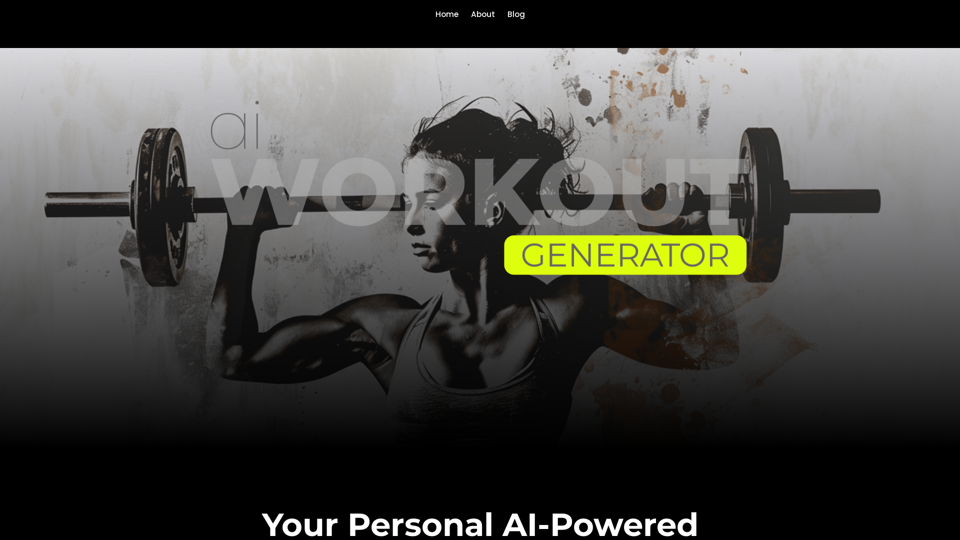
Ai Workout Generator ===================== What is an AI Workout Generator? An AI workout generator is a tool that uses artificial intelligence to create personalized workout plans tailored to an individual's fitness goals, fitness level, and preferences. How does it work? The AI workout generator uses machine learning algorithms to analyze a user's input data, such as their fitness goals, fitness level, and exercise preferences. It then generates a customized workout plan that includes a series of exercises, sets, reps, and weights tailored to the user's specific needs. Benefits of using an AI Workout Generator * Personalized workouts: The AI workout generator creates a workout plan that is tailored to the user's specific fitness goals and fitness level. * Time-saving: The AI workout generator saves time by eliminating the need to research and create a workout plan from scratch. * Increased motivation: The AI workout generator provides a sense of accountability and motivation, as users are more likely to stick to a workout plan that is tailored to their specific needs. * Improved results: The AI workout generator helps users achieve their fitness goals faster and more efficiently, as the workout plan is optimized for their specific needs. How to use an AI Workout Generator 1. Input your data: Enter your fitness goals, fitness level, and exercise preferences into the AI workout generator. 2. Select your workout type: Choose the type of workout you want to do, such as strength training, cardio, or yoga. 3. Generate your workout plan: The AI workout generator will create a customized workout plan tailored to your specific needs. 4. Start your workout: Follow the workout plan and track your progress. Conclusion An AI workout generator is a powerful tool that can help individuals achieve their fitness goals faster and more efficiently. By providing personalized workout plans, the AI workout generator saves time, increases motivation, and improves results. Whether you're a beginner or an experienced athlete, an AI workout generator can help you take your fitness to the next level.AI generated workouts reviewed and Approved by American College of Sports Medicine certified Personal Trainers.
3.30 K
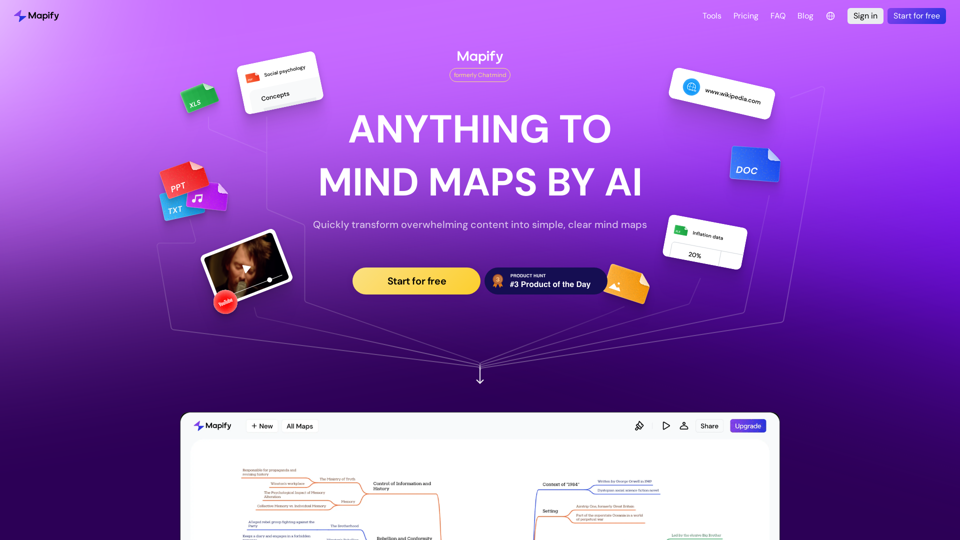
Mapify: Transform Anything to Mind Maps by AI, formerly Chatmind
Mapify: Transform Anything to Mind Maps by AI, formerly ChatmindMapify, upgraded from Chatmind by the Xmind Team, is a free online mind mapping and brainstorming tool powered by AI. It can summarize PDF, Word, PowerPoint, YouTube, long text, and images into mind maps in just a few minutes.
1.15 M
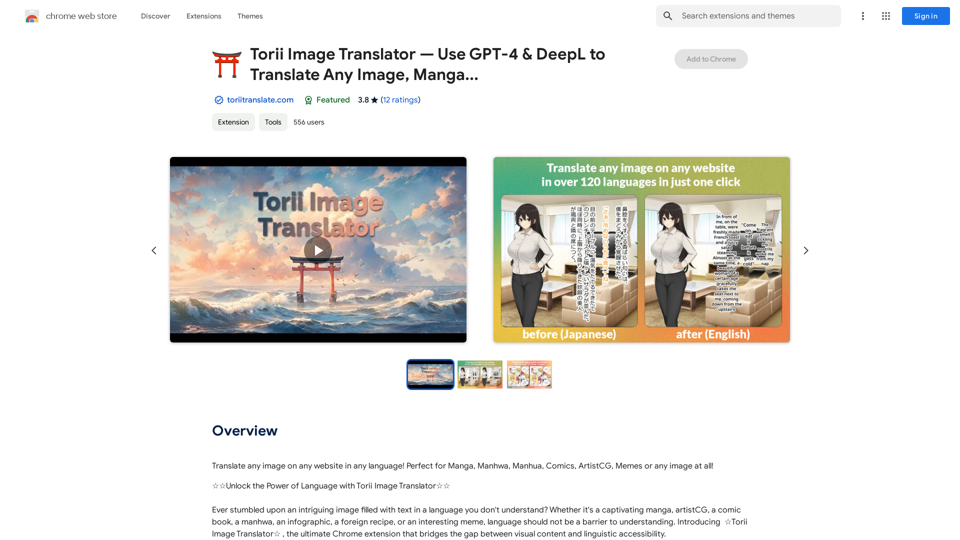
Torii Image Translator — Use GPT-4 & DeepL to Translate Any Image, Manga...
Torii Image Translator — Use GPT-4 & DeepL to Translate Any Image, Manga...Translate any image on any website into any language! Perfect for Manga, Manhwa, Manhua, Comics, ArtistCG, Memes, or any image at all!
193.90 M
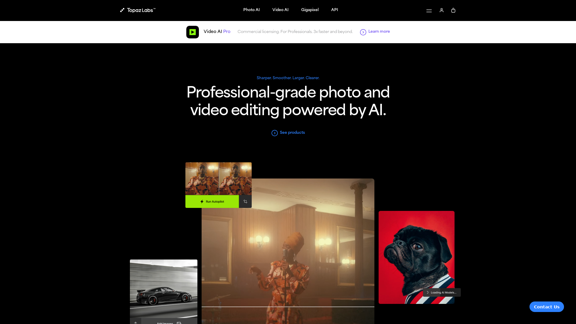
Topaz Labs | Professional-level photo and video editing powered by AI.
Topaz Labs | Professional-level photo and video editing powered by AI.Deep learning-powered photo and video enhancement software delivers the highest image quality available for noise reduction, sharpening, upscaling, and additional improvements.
3.12 M
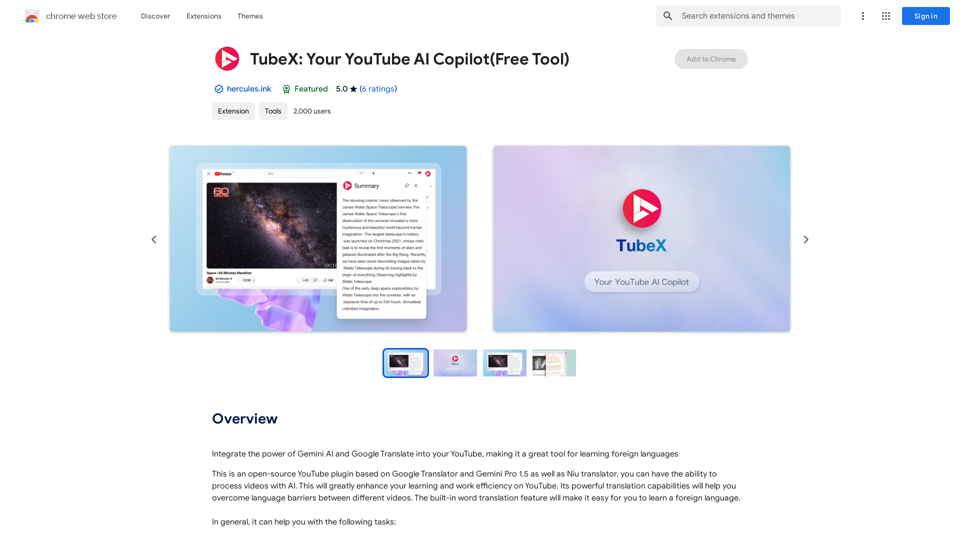
Integrate the power of Gemini AI and Google Translate into your YouTube, making it a great tool for learning foreign languages
193.90 M
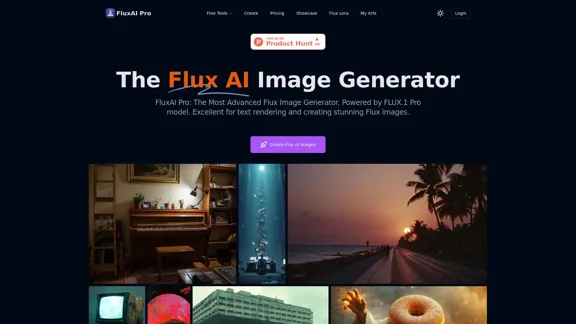
FluxAI Pro: Superior Flux Image Generator with exceptional text rendering. Powered by FLUX.1 Pro, Dev, Schnell and Realism models.
171.41 K

2. Understanding the Basics
* `/imagine` Command: This is the core command for generating images.
* Prompt: A text description of the artwork you want to create. Be specific and descriptive!
* Parameters: Options that control aspects like image size, aspect ratio, and style.
3. Crafting Your Journey Prompt
Think about the story you want to tell with your artwork.
* Setting: Where does your journey take place? (e.g., a mystical forest, a futuristic city, a desolate wasteland)
* Characters: Who is on this journey? (e.g., a lone traveler, a group of adventurers, mythical creatures)
* Mood: What feeling do you want to evoke? (e.g., adventurous, mysterious, hopeful, melancholic)
* Style: What artistic style appeals to you? (e.g., photorealistic, painterly, abstract)
4. Putting it Together
Combine these elements into a clear and concise prompt.
Example:
`/imagine A lone traveler journeys through a mystical forest at sunset, bathed in golden light. The path ahead is shrouded in mist, hinting at unknown wonders. Style: painterly, ethereal`
5. Experiment and Refine
* Midjourney is all about experimentation! Try different prompts, parameters, and styles.
* Use the "upscale" command to enlarge your favorite images and reveal more detail.
* Don't be afraid to iterate and refine your prompts based on the results.](https://static.right-ai.com/tools/2024/7/4/chromewebstore-google-com-detail-journey-artprompt-with-mi-pfjhhefanfhdijppdppillliedgaehko-thumbnail-1720092379.png "Journey ArtPrompt with Midjourney
This guide will walk you through creating stunning artwork using Midjourney, a powerful AI art generator.
1. Accessing Midjourney
* You'll need a Discord account to use Midjourney.
* Join the official Midjourney server: [https://discord.gg/midjourney](https://discord.gg/midjourney)
2. Understanding the Basics
* `/imagine` Command: This is the core command for generating images.
* Prompt: A text description of the artwork you want to create. Be specific and descriptive!
* Parameters: Options that control aspects like image size, aspect ratio, and style.
3. Crafting Your Journey Prompt
Think about the story you want to tell with your artwork.
* Setting: Where does your journey take place? (e.g., a mystical forest, a futuristic city, a desolate wasteland)
* Characters: Who is on this journey? (e.g., a lone traveler, a group of adventurers, mythical creatures)
* Mood: What feeling do you want to evoke? (e.g., adventurous, mysterious, hopeful, melancholic)
* Style: What artistic style appeals to you? (e.g., photorealistic, painterly, abstract)
4. Putting it Together
Combine these elements into a clear and concise prompt.
Example:
`/imagine A lone traveler journeys through a mystical forest at sunset, bathed in golden light. The path ahead is shrouded in mist, hinting at unknown wonders. Style: painterly, ethereal`
5. Experiment and Refine
* Midjourney is all about experimentation! Try different prompts, parameters, and styles.
* Use the \"upscale\" command to enlarge your favorite images and reveal more detail.
* Don't be afraid to iterate and refine your prompts based on the results.")
Journey ArtPrompt with Midjourney This guide will walk you through creating stunning artwork using Midjourney, a powerful AI art generator. 1. Accessing Midjourney * You'll need a Discord account to use Midjourney. * Join the official Midjourney server: [https://discord.gg/midjourney](https://discord.gg/midjourney) 2. Understanding the Basics * `/imagine` Command: This is the core command for generating images. * Prompt: A text description of the artwork you want to create. Be specific and descriptive! * Parameters: Options that control aspects like image size, aspect ratio, and style. 3. Crafting Your Journey Prompt Think about the story you want to tell with your artwork. * Setting: Where does your journey take place? (e.g., a mystical forest, a futuristic city, a desolate wasteland) * Characters: Who is on this journey? (e.g., a lone traveler, a group of adventurers, mythical creatures) * Mood: What feeling do you want to evoke? (e.g., adventurous, mysterious, hopeful, melancholic) * Style: What artistic style appeals to you? (e.g., photorealistic, painterly, abstract) 4. Putting it Together Combine these elements into a clear and concise prompt. Example: `/imagine A lone traveler journeys through a mystical forest at sunset, bathed in golden light. The path ahead is shrouded in mist, hinting at unknown wonders. Style: painterly, ethereal` 5. Experiment and Refine * Midjourney is all about experimentation! Try different prompts, parameters, and styles. * Use the "upscale" command to enlarge your favorite images and reveal more detail. * Don't be afraid to iterate and refine your prompts based on the results.
Journey ArtPrompt with Midjourney This guide will walk you through creating stunning artwork using Midjourney, a powerful AI art generator. 1. Accessing Midjourney * You'll need a Discord account to use Midjourney. * Join the official Midjourney server: [https://discord.gg/midjourney](https://discord.gg/midjourney) 2. Understanding the Basics * `/imagine` Command: This is the core command for generating images. * Prompt: A text description of the artwork you want to create. Be specific and descriptive! * Parameters: Options that control aspects like image size, aspect ratio, and style. 3. Crafting Your Journey Prompt Think about the story you want to tell with your artwork. * Setting: Where does your journey take place? (e.g., a mystical forest, a futuristic city, a desolate wasteland) * Characters: Who is on this journey? (e.g., a lone traveler, a group of adventurers, mythical creatures) * Mood: What feeling do you want to evoke? (e.g., adventurous, mysterious, hopeful, melancholic) * Style: What artistic style appeals to you? (e.g., photorealistic, painterly, abstract) 4. Putting it Together Combine these elements into a clear and concise prompt. Example: `/imagine A lone traveler journeys through a mystical forest at sunset, bathed in golden light. The path ahead is shrouded in mist, hinting at unknown wonders. Style: painterly, ethereal` 5. Experiment and Refine * Midjourney is all about experimentation! Try different prompts, parameters, and styles. * Use the "upscale" command to enlarge your favorite images and reveal more detail. * Don't be afraid to iterate and refine your prompts based on the results.New backgrounds with Midjourney on new tabs
193.90 M