Open-source RightAI Tools Directory
  • Discover AI
  • Submit
  • Startup
  • Blog
Open-source RightAI Tools Directory
Discover the best AI tools of 2025 with the RightAI Tools Directory!

Friend Links

AI Anime GeneratorToolsApp AI

Support

Tap4
Privacy policyTerms & ConditionsContact Us
Loading...
loading...

Picky Conversation

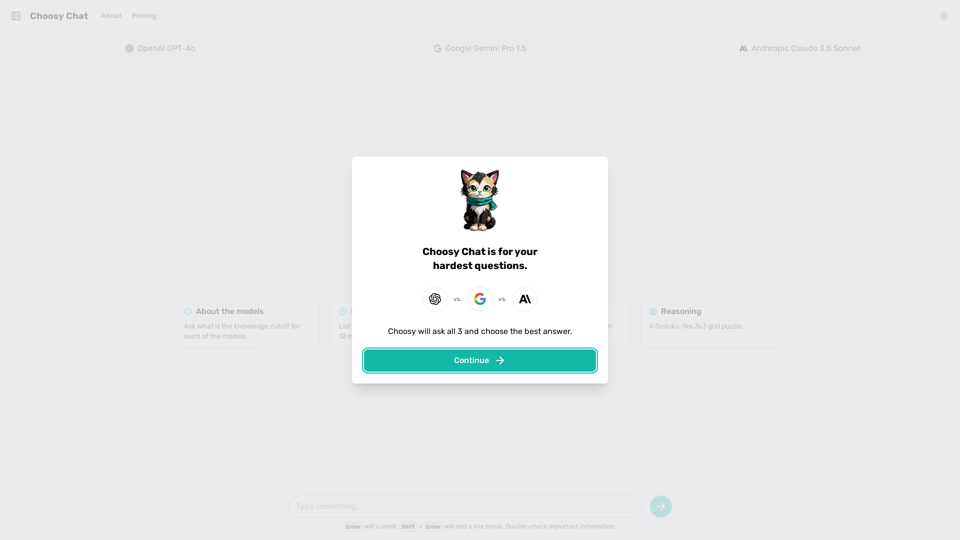
Choosy will choose the best answer between ChatGPT, Gemini, and Claude.
Visit Website
Picky Conversation
Visit Website

Introduction

Choosy Chat is an innovative AI-powered platform that offers users access to multiple advanced AI models, including ChatGPT, GPT-4o, Google Gemini Pro 1.5, and Anthropic Claude 3.5 Sonnet. This versatile tool is designed to help users find optimal solutions to their most challenging questions by leveraging the strengths of various AI technologies.

Feature

Multiple AI Models

Choosy Chat provides access to a range of cutting-edge AI models:

  • OpenAI GPT-4o
  • Google Gemini Pro 1.5
  • Anthropic Claude 3.5 Sonnet

Each model offers unique capabilities and strengths, allowing users to find the most suitable AI assistant for their specific needs.

Knowledge Cutoff Information

Choosy Chat transparently displays the knowledge cutoff for each AI model, indicating the last update of their training data. This feature helps users understand the limitations and context of the information provided by each model.

Recent Knowledge Access

The platform offers up-to-date information on various topics, including:

  • List of Nvidia products released in the past 12 months
  • Detailed specifications of recent Nvidia products

This feature ensures users have access to the latest information in rapidly evolving fields.

Coding and Reasoning Capabilities

Choosy Chat offers advanced functionalities for developers and problem-solvers:

  • Optimized Python code generation for specific problems (e.g., returning prime numbers from an array)
  • Sudoku-like 3x3 grid puzzle solving

These features cater to users seeking technical solutions and logical reasoning assistance.

User-Friendly Interface

The platform boasts a simple and intuitive interface, allowing users to:

  • Ask questions easily
  • Receive answers from multiple AI models
  • Submit questions to get the best answer from all three models

Flexible Pricing Options

Choosy Chat offers various pricing plans to suit different needs:

  • Free plan for casual users
  • Paid subscriptions for more extensive usage

This tiered pricing structure ensures accessibility for a wide range of users.

FAQ

What is the knowledge cutoff for each of the models?

The knowledge cutoff varies for each AI model. Users should check the specific information provided for each model on the Choosy Chat platform to understand the limitations of the information they receive.

How do I use the coding and reasoning features?

To use the coding and reasoning features:

  1. Navigate to the appropriate section in the Choosy Chat interface
  2. For coding, input your specific problem or requirements
  3. For reasoning tasks like the Sudoku-like puzzle, input the puzzle details
  4. The AI will generate optimized code or provide reasoning assistance based on your input

Can I customize my experience with Choosy Chat?

Yes, Choosy Chat offers several customization options:

  • Choose specific AI models for your queries
  • Utilize the multi-model feature to get comprehensive answers
  • Take advantage of recent knowledge updates for specific topics
  • Use the Shift + Enter key combination to format your questions with line breaks

Related Websites
Kimi Copilot - Web Page Summarizer
View Detail

Kimi Copilot - Web Page Summarizer

Kimi Copilot - Web Page Summarizer

Summarize webpage content with one click using Kimi AI.

193.90 M
Infinity AI
View Detail

Infinity AI

Infinity AI

Infinity AI is a revolutionary platform that enables the creation of generative video models focused on people.

158
AIScraper

This is a Python library for scraping data from websites that use the Amazon Interactive Search (AIS) API. 

Features:

* Easy to use: Simply provide a search query and the library will return a list of product results.
* Flexible: You can customize your scraping by specifying filters, such as price range, brand, and category.
* Efficient: The library uses asynchronous requests to speed up the scraping process.
* Reliable: The library is designed to handle rate limits and other website restrictions.

Installation:

```bash
pip install aiscraper
```

Usage:

```python
from aiscraper import AIScraper

Create an instance of the AIScraper class
scraper = AIScraper()

Perform a search for "laptops"
results = scraper.search("laptops")

Print the product titles
for result in results:
    print(result["title"])
```

Documentation:

https://github.com/aiscraper/aiscraper
View Detail

AIScraper This is a Python library for scraping data from websites that use the Amazon Interactive Search (AIS) API. Features: * Easy to use: Simply provide a search query and the library will return a list of product results. * Flexible: You can customize your scraping by specifying filters, such as price range, brand, and category. * Efficient: The library uses asynchronous requests to speed up the scraping process. * Reliable: The library is designed to handle rate limits and other website restrictions. Installation: ```bash pip install aiscraper ``` Usage: ```python from aiscraper import AIScraper Create an instance of the AIScraper class scraper = AIScraper() Perform a search for "laptops" results = scraper.search("laptops") Print the product titles for result in results: print(result["title"]) ``` Documentation: https://github.com/aiscraper/aiscraper

AIScraper This is a Python library for scraping data from websites that use the Amazon Interactive Search (AIS) API. Features: * Easy to use: Simply provide a search query and the library will return a list of product results. * Flexible: You can customize your scraping by specifying filters, such as price range, brand, and category. * Efficient: The library uses asynchronous requests to speed up the scraping process. * Reliable: The library is designed to handle rate limits and other website restrictions. Installation: ```bash pip install aiscraper ``` Usage: ```python from aiscraper import AIScraper Create an instance of the AIScraper class scraper = AIScraper() Perform a search for "laptops" results = scraper.search("laptops") Print the product titles for result in results: print(result["title"]) ``` Documentation: https://github.com/aiscraper/aiscraper

Web scraper, powered by AI! Collect structured data from web pages in just a few clicks! What's new 🔹Simplified data collection…

193.90 M
Adaapt.ai - Simplify and Optimize Your Processes with Automation
View Detail

Adaapt.ai - Simplify and Optimize Your Processes with Automation

Adaapt.ai - Simplify and Optimize Your Processes with Automation

Unlock efficiency and elevate your business with Adaapt.ai - Your partner in automation. Streamline processes effortlessly and boost productivity. Discover cutting-edge solutions tailored for your success.

0
Image and YouTube Video Viewer for GPTs
View Detail

Image and YouTube Video Viewer for GPTs

Image and YouTube Video Viewer for GPTs

This extension changes the links for images and YouTube videos in ChatGPT or GPT messages into tags that show the images and videos directly.

193.90 M
Ketchup.AI on the App Store
View Detail

Ketchup.AI on the App Store

Ketchup.AI on the App Store

Introducing Ketchup.AI, your ultimate cooking assistant powered by AI, designed to revolutionize your culinary experience, offering comprehensive answers for all your cooking needs.

124.77 M
Flashka - Learn faster with AI Flashcards!
View Detail

Flashka - Learn faster with AI Flashcards!

Flashka - Learn faster with AI Flashcards!

Flashka helps you learn by automatically generating flashcards and aiding you in the learning process.

287.56 K
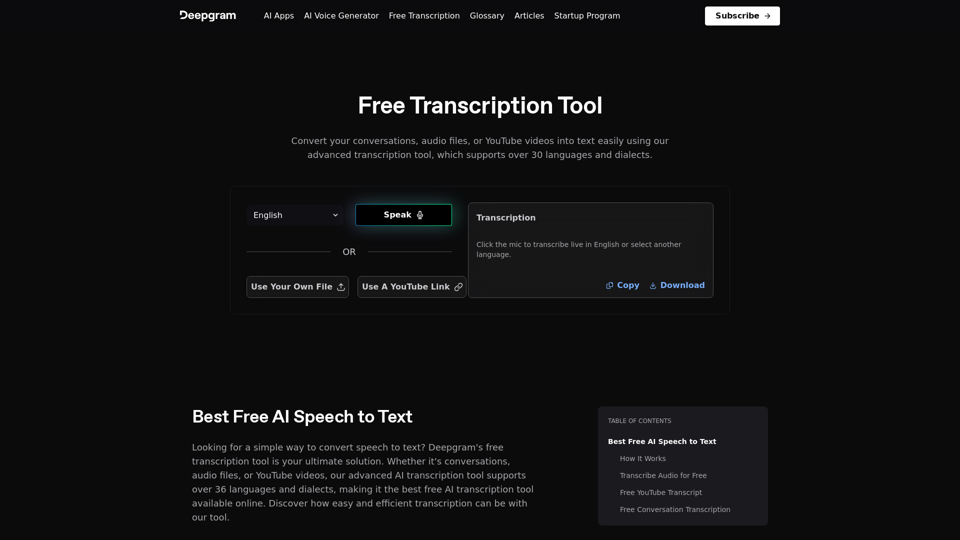
Converting JPG Images to Text

Converting a JPG image to text is a process known as Optical Character Recognition (OCR). This technology enables you to extract text from images, scanned documents, and photos. Here's how to do it:

Method 1: Online OCR Tools

You can use online OCR tools to convert JPG images to text. Here are the steps:

1. Upload your JPG image: Go to an online OCR tool website, such as Online OCR Tools or OCR.space, and upload your JPG image.
2. Select the language: Choose the language of the text in your image.
3. Click on "Convert": The tool will convert the image to text.
4. Download the text: You can download the extracted text as a Word document, PDF, or plain text file.

Method 2: Google Drive

You can also use Google Drive to convert JPG images to text. Here's how:

1. Upload your JPG image: Upload your JPG image to Google Drive.
2. Right-click on the image: Right-click on the uploaded image and select "Open with" > "Google Docs".
3. The image will be converted: Google Docs will automatically convert the image to text.
4. Edit and download: You can edit the extracted text and download it as a Word document or PDF.

Method 3: Adobe Acrobat

If you have Adobe Acrobat installed on your computer, you can use it to convert JPG images to text. Here's how:

1. Open Adobe Acrobat: Open Adobe Acrobat on your computer.
2. Create a new document: Create a new document and click on "Tools" > "Recognize Text".
3. Select the image: Select the JPG image you want to convert.
4. Click on "Recognize": Adobe Acrobat will convert the image to text.
5. Edit and save: You can edit the extracted text and save it as a Word document or PDF.

These are the three methods to convert JPG images to text. Choose the method that works best for you!
View Detail

Converting JPG Images to Text Converting a JPG image to text is a process known as Optical Character Recognition (OCR). This technology enables you to extract text from images, scanned documents, and photos. Here's how to do it: Method 1: Online OCR Tools You can use online OCR tools to convert JPG images to text. Here are the steps: 1. Upload your JPG image: Go to an online OCR tool website, such as Online OCR Tools or OCR.space, and upload your JPG image. 2. Select the language: Choose the language of the text in your image. 3. Click on "Convert": The tool will convert the image to text. 4. Download the text: You can download the extracted text as a Word document, PDF, or plain text file. Method 2: Google Drive You can also use Google Drive to convert JPG images to text. Here's how: 1. Upload your JPG image: Upload your JPG image to Google Drive. 2. Right-click on the image: Right-click on the uploaded image and select "Open with" > "Google Docs". 3. The image will be converted: Google Docs will automatically convert the image to text. 4. Edit and download: You can edit the extracted text and download it as a Word document or PDF. Method 3: Adobe Acrobat If you have Adobe Acrobat installed on your computer, you can use it to convert JPG images to text. Here's how: 1. Open Adobe Acrobat: Open Adobe Acrobat on your computer. 2. Create a new document: Create a new document and click on "Tools" > "Recognize Text". 3. Select the image: Select the JPG image you want to convert. 4. Click on "Recognize": Adobe Acrobat will convert the image to text. 5. Edit and save: You can edit the extracted text and save it as a Word document or PDF. These are the three methods to convert JPG images to text. Choose the method that works best for you!

Converting JPG Images to Text Converting a JPG image to text is a process known as Optical Character Recognition (OCR). This technology enables you to extract text from images, scanned documents, and photos. Here's how to do it: Method 1: Online OCR Tools You can use online OCR tools to convert JPG images to text. Here are the steps: 1. Upload your JPG image: Go to an online OCR tool website, such as Online OCR Tools or OCR.space, and upload your JPG image. 2. Select the language: Choose the language of the text in your image. 3. Click on "Convert": The tool will convert the image to text. 4. Download the text: You can download the extracted text as a Word document, PDF, or plain text file. Method 2: Google Drive You can also use Google Drive to convert JPG images to text. Here's how: 1. Upload your JPG image: Upload your JPG image to Google Drive. 2. Right-click on the image: Right-click on the uploaded image and select "Open with" > "Google Docs". 3. The image will be converted: Google Docs will automatically convert the image to text. 4. Edit and download: You can edit the extracted text and download it as a Word document or PDF. Method 3: Adobe Acrobat If you have Adobe Acrobat installed on your computer, you can use it to convert JPG images to text. Here's how: 1. Open Adobe Acrobat: Open Adobe Acrobat on your computer. 2. Create a new document: Create a new document and click on "Tools" > "Recognize Text". 3. Select the image: Select the JPG image you want to convert. 4. Click on "Recognize": Adobe Acrobat will convert the image to text. 5. Edit and save: You can edit the extracted text and save it as a Word document or PDF. These are the three methods to convert JPG images to text. Choose the method that works best for you!

It is an online tool that uses Optical Character Recognition (OCR) to make it possible to extract text from images in JPG format.

193.90 M