Open-source RightAI Tools Directory
  • Discover AI
  • Submit
  • Startup
  • Blog
Open-source RightAI Tools Directory
Discover the best AI tools of 2025 with the RightAI Tools Directory!

Friend Links

AI Anime GeneratorToolsApp AI

Support

Tap4
Privacy policyTerms & ConditionsContact Us
Loading...
loading...

Curatio on the App Store

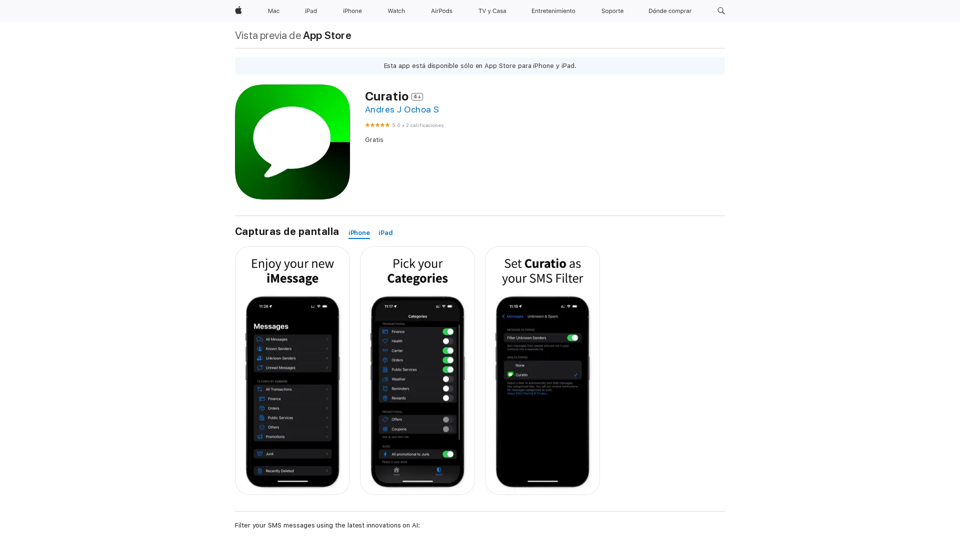
Filter your SMS messages using the latest innovations on AI: - Curatio categorizes every new SMS message without any previous instructions. - Curatio filters every unwanted SMS, such as spam or promotional messages, to keep your inbox clean and organized.
Visit Website
Curatio on the App Store
Visit Website

Introduction

Curatio is an AI-powered SMS filter app designed to categorize and manage text messages efficiently. It uses advanced AI technology to automatically sort incoming SMS into categories like Transactional, Promotional, or Spam, helping users maintain a clean and organized inbox. Curatio is free, available on iOS devices, and supports both English and Spanish languages.

Feature

AI-Powered SMS Categorization

Curatio employs artificial intelligence to automatically categorize every new SMS message without requiring prior instructions. This feature ensures that your inbox remains organized effortlessly.

Smart Filtering System

The app filters incoming messages into three main categories:

  • Transactional
  • Promotional
  • Spam

Detailed Transactional Subcategories

Transactional messages are further categorized into:

  • Carrier-related messages
  • Order notifications
  • Health and Public Services communications

User-Friendly Interface

Curatio offers an intuitive interface that makes it easy to:

  • Filter out unwanted messages
  • Identify and prioritize important communications
  • Maintain a clutter-free inbox

Multi-Language Support

The app is available in both English and Spanish, catering to a wider user base.

Free Availability

Curatio is completely free to download and use from the App Store.

iOS Compatibility

The app is designed for iPhone and iPad devices running iOS 17.2 or later.

FAQ

What are the system requirements for Curatio?

Curatio requires iOS 17.2 or later and is compatible with iPhone and iPad devices.

Is Curatio suitable for all ages?

Yes, Curatio is rated for users aged 4 and above.

What similar apps are available?

Similar apps to Curatio include:

  • SMS Spam Blocker
  • Shield - AI Powered SMS Filter
  • Spam Text Blocker - TB
  • Text Blocker: Bloquea spam sms
  • SMS Spam Filter
  • Bloquear Mensajes - TextShield

How can users get support for Curatio?

Support for Curatio can be obtained through the App Store or by contacting the developer, Andres J Ochoa S.

What is the copyright information for Curatio?

Curatio is copyrighted Β© AndrΓ©s Ochoa, 2024.

Latest Traffic Insights

  • Monthly Visits

    124.77 M

  • Bounce Rate

    74.15%

  • Pages Per Visit

    1.56

  • Time on Site(s)

    46.64

  • Global Rank

    -

  • Country Rank

    -

Recent Visits

Traffic Sources

  • Social Media:
    2.88%
  • Paid Referrals:
    2.50%
  • Email:
    0.18%
  • Referrals:
    19.65%
  • Search Engines:
    29.02%
  • Direct:
    45.78%
More Data

Related Websites

Ai5 - The AI Art Newsletter
View Detail

Ai5 - The AI Art Newsletter

Ai5 - The AI Art Newsletter

Ai5 is your go-to twice-weekly email outlining the most important events happening in generative AI. Stay informed, get smarter, and be entertained with Ai5.

0
Mindie - Your AI Second Brain
View Detail

Mindie - Your AI Second Brain

Mindie - Your AI Second Brain

Talk to anything on the web, like YouTube videos, PDFs, or blogs - almost anything!

193.90 M
AI Voice Over for YouTube 

This is a guide to using AI voice over for your YouTube videos. 

Why Use AI Voice Over?

* Cost-Effective: AI voice over is much cheaper than hiring a professional voice actor.
* Time-Saving: You can generate voice over quickly and easily, without needing to schedule recording sessions.
* Variety of Voices: Choose from a wide range of AI voices, including male, female, and even robotic voices.
* Accessibility: Make your videos accessible to viewers who are deaf or hard of hearing by adding captions generated by AI.

How to Use AI Voice Over

1. Choose a Platform: There are many different platforms that offer AI voice over services, such as:
    * Google Cloud Text-to-Speech
    * Amazon Polly
    * Microsoft Azure Text to Speech
    * Murf.ai
    * NaturalReader
2. Write Your Script:  Write a clear and concise script for your video.
3. Upload Your Script:  Upload your script to the chosen platform.
4. Select a Voice: Choose the voice that best suits your video.
5. Adjust Settings:  Adjust settings such as speed, pitch, and volume.
6. Generate Voice Over:  Click the "Generate" button to create your voice over.
7. Download and Edit: Download the generated voice over file and edit it as needed.
8. Add to Your Video:  Add the voice over to your YouTube video.

Tips for Using AI Voice Over

* Use Natural Language:  Write your script as if you were speaking naturally.
* Vary Your Tone:  Use different tones of voice to keep your viewers engaged.
* Add Pauses:  Include pauses in your script to allow viewers to process information.
* Proofread Carefully:  Always proofread your script before generating the voice over.
* Experiment:  Try different voices, settings, and styles to find what works best for you.
View Detail

AI Voice Over for YouTube This is a guide to using AI voice over for your YouTube videos. Why Use AI Voice Over? * Cost-Effective: AI voice over is much cheaper than hiring a professional voice actor. * Time-Saving: You can generate voice over quickly and easily, without needing to schedule recording sessions. * Variety of Voices: Choose from a wide range of AI voices, including male, female, and even robotic voices. * Accessibility: Make your videos accessible to viewers who are deaf or hard of hearing by adding captions generated by AI. How to Use AI Voice Over 1. Choose a Platform: There are many different platforms that offer AI voice over services, such as: * Google Cloud Text-to-Speech * Amazon Polly * Microsoft Azure Text to Speech * Murf.ai * NaturalReader 2. Write Your Script: Write a clear and concise script for your video. 3. Upload Your Script: Upload your script to the chosen platform. 4. Select a Voice: Choose the voice that best suits your video. 5. Adjust Settings: Adjust settings such as speed, pitch, and volume. 6. Generate Voice Over: Click the "Generate" button to create your voice over. 7. Download and Edit: Download the generated voice over file and edit it as needed. 8. Add to Your Video: Add the voice over to your YouTube video. Tips for Using AI Voice Over * Use Natural Language: Write your script as if you were speaking naturally. * Vary Your Tone: Use different tones of voice to keep your viewers engaged. * Add Pauses: Include pauses in your script to allow viewers to process information. * Proofread Carefully: Always proofread your script before generating the voice over. * Experiment: Try different voices, settings, and styles to find what works best for you.

AI Voice Over for YouTube This is a guide to using AI voice over for your YouTube videos. Why Use AI Voice Over? * Cost-Effective: AI voice over is much cheaper than hiring a professional voice actor. * Time-Saving: You can generate voice over quickly and easily, without needing to schedule recording sessions. * Variety of Voices: Choose from a wide range of AI voices, including male, female, and even robotic voices. * Accessibility: Make your videos accessible to viewers who are deaf or hard of hearing by adding captions generated by AI. How to Use AI Voice Over 1. Choose a Platform: There are many different platforms that offer AI voice over services, such as: * Google Cloud Text-to-Speech * Amazon Polly * Microsoft Azure Text to Speech * Murf.ai * NaturalReader 2. Write Your Script: Write a clear and concise script for your video. 3. Upload Your Script: Upload your script to the chosen platform. 4. Select a Voice: Choose the voice that best suits your video. 5. Adjust Settings: Adjust settings such as speed, pitch, and volume. 6. Generate Voice Over: Click the "Generate" button to create your voice over. 7. Download and Edit: Download the generated voice over file and edit it as needed. 8. Add to Your Video: Add the voice over to your YouTube video. Tips for Using AI Voice Over * Use Natural Language: Write your script as if you were speaking naturally. * Vary Your Tone: Use different tones of voice to keep your viewers engaged. * Add Pauses: Include pauses in your script to allow viewers to process information. * Proofread Carefully: Always proofread your script before generating the voice over. * Experiment: Try different voices, settings, and styles to find what works best for you.

Watch foreign language YouTube videos in your own language.

193.90 M
AI Anime Generator – High Quality Anime Images
View Detail

AI Anime Generator – High Quality Anime Images

AI Anime Generator – High Quality Anime Images

AI Anime Generator – High Quality Anime Images

424
ChatGPT Context Menu

* Copy: Copies the selected text.
* Paste: Pastes the copied text.
* Delete: Deletes the selected text.
* Edit: Opens a text editor to modify the selected text.
* Generate: Uses ChatGPT to generate new text based on the selected context.
* Summarize: Creates a concise summary of the selected text.
* Translate: Translates the selected text into another language.
* Translate to English: Translates the selected text into English.
* Code: Attempts to identify and format the selected text as code.
* Help: Provides information about the context menu options.
View Detail

ChatGPT Context Menu * Copy: Copies the selected text. * Paste: Pastes the copied text. * Delete: Deletes the selected text. * Edit: Opens a text editor to modify the selected text. * Generate: Uses ChatGPT to generate new text based on the selected context. * Summarize: Creates a concise summary of the selected text. * Translate: Translates the selected text into another language. * Translate to English: Translates the selected text into English. * Code: Attempts to identify and format the selected text as code. * Help: Provides information about the context menu options.

ChatGPT Context Menu * Copy: Copies the selected text. * Paste: Pastes the copied text. * Delete: Deletes the selected text. * Edit: Opens a text editor to modify the selected text. * Generate: Uses ChatGPT to generate new text based on the selected context. * Summarize: Creates a concise summary of the selected text. * Translate: Translates the selected text into another language. * Translate to English: Translates the selected text into English. * Code: Attempts to identify and format the selected text as code. * Help: Provides information about the context menu options.

Please provide the text you would like to send to ChatGPT.

193.90 M
ChatGPT Chat History Search
View Detail

ChatGPT Chat History Search

ChatGPT Chat History Search

ChatGPT Conversation History Management, including: Historical Data Download Historical Data Search Historical Data Collection …

193.90 M
SpeechGenius β€” Best Speech to Text
View Detail

SpeechGenius β€” Best Speech to Text

SpeechGenius β€” Best Speech to Text

AI-powered speech-to-text for faster, easier writing

193.90 M
ChatGPT for Google Search
View Detail

ChatGPT for Google Search

ChatGPT for Google Search

Show the ChatGPT response next to the search engine results.

193.90 M