Open-source RightAI Tools Directory
  • Discover AI
  • Submit
  • Startup
  • Blog
Open-source RightAI Tools Directory
Discover the best AI tools of 2025 with the RightAI Tools Directory!

Friend Links

AI Anime GeneratorToolsApp AI

Support

Tap4
Privacy policyTerms & ConditionsContact Us
Loading...
loading...

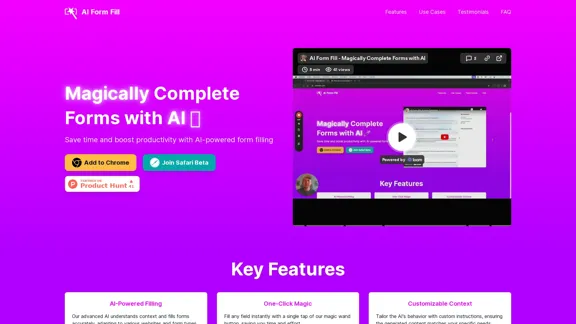
AI Form Fill - Magically Complete Forms with AI

AI Form Fill: The browser extension that uses AI to automatically fill out forms for you. Save time and boost productivity with magical form completion.
Visit Website
AI Form Fill - Magically Complete Forms with AI
Visit Website

Introduction

AI Form Fill is an innovative tool designed to streamline form completion using advanced AI technology. It offers a magic wand button that instantly fills form fields, saving time and boosting productivity across various applications. The tool adapts to different websites and form types, providing accurate and contextually appropriate responses. AI Form Fill supports multiple AI models, including GPT-4o, and offers flexible pricing with a pay-as-you-go credit system.

Feature

AI-Powered Filling

Advanced AI understands context and accurately fills forms, adapting to various websites and form types.

One-Click Magic

Fill any field instantly with a single tap of the magic wand button, saving time and effort.

Customizable Context

Tailor the AI's behavior with custom instructions to match specific needs and preferences.

Multiple AI Models

Choose from various AI models, including the advanced GPT-4o, to suit specific requirements.

Flexible Pricing

Pay-as-you-go system with credits, offering ultimate flexibility without subscriptions.

Referral Program

Share AI Form Fill with friends and receive bonus credits, making it easy to earn while sharing.

Browser Compatibility

Currently available as a Chrome extension, with plans to expand support to other browsers.

FAQ

How does AI Form Fill work?

AI Form Fill uses advanced AI models to understand form contexts and generate appropriate responses. It adds a magic wand button next to form fields, which you can click to automatically fill the field with AI-generated content.

What types of forms can AI Form Fill handle?

AI Form Fill can handle a wide variety of forms, including job applications, surveys, content creation forms, product listings, and more. It's designed to adapt to different contexts and provide relevant responses.

Can I customize the AI's responses?

Yes, you can customize the AI's behavior by providing specific instructions. For example, you can tell it to emphasize certain skills in job applications or use a particular tone for social media content. This ensures the generated content matches your needs and preferences.

How accurate are the AI-generated responses?

AI Form Fill uses state-of-the-art AI models to generate contextually appropriate responses. However, as with any AI tool, the accuracy can vary depending on the complexity of the question and the provided context. We recommend reviewing and adjusting the generated content as needed.

Can I use AI Form Fill for sensitive or confidential information?

While AI Form Fill is designed with privacy in mind, we recommend not using it for highly sensitive or confidential information. For security reasons, it's best to manually enter sensitive data such as passwords, financial information, or other confidential details.

Latest Traffic Insights

  • Monthly Visits

    2.35 K

  • Bounce Rate

    41.44%

  • Pages Per Visit

    1.78

  • Time on Site(s)

    46.97

  • Global Rank

    6532978

  • Country Rank

    India 758985

Recent Visits

Traffic Sources

  • Social Media:
    5.83%
  • Paid Referrals:
    1.32%
  • Email:
    0.05%
  • Referrals:
    12.77%
  • Search Engines:
    19.05%
  • Direct:
    60.98%
More Data

Related Websites

Zero
View Detail

Zero

Zero

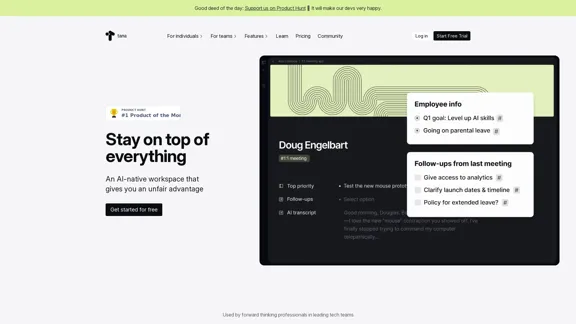
Experience email the way you want with 0 - the first open-source email app that prioritizes your privacy and safety.

49.87 K
Create AI Tools without coding in minutes | TypeflowAI
View Detail

Create AI Tools without coding in minutes | TypeflowAI

Create AI Tools without coding in minutes | TypeflowAI

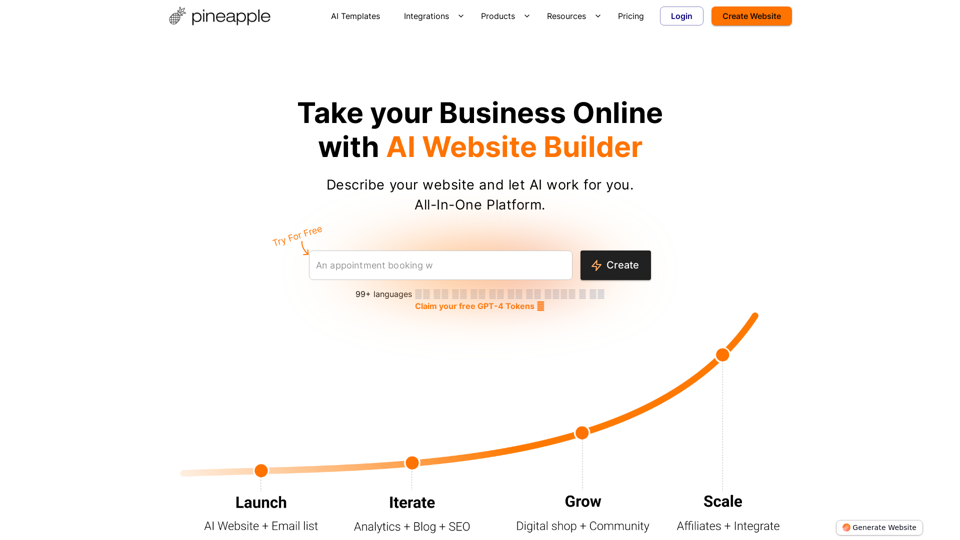
TypeflowAI enables users to create AI tools using dynamic forms and advanced prompts. Improve your SEO, boost traffic, and generate more leads by incorporating these tools into your website.

593
Tell a story
View Detail

Tell a story

Tell a story

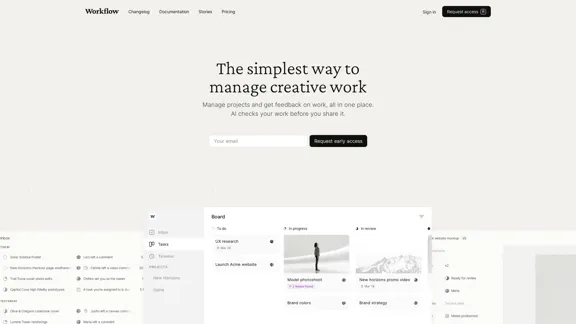
the first voice-to-AI content solution

627
Feta - Better stand-ups, retros, syncs and more
View Detail

Feta - Better stand-ups, retros, syncs and more

Feta - Better stand-ups, retros, syncs and more

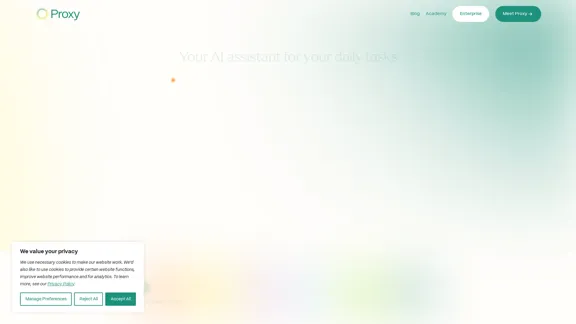
Feta helps product and engineering teams capture meeting context, automate post-meeting tasks, and focus only on high-impact work.

0
Create a Stack on Splice: AI-Powered Songwriting Inspiration | Splice
View Detail

Create a Stack on Splice: AI-Powered Songwriting Inspiration | Splice

Create a Stack on Splice: AI-Powered Songwriting Inspiration | Splice

Choose a style. Splice AI will present you with millions of unique musical combinations never heard before, showcasing sounds created by the industry's leading producers.

3.79 M
Zoho | Cloud Software Suite for Businesses
View Detail

Zoho | Cloud Software Suite for Businesses

Zoho | Cloud Software Suite for Businesses

A unique and powerful software suite for businesses of all sizes. With 55+ applications, Zoho caters to 100 million+ users for their end-to-end business needs.

67.14 M
The enterprise work management platform
View Detail

The enterprise work management platform

The enterprise work management platform

Smartsheet empowers teams to manage projects, automate workflows, and scale programs within a single robust platform. It helps maintain transparency and keeps dispersed teams connected.

22.15 M
Copilot for Microsoft 365 – Microsoft Adoption

Copilot for Microsoft 365 is a powerful AI assistant that helps you work smarter and faster across Microsoft 365 apps and services. It combines the power of large language models (LLMs) with your organization's data in the Microsoft Graph and Microsoft 365 apps to turn your words into the most powerful productivity tool on the planet.

Copilot is designed to help you:

• Unleash creativity
• Unlock productivity
• Uplevel skills

Copilot is built on Microsoft's comprehensive approach to security, compliance, and privacy. Copilot in Microsoft 365 apps and services:

• Does not use your data to train the underlying LLM
• Does not replace human ingenuity and judgment
• Is designed to keep humans in the loop

Copilot is currently available in Word, Excel, PowerPoint, Outlook, Teams, and more.

Getting Started with Copilot

To get started with Copilot, follow these steps:

1. Check availability: Ensure your organization has access to Copilot.
2. Learn the basics: Familiarize yourself with Copilot's capabilities and how to use it effectively.
3. Explore use cases: Discover how Copilot can help you in your specific role and tasks.
4. Practice and refine: Use Copilot regularly and refine your prompts for better results.
5. Share and collaborate: Collaborate with colleagues using Copilot and share best practices.

Best Practices for Using Copilot

1. Be specific in your prompts
2. Provide context for better results
3. Review and edit Copilot's output
4. Use Copilot as a starting point, not a final product
5. Experiment with different approaches
6. Stay informed about new features and updates

Copilot in Different Microsoft 365 Apps

• Word: Draft, edit, summarize, and rewrite content
• Excel: Analyze data, create formulas, and generate insights
• PowerPoint: Create presentations, design slides, and generate content
• Outlook: Compose emails, summarize threads, and manage your inbox
• Teams: Summarize meetings, generate action items, and create meeting notes

Responsible AI and Copilot

Microsoft is committed to developing AI systems responsibly. When using Copilot, keep in mind:

• AI-generated content may contain biases or inaccuracies
• Always review and verify Copilot's output
• Use your judgment and expertise alongside Copilot's suggestions
• Be aware of your organization's policies regarding AI use

Conclusion

Copilot for Microsoft 365 is a powerful tool that can significantly enhance your productivity and creativity. By understanding its capabilities, following best practices, and using it responsibly, you can make the most of this AI assistant in your daily work.
View Detail

Copilot for Microsoft 365 – Microsoft Adoption Copilot for Microsoft 365 is a powerful AI assistant that helps you work smarter and faster across Microsoft 365 apps and services. It combines the power of large language models (LLMs) with your organization's data in the Microsoft Graph and Microsoft 365 apps to turn your words into the most powerful productivity tool on the planet. Copilot is designed to help you: • Unleash creativity • Unlock productivity • Uplevel skills Copilot is built on Microsoft's comprehensive approach to security, compliance, and privacy. Copilot in Microsoft 365 apps and services: • Does not use your data to train the underlying LLM • Does not replace human ingenuity and judgment • Is designed to keep humans in the loop Copilot is currently available in Word, Excel, PowerPoint, Outlook, Teams, and more. Getting Started with Copilot To get started with Copilot, follow these steps: 1. Check availability: Ensure your organization has access to Copilot. 2. Learn the basics: Familiarize yourself with Copilot's capabilities and how to use it effectively. 3. Explore use cases: Discover how Copilot can help you in your specific role and tasks. 4. Practice and refine: Use Copilot regularly and refine your prompts for better results. 5. Share and collaborate: Collaborate with colleagues using Copilot and share best practices. Best Practices for Using Copilot 1. Be specific in your prompts 2. Provide context for better results 3. Review and edit Copilot's output 4. Use Copilot as a starting point, not a final product 5. Experiment with different approaches 6. Stay informed about new features and updates Copilot in Different Microsoft 365 Apps • Word: Draft, edit, summarize, and rewrite content • Excel: Analyze data, create formulas, and generate insights • PowerPoint: Create presentations, design slides, and generate content • Outlook: Compose emails, summarize threads, and manage your inbox • Teams: Summarize meetings, generate action items, and create meeting notes Responsible AI and Copilot Microsoft is committed to developing AI systems responsibly. When using Copilot, keep in mind: • AI-generated content may contain biases or inaccuracies • Always review and verify Copilot's output • Use your judgment and expertise alongside Copilot's suggestions • Be aware of your organization's policies regarding AI use Conclusion Copilot for Microsoft 365 is a powerful tool that can significantly enhance your productivity and creativity. By understanding its capabilities, following best practices, and using it responsibly, you can make the most of this AI assistant in your daily work.

Copilot for Microsoft 365 – Microsoft Adoption Copilot for Microsoft 365 is a powerful AI assistant that helps you work smarter and faster across Microsoft 365 apps and services. It combines the power of large language models (LLMs) with your organization's data in the Microsoft Graph and Microsoft 365 apps to turn your words into the most powerful productivity tool on the planet. Copilot is designed to help you: • Unleash creativity • Unlock productivity • Uplevel skills Copilot is built on Microsoft's comprehensive approach to security, compliance, and privacy. Copilot in Microsoft 365 apps and services: • Does not use your data to train the underlying LLM • Does not replace human ingenuity and judgment • Is designed to keep humans in the loop Copilot is currently available in Word, Excel, PowerPoint, Outlook, Teams, and more. Getting Started with Copilot To get started with Copilot, follow these steps: 1. Check availability: Ensure your organization has access to Copilot. 2. Learn the basics: Familiarize yourself with Copilot's capabilities and how to use it effectively. 3. Explore use cases: Discover how Copilot can help you in your specific role and tasks. 4. Practice and refine: Use Copilot regularly and refine your prompts for better results. 5. Share and collaborate: Collaborate with colleagues using Copilot and share best practices. Best Practices for Using Copilot 1. Be specific in your prompts 2. Provide context for better results 3. Review and edit Copilot's output 4. Use Copilot as a starting point, not a final product 5. Experiment with different approaches 6. Stay informed about new features and updates Copilot in Different Microsoft 365 Apps • Word: Draft, edit, summarize, and rewrite content • Excel: Analyze data, create formulas, and generate insights • PowerPoint: Create presentations, design slides, and generate content • Outlook: Compose emails, summarize threads, and manage your inbox • Teams: Summarize meetings, generate action items, and create meeting notes Responsible AI and Copilot Microsoft is committed to developing AI systems responsibly. When using Copilot, keep in mind: • AI-generated content may contain biases or inaccuracies • Always review and verify Copilot's output • Use your judgment and expertise alongside Copilot's suggestions • Be aware of your organization's policies regarding AI use Conclusion Copilot for Microsoft 365 is a powerful tool that can significantly enhance your productivity and creativity. By understanding its capabilities, following best practices, and using it responsibly, you can make the most of this AI assistant in your daily work.

Microsoft Copilot combines the power of large language models (LLMs) with your organization's data to turn your words into one of the most powerful productivity tools on the planet.

608.60 K