Open-source RightAI Tools Directory
  • Discover AI
  • Submit
  • Startup
  • Blog
Open-source RightAI Tools Directory
Discover the best AI tools of 2025 with the RightAI Tools Directory!

Friend Links

AI Anime GeneratorToolsApp AI

Support

Tap4
Privacy policyTerms & ConditionsContact Us
Loading...
loading...

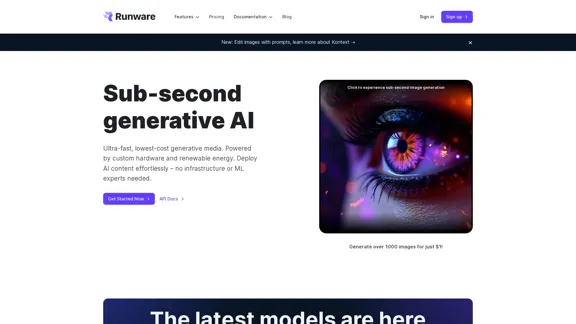
Low Cost, Ultra-Fast Stable Diffusion API

The most affordable and flexible image generation API. Easily deploy blazing-fast AI features in any app. Start today and create 1000 images for free.
Visit Website
Low Cost, Ultra-Fast Stable Diffusion API
Visit Website

Introduction

Runware offers a low-cost, ultra-fast Stable Diffusion API designed for generative media tasks. It enables users to generate images quickly and affordably, powered by custom hardware and renewable energy. The platform is user-friendly, requiring no extensive infrastructure or machine learning expertise, making it accessible for various applications.

Feature

  1. Ultra-Fast Image Generation

    Runware's Sonic Inference Engine™ provides sub-second generative AI capabilities, allowing users to generate over 1000 images for just $1.

  2. Custom Hardware

    The platform utilizes a unique server architecture specifically developed for AI workloads, ensuring low costs and high-speed performance.

  3. Flexible API Integration

    The API supports real-time communication via Websockets and stateless integration through REST API calls, making it adaptable to various business needs.

  4. Extensive Model Library

    Users have access to a vast library of over 312,356 models, including the latest image generation technologies, allowing for diverse creative applications.

  5. Image Editing Features

    Runware includes tools for background removal, inpainting, outpainting, and upscaling, enhancing the image generation experience.

  6. Sustainable Performance

    The platform is powered by renewable energy, contributing to a sustainable approach to media generation while saving significant CO₂ emissions.

How to Use?

  1. Visit the Runware website and sign up for an account.
  2. Access the API documentation to understand the integration process.
  3. Use the Playground feature to test AI capabilities instantly.
  4. Experiment with different models and parameters to find the best fit for your project.
  5. Take advantage of the image editing tools to enhance your generated images.

FAQ

What is Runware?

Runware is a generative media platform that provides an API for ultra-fast image generation and editing, suitable for various applications without requiring extensive technical knowledge.

How does Runware's API work?

The API allows users to send requests for image generation using specific parameters, and it returns high-quality images based on the provided prompts.

Can I use the images generated by Runware commercially?

Yes, images generated through Runware can be used commercially, as they are created under a royalty-free model.

What types of tasks can I perform with Runware?

Runware supports a variety of tasks, including image generation, editing, background removal, and upscaling, making it versatile for different creative needs.

How do I get started with Runware?

To get started, sign up on the Runware website, explore the API documentation, and begin testing the features in the Playground.

Price

Plan TypeMonthly Cost
Free Plan$0
Basic Plan$9.99
Standard Plan$19.99
Professional Plan$49.99
The price is for reference only, please refer to the latest official data for actual information.

Evaluation

Runware excels in providing a cost-effective and fast solution for image generation, making it suitable for both individuals and businesses. The extensive model library and user-friendly API are significant advantages, allowing for diverse applications without the need for specialized knowledge.

However, the platform could improve by offering more detailed documentation and tutorials for beginners to better understand the capabilities and integration processes. Additionally, while the speed is impressive, users may encounter limitations in customization options compared to more complex systems. Overall, Runware is a strong contender in the generative media space, particularly for users seeking efficiency and affordability.

Related Websites
FreeAI Manga
View Detail

FreeAI Manga

FreeAI Manga

FreeAI Manga is a website that provides free access to a wide variety of manga content, including doujinshi and adult-oriented manga. The site features a regularly updated collection of manga titles across different genres and languages, with a focus on fan-translated works.

0
AI Hug | AI-powered Photo Embrace & Text-to-Video Creator
View Detail

AI Hug | AI-powered Photo Embrace & Text-to-Video Creator

AI Hug | AI-powered Photo Embrace & Text-to-Video Creator

AI Hug brings people closer through AI. Create heartwarming embraces from photos and transform your words into captivating videos.

0
Translate Frame
View Detail

Translate Frame

Translate Frame

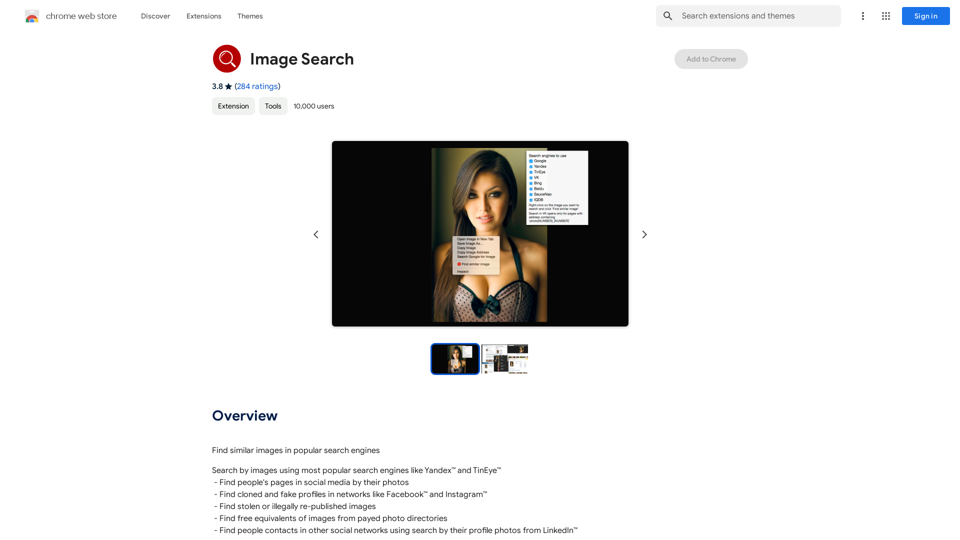
This Chrome extension lets you translate text by taking pictures of it on web pages.

193.90 M
Opulli | AI Fashion Model Platform for Clothing Brands
View Detail

Opulli | AI Fashion Model Platform for Clothing Brands

Opulli | AI Fashion Model Platform for Clothing Brands

Create captivating AI-generated fashion models, cutting photoshoot costs dramatically. Enhance audience engagement, accelerate market debut, and lead fashion trends with unparalleled speed and precision.

0
Simpedit One Click to Change Your Image with a Stylish Trend
View Detail

Simpedit One Click to Change Your Image with a Stylish Trend

Simpedit One Click to Change Your Image with a Stylish Trend

We've curated a rich library of effects. Transform your image into something beautiful and unique with just one click on Simpedit.

21.33 K
Batch Save ChatGPT to Notion

This is a guide on how to save multiple ChatGPT responses to Notion in a batch. 

Tools You'll Need:

* ChatGPT: An AI chatbot that can generate text.
* Notion: A note-taking and project management tool.
* Python: A programming language.
* Requests Library: A Python library for making HTTP requests.

Steps:

1. Get Your Notion API Token:
   - Go to your Notion workspace settings.
   - Navigate to the "Integrations" tab.
   - Click "Create new integration" and choose "API Token".
   - Copy your API token.

2. Install Python Libraries:
   - Open your terminal or command prompt.
   - Type `pip install requests` and press Enter.

3. Write Python Script:
   - Create a new Python file (e.g., `save_chatgpt_to_notion.py`).
   - Paste the following code into the file, replacing `YOUR_NOTION_API_TOKEN` with your actual token:

```python
import requests

def save_chatgpt_response_to_notion(response, page_id, token):
  """Saves a ChatGPT response to a Notion page."""
  url = f"https://api.notion.com/v1/pages/{page_id}/children"
  headers = {"Authorization": f"Bearer {token}"}
  data = {
    "parent": {
      "page_id": page_id
    },
    "properties": {
      "title": {
        "title": [
          {
            "text": {
              "content": "ChatGPT Response"
            }
          }
        ]
      },
      "content": {
        "rich_text": [
          {
            "text": {
              "content": response
            }
          }
        ]
      }
    }
  }
  response = requests.post(url, headers=headers, json=data)
  print(response.status_code)

Example usage
page_id = "YOUR_NOTION_PAGE_ID"
token = "YOUR_NOTION_API_TOKEN"

Get ChatGPT responses (replace with your actual ChatGPT interaction)
chatgpt_responses = [
  "This is the first ChatGPT response.",
  "This is the second ChatGPT response.",
  "This is the third ChatGPT response."
]

Save each response to Notion
for response in chatgpt_responses:
  save_chatgpt_response_to_notion(response, page_id, token)
```

4. Run the Script:
   - In your terminal, navigate to the directory where you saved the Python file.
   - Type `python save_chatgpt_to_notion.py` and press Enter.

5. Check Notion:
   - Open your Notion workspace and go to the page specified by `page_id`.
   - You should see your ChatGPT responses saved as separate blocks.
View Detail

Batch Save ChatGPT to Notion This is a guide on how to save multiple ChatGPT responses to Notion in a batch. Tools You'll Need: * ChatGPT: An AI chatbot that can generate text. * Notion: A note-taking and project management tool. * Python: A programming language. * Requests Library: A Python library for making HTTP requests. Steps: 1. Get Your Notion API Token: - Go to your Notion workspace settings. - Navigate to the "Integrations" tab. - Click "Create new integration" and choose "API Token". - Copy your API token. 2. Install Python Libraries: - Open your terminal or command prompt. - Type `pip install requests` and press Enter. 3. Write Python Script: - Create a new Python file (e.g., `save_chatgpt_to_notion.py`). - Paste the following code into the file, replacing `YOUR_NOTION_API_TOKEN` with your actual token: ```python import requests def save_chatgpt_response_to_notion(response, page_id, token): """Saves a ChatGPT response to a Notion page.""" url = f"https://api.notion.com/v1/pages/{page_id}/children" headers = {"Authorization": f"Bearer {token}"} data = { "parent": { "page_id": page_id }, "properties": { "title": { "title": [ { "text": { "content": "ChatGPT Response" } } ] }, "content": { "rich_text": [ { "text": { "content": response } } ] } } } response = requests.post(url, headers=headers, json=data) print(response.status_code) Example usage page_id = "YOUR_NOTION_PAGE_ID" token = "YOUR_NOTION_API_TOKEN" Get ChatGPT responses (replace with your actual ChatGPT interaction) chatgpt_responses = [ "This is the first ChatGPT response.", "This is the second ChatGPT response.", "This is the third ChatGPT response." ] Save each response to Notion for response in chatgpt_responses: save_chatgpt_response_to_notion(response, page_id, token) ``` 4. Run the Script: - In your terminal, navigate to the directory where you saved the Python file. - Type `python save_chatgpt_to_notion.py` and press Enter. 5. Check Notion: - Open your Notion workspace and go to the page specified by `page_id`. - You should see your ChatGPT responses saved as separate blocks.

Batch Save ChatGPT to Notion This is a guide on how to save multiple ChatGPT responses to Notion in a batch. Tools You'll Need: * ChatGPT: An AI chatbot that can generate text. * Notion: A note-taking and project management tool. * Python: A programming language. * Requests Library: A Python library for making HTTP requests. Steps: 1. Get Your Notion API Token: - Go to your Notion workspace settings. - Navigate to the "Integrations" tab. - Click "Create new integration" and choose "API Token". - Copy your API token. 2. Install Python Libraries: - Open your terminal or command prompt. - Type `pip install requests` and press Enter. 3. Write Python Script: - Create a new Python file (e.g., `save_chatgpt_to_notion.py`). - Paste the following code into the file, replacing `YOUR_NOTION_API_TOKEN` with your actual token: ```python import requests def save_chatgpt_response_to_notion(response, page_id, token): """Saves a ChatGPT response to a Notion page.""" url = f"https://api.notion.com/v1/pages/{page_id}/children" headers = {"Authorization": f"Bearer {token}"} data = { "parent": { "page_id": page_id }, "properties": { "title": { "title": [ { "text": { "content": "ChatGPT Response" } } ] }, "content": { "rich_text": [ { "text": { "content": response } } ] } } } response = requests.post(url, headers=headers, json=data) print(response.status_code) Example usage page_id = "YOUR_NOTION_PAGE_ID" token = "YOUR_NOTION_API_TOKEN" Get ChatGPT responses (replace with your actual ChatGPT interaction) chatgpt_responses = [ "This is the first ChatGPT response.", "This is the second ChatGPT response.", "This is the third ChatGPT response." ] Save each response to Notion for response in chatgpt_responses: save_chatgpt_response_to_notion(response, page_id, token) ``` 4. Run the Script: - In your terminal, navigate to the directory where you saved the Python file. - Type `python save_chatgpt_to_notion.py` and press Enter. 5. Check Notion: - Open your Notion workspace and go to the page specified by `page_id`. - You should see your ChatGPT responses saved as separate blocks.

Save ChatGPT Conversations to Notion with One Click Export your ChatGPT conversations directly to Notion with a single click.

193.90 M
Scrape G2 Reviews and Download to Excel - Extract G2 Reviews Data Easily
View Detail

Scrape G2 Reviews and Download to Excel - Extract G2 Reviews Data Easily

Scrape G2 Reviews and Download to Excel - Extract G2 Reviews Data Easily

Instantly download G2 product reviews

193.90 M
FLUX.1 AI: Advanced Text-to-Image Generation Model
View Detail

FLUX.1 AI: Advanced Text-to-Image Generation Model

FLUX.1 AI: Advanced Text-to-Image Generation Model

Experience the next level of image synthesis with FLUX.1 AI. Our cutting-edge AI technology creates stunning, diverse, and highly detailed images from text prompts.

152