Open-source RightAI Tools Directory
  • Discover AI
  • Submit
  • Startup
  • Blog
Open-source RightAI Tools Directory
Discover the best AI tools of 2025 with the RightAI Tools Directory!

Friend Links

AI Anime GeneratorToolsApp AI

Support

Tap4
Privacy policyTerms & ConditionsContact Us
Loading...
loading...

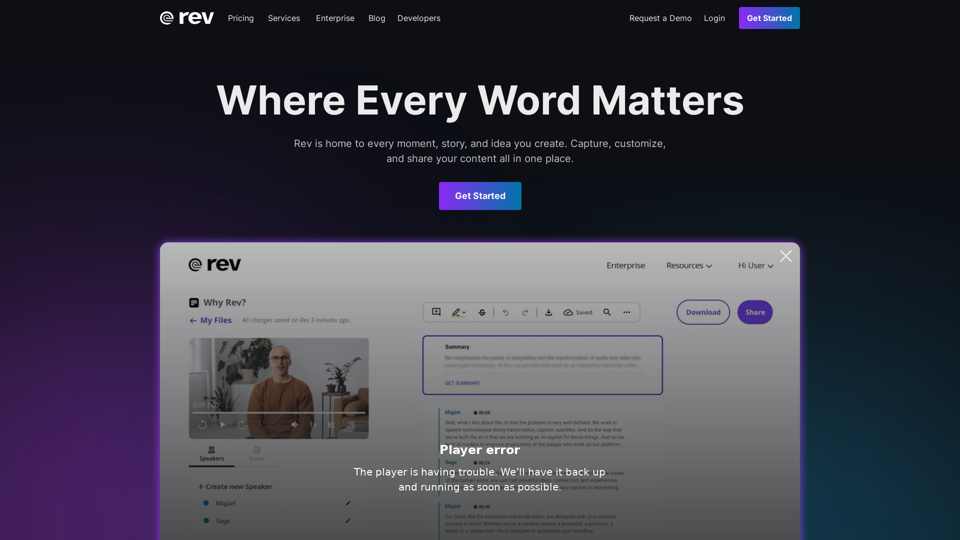
Transcription Services β€” #1 in the World | Rev

Transcribe Speech to Text with Rev. Reach your audience with clear and accurate captions, transcripts, and subtitles.
Visit Website
Transcription Services β€” #1 in the World | Rev
Visit Website

Introduction

Rev is a leading online platform offering comprehensive speech-to-text solutions, including transcription, captioning, and subtitling services. It caters to various needs, from individual content creators to large enterprises, providing both human-powered and AI-driven solutions for converting audio and video content into accurate, searchable text.

Feature

Transcription Services

  • Human Transcription: 99% accurate transcripts delivered in 12 hours or less
  • AI Transcription: Fast, high-quality transcripts using advanced speech recognition

Captioning and Subtitling

  • Human Captions: FCC and ADA-compliant captions with 99% accuracy
  • AI Captions: Automated captions in 38 languages
  • Global Subtitles: Accurate subtitles in 17 languages

Mobile and Web Tools

  • Mobile App: On-the-go recording and transcription
  • Transcript Editor: Easy organization, searching, and collaboration tools
  • AI Summaries: Instant summaries and analysis of transcribed content

Flexible Pricing Options

ServicePrice
Human Transcription$1.50/minute
AI Transcription$0.25/minute
Human Captions$1.50/minute
AI Captions$0.25/minute
Global Subtitles$5 to $12/minute

User-Friendly Process

  1. Choose the desired service
  2. Upload your audio or video file
  3. Select between human or AI-powered options
  4. Receive your completed text
  5. Edit, collaborate, and share using Rev's built-in tools

Key Advantages

  • Industry-leading accuracy (99% for human services)
  • Fast turnaround times
  • Versatile options (human and AI-powered services)
  • Comprehensive editing and collaboration tools
  • Support for multiple languages
  • Compliance with accessibility standards (FCC and ADA)

FAQ

How accurate are Rev's transcription services?

Human transcription services offer 99% accuracy, while AI transcription provides high-quality results with advanced speech recognition technology.

How long does it take to receive my transcript or captions?

Human transcription is typically delivered in 12 hours or less. AI services provide near-instant results.

Can I use Rev for languages other than English?

Yes, Rev offers AI captions in 38 languages and subtitles in 17 languages.

Is Rev compliant with accessibility standards?

Yes, Rev's human captions are FCC and ADA-compliant.

Can I edit my transcript after receiving it?

Yes, Rev provides a built-in transcript editor for refining and collaborating on your content.

Latest Traffic Insights

  • Monthly Visits

    1.96 M

  • Bounce Rate

    38.00%

  • Pages Per Visit

    6.42

  • Time on Site(s)

    316.23

  • Global Rank

    21911

  • Country Rank

    United States 8190

Recent Visits

Traffic Sources

  • Social Media:
    1.15%
  • Paid Referrals:
    0.70%
  • Email:
    0.12%
  • Referrals:
    5.33%
  • Search Engines:
    35.76%
  • Direct:
    56.94%
More Data

Related Websites

AI Just Works β€”β€” discover AIs using AI
View Detail

AI Just Works β€”β€” discover AIs using AI

AI Just Works β€”β€” discover AIs using AI

AI Just Works: Discover the Best AI Tools for Your Needs, designed to find AI solutions for your business.

0
MyLens
View Detail

MyLens

MyLens

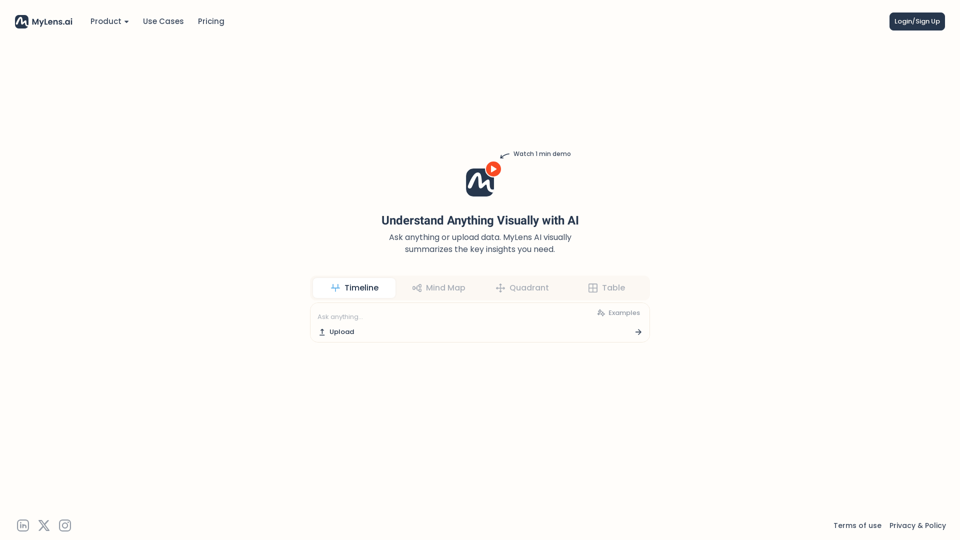
Discover the intersections of history with our AI-powered timelines. Dive deep into the narratives of the past and see where two unique histories meet. Create, explore, and connect stories seamlessly.

193.06 K
Retainr - All-in-One Agency Management Software
View Detail

Retainr - All-in-One Agency Management Software

Retainr - All-in-One Agency Management Software

Elevate your brand, streamline operations, and foster stronger client relationships. The future of creative agency management starts here! From your own branded app to streamlined client management, Retainr.io empowers you at every step.

39.23 K
Copilot for Microsoft 365 – Microsoft Adoption

Copilot for Microsoft 365 is a powerful AI assistant that helps you work smarter and faster across Microsoft 365 apps and services. It combines the power of large language models (LLMs) with your organization's data in the Microsoft Graph and Microsoft 365 apps to turn your words into the most powerful productivity tool on the planet.

Copilot is designed to help you:

β€’ Unleash creativity
β€’ Unlock productivity
β€’ Uplevel skills

Copilot is built on Microsoft's comprehensive approach to security, compliance, and privacy. Copilot in Microsoft 365 apps and services:

β€’ Does not use your data to train the underlying LLM
β€’ Does not replace human ingenuity and judgment
β€’ Is designed to keep humans in the loop

Copilot is currently available in Word, Excel, PowerPoint, Outlook, Teams, and more.

Getting Started with Copilot

To get started with Copilot, follow these steps:

1. Check availability: Ensure your organization has access to Copilot.
2. Learn the basics: Familiarize yourself with Copilot's capabilities and how to use it effectively.
3. Explore use cases: Discover how Copilot can help you in your specific role and tasks.
4. Practice and refine: Use Copilot regularly and refine your prompts for better results.
5. Share and collaborate: Collaborate with colleagues using Copilot and share best practices.

Best Practices for Using Copilot

1. Be specific in your prompts
2. Provide context for better results
3. Review and edit Copilot's output
4. Use Copilot as a starting point, not a final product
5. Experiment with different approaches
6. Stay informed about new features and updates

Copilot in Different Microsoft 365 Apps

β€’ Word: Draft, edit, summarize, and rewrite content
β€’ Excel: Analyze data, create formulas, and generate insights
β€’ PowerPoint: Create presentations, design slides, and generate content
β€’ Outlook: Compose emails, summarize threads, and manage your inbox
β€’ Teams: Summarize meetings, generate action items, and create meeting notes

Responsible AI and Copilot

Microsoft is committed to developing AI systems responsibly. When using Copilot, keep in mind:

β€’ AI-generated content may contain biases or inaccuracies
β€’ Always review and verify Copilot's output
β€’ Use your judgment and expertise alongside Copilot's suggestions
β€’ Be aware of your organization's policies regarding AI use

Conclusion

Copilot for Microsoft 365 is a powerful tool that can significantly enhance your productivity and creativity. By understanding its capabilities, following best practices, and using it responsibly, you can make the most of this AI assistant in your daily work.
View Detail

Copilot for Microsoft 365 – Microsoft Adoption Copilot for Microsoft 365 is a powerful AI assistant that helps you work smarter and faster across Microsoft 365 apps and services. It combines the power of large language models (LLMs) with your organization's data in the Microsoft Graph and Microsoft 365 apps to turn your words into the most powerful productivity tool on the planet. Copilot is designed to help you: β€’ Unleash creativity β€’ Unlock productivity β€’ Uplevel skills Copilot is built on Microsoft's comprehensive approach to security, compliance, and privacy. Copilot in Microsoft 365 apps and services: β€’ Does not use your data to train the underlying LLM β€’ Does not replace human ingenuity and judgment β€’ Is designed to keep humans in the loop Copilot is currently available in Word, Excel, PowerPoint, Outlook, Teams, and more. Getting Started with Copilot To get started with Copilot, follow these steps: 1. Check availability: Ensure your organization has access to Copilot. 2. Learn the basics: Familiarize yourself with Copilot's capabilities and how to use it effectively. 3. Explore use cases: Discover how Copilot can help you in your specific role and tasks. 4. Practice and refine: Use Copilot regularly and refine your prompts for better results. 5. Share and collaborate: Collaborate with colleagues using Copilot and share best practices. Best Practices for Using Copilot 1. Be specific in your prompts 2. Provide context for better results 3. Review and edit Copilot's output 4. Use Copilot as a starting point, not a final product 5. Experiment with different approaches 6. Stay informed about new features and updates Copilot in Different Microsoft 365 Apps β€’ Word: Draft, edit, summarize, and rewrite content β€’ Excel: Analyze data, create formulas, and generate insights β€’ PowerPoint: Create presentations, design slides, and generate content β€’ Outlook: Compose emails, summarize threads, and manage your inbox β€’ Teams: Summarize meetings, generate action items, and create meeting notes Responsible AI and Copilot Microsoft is committed to developing AI systems responsibly. When using Copilot, keep in mind: β€’ AI-generated content may contain biases or inaccuracies β€’ Always review and verify Copilot's output β€’ Use your judgment and expertise alongside Copilot's suggestions β€’ Be aware of your organization's policies regarding AI use Conclusion Copilot for Microsoft 365 is a powerful tool that can significantly enhance your productivity and creativity. By understanding its capabilities, following best practices, and using it responsibly, you can make the most of this AI assistant in your daily work.

Copilot for Microsoft 365 – Microsoft Adoption Copilot for Microsoft 365 is a powerful AI assistant that helps you work smarter and faster across Microsoft 365 apps and services. It combines the power of large language models (LLMs) with your organization's data in the Microsoft Graph and Microsoft 365 apps to turn your words into the most powerful productivity tool on the planet. Copilot is designed to help you: β€’ Unleash creativity β€’ Unlock productivity β€’ Uplevel skills Copilot is built on Microsoft's comprehensive approach to security, compliance, and privacy. Copilot in Microsoft 365 apps and services: β€’ Does not use your data to train the underlying LLM β€’ Does not replace human ingenuity and judgment β€’ Is designed to keep humans in the loop Copilot is currently available in Word, Excel, PowerPoint, Outlook, Teams, and more. Getting Started with Copilot To get started with Copilot, follow these steps: 1. Check availability: Ensure your organization has access to Copilot. 2. Learn the basics: Familiarize yourself with Copilot's capabilities and how to use it effectively. 3. Explore use cases: Discover how Copilot can help you in your specific role and tasks. 4. Practice and refine: Use Copilot regularly and refine your prompts for better results. 5. Share and collaborate: Collaborate with colleagues using Copilot and share best practices. Best Practices for Using Copilot 1. Be specific in your prompts 2. Provide context for better results 3. Review and edit Copilot's output 4. Use Copilot as a starting point, not a final product 5. Experiment with different approaches 6. Stay informed about new features and updates Copilot in Different Microsoft 365 Apps β€’ Word: Draft, edit, summarize, and rewrite content β€’ Excel: Analyze data, create formulas, and generate insights β€’ PowerPoint: Create presentations, design slides, and generate content β€’ Outlook: Compose emails, summarize threads, and manage your inbox β€’ Teams: Summarize meetings, generate action items, and create meeting notes Responsible AI and Copilot Microsoft is committed to developing AI systems responsibly. When using Copilot, keep in mind: β€’ AI-generated content may contain biases or inaccuracies β€’ Always review and verify Copilot's output β€’ Use your judgment and expertise alongside Copilot's suggestions β€’ Be aware of your organization's policies regarding AI use Conclusion Copilot for Microsoft 365 is a powerful tool that can significantly enhance your productivity and creativity. By understanding its capabilities, following best practices, and using it responsibly, you can make the most of this AI assistant in your daily work.

Microsoft Copilot combines the power of large language models (LLMs) with your organization's data to turn your words into one of the most powerful productivity tools on the planet.

608.60 K
Tech Tool Decode - New Age Content Services LLP
View Detail

Tech Tool Decode - New Age Content Services LLP

Tech Tool Decode - New Age Content Services LLP

Our "Tech Tool Decode" consultancy service offers specialized evaluation services for artificial intelligence (AI) tools, apps, services, and everything in between.* If the tool is not AI, don't worry, we'll still evaluate it for you. We provide the human in the loop to test AI tools, products, services, etc. No automation or algorithms here. This

0
Gong - Revenue Intelligence Platform
View Detail

Gong - Revenue Intelligence Platform

Gong - Revenue Intelligence Platform

Gong captures customer interactions and then delivers insights at scale, enabling teams to make decisions based on data rather than opinions.

1.95 M
eDiscovery & Legal Search Software Solutions
View Detail

eDiscovery & Legal Search Software Solutions

eDiscovery & Legal Search Software Solutions

Organizations worldwide utilize Relativity's secure, comprehensive legal software to address their most significant data challenges.

104.27 K
Merlin AI | Ask AI to Research, Write, Summarize in 1-click
View Detail

Merlin AI | Ask AI to Research, Write, Summarize in 1-click

Merlin AI | Ask AI to Research, Write, Summarize in 1-click

Free AI Chat to answer all your questions. Ask Merlin to summarize videos, articles, PDFs, and websites, write emails and content for social media, and review content using an AI detector.

1.84 M