Open-source RightAI Tools Directory
  • Discover AI
  • Submit
  • Startup
  • Blog
Open-source RightAI Tools Directory
Discover the best AI tools of 2025 with the RightAI Tools Directory!

Friend Links

AI Anime GeneratorToolsApp AI

Support

Tap4
Privacy policyTerms & ConditionsContact Us
Loading...
loading...

Integrity β€” Notes, Canvases, and AI all in one workspace

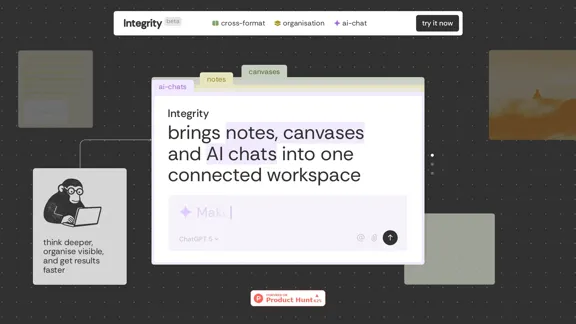
Stop jumping between Notion, Miro, and ChatGPT. Integrity unifies structure, visual thinking, and AI so you can turn ideas into results faster.
Visit Website
Integrity β€” Notes, Canvases, and AI all in one workspace
Visit Website

Introduction

Integrity combines notes, canvases, and AI chats into a single, connected workspace. This platform enables users to think deeper, organize visually, and achieve results faster by seamlessly integrating various formats. It is designed for individuals and teams looking to streamline their project management and enhance collaboration.

Feature

  1. Universal Blocks

    All content types, including text, images, tables, notes, and AI chats, coexist on every surface. Users can easily drag and drop elements to facilitate smooth transitions and workflows.

  2. One Tree, Infinite Branches

    The project tree structure allows notes, canvases, and AI chats to grow from a single source, ensuring visibility and easy navigation throughout the workspace.

  3. Sidebar Transparency

    Users can view the contents of any page or canvas without needing to open it, maintaining a clear and navigable project structure at all times.

  4. AI That Reads the Room

    AI conversations are contextually aware, inheriting the full workspace context to provide relevant insights and suggestions.

  5. Multiple Minds, One Conversation

    Users can engage with various AI models, such as ChatGPT, Claude, and Gemini, within a single conversation, allowing for flexibility and continuity without starting over.

  6. Unified Task Manager

    A consolidated dashboard displays all tasks from different pages, canvases, and AI chats, providing a comprehensive overview of what needs to be accomplished.

How to Use?

  1. Explore the features of Integrity by signing up for an account.
  2. Start by creating a new project and familiarize yourself with the project tree structure.
  3. Utilize universal blocks to integrate various content types into your workspace.
  4. Leverage the sidebar transparency feature to keep track of your project without losing focus.
  5. Experiment with different AI models in conversations to find the best fit for your needs.

FAQ

What is Integrity?

Integrity is a workspace tool that integrates notes, canvases, and AI chats, designed to enhance project management and collaboration.

How does Integrity work?

Integrity allows users to combine different content formats seamlessly, enabling efficient organization and communication within projects.

Who can benefit from using Integrity?

Integrity is ideal for founders, project managers, researchers, creatives, and anyone looking to streamline their workflow and reduce manual content movement between different platforms.

What features are coming soon?

Upcoming features include AI Threads on Canvas for collaborative AI chats and a unified task manager for better task visibility.

Price

Currently, the pricing details are not specified on the website. Users are encouraged to try the platform for free during the beta phase.

The price is for reference only, please refer to the latest official data for actual information.

Evaluation

  1. Integrity effectively integrates multiple formats into a cohesive workspace, enhancing productivity and collaboration.
  2. The universal blocks and project tree structure provide a user-friendly experience, making it easy to manage complex projects.
  3. However, the platform is still in beta, and some features are yet to be fully developed, which may limit functionality for some users.
  4. The reliance on AI for context-aware conversations is promising but may require further refinement to ensure accuracy and relevance.
  5. Overall, Integrity shows great potential for improving project management, but users should be aware of its beta status and evolving features.

Latest Traffic Insights

  • Monthly Visits

    0

  • Bounce Rate

    0.00%

  • Pages Per Visit

    0.00

  • Time on Site(s)

    0.00

  • Global Rank

    -

  • Country Rank

    -

Recent Visits

Traffic Sources

  • Social Media:
    0.00%
  • Paid Referrals:
    0.00%
  • Email:
    0.00%
  • Referrals:
    0.00%
  • Search Engines:
    0.00%
  • Direct:
    0.00%
More Data

Related Websites

Scottie - AI-Powered Daily News Summaries
View Detail

Scottie - AI-Powered Daily News Summaries

Scottie - AI-Powered Daily News Summaries

Get personalized daily news briefs powered by AI. Transform your news experience with Scottie's intelligent summaries.

0
Create a Stack on Splice: AI-Powered Songwriting Inspiration | Splice
View Detail

Create a Stack on Splice: AI-Powered Songwriting Inspiration | Splice

Create a Stack on Splice: AI-Powered Songwriting Inspiration | Splice

Choose a style. Splice AI will present you with millions of unique musical combinations never heard before, showcasing sounds created by the industry's leading producers.

3.79 M
BestAiApp
View Detail

BestAiApp

BestAiApp

All in one AI super app,get the benefits of all the best AI products in one place, for one price

0
Copilot for Microsoft 365 – Microsoft Adoption

Copilot for Microsoft 365 is a powerful AI assistant that helps you work smarter and faster across Microsoft 365 apps and services. It combines the power of large language models (LLMs) with your organization's data in the Microsoft Graph and Microsoft 365 apps to turn your words into the most powerful productivity tool on the planet.

Copilot is designed to help you:

β€’ Unleash creativity
β€’ Unlock productivity
β€’ Uplevel skills

Copilot is built on Microsoft's comprehensive approach to security, compliance, and privacy. Copilot in Microsoft 365 apps and services:

β€’ Does not use your data to train the underlying LLM
β€’ Does not replace human ingenuity and judgment
β€’ Is designed to keep humans in the loop

Copilot is currently available in Word, Excel, PowerPoint, Outlook, Teams, and more.

Getting Started with Copilot

To get started with Copilot, follow these steps:

1. Check availability: Ensure your organization has access to Copilot.
2. Learn the basics: Familiarize yourself with Copilot's capabilities and how to use it effectively.
3. Explore use cases: Discover how Copilot can help you in your specific role and tasks.
4. Practice and refine: Use Copilot regularly and refine your prompts for better results.
5. Share and collaborate: Collaborate with colleagues using Copilot and share best practices.

Best Practices for Using Copilot

1. Be specific in your prompts
2. Provide context for better results
3. Review and edit Copilot's output
4. Use Copilot as a starting point, not a final product
5. Experiment with different approaches
6. Stay informed about new features and updates

Copilot in Different Microsoft 365 Apps

β€’ Word: Draft, edit, summarize, and rewrite content
β€’ Excel: Analyze data, create formulas, and generate insights
β€’ PowerPoint: Create presentations, design slides, and generate content
β€’ Outlook: Compose emails, summarize threads, and manage your inbox
β€’ Teams: Summarize meetings, generate action items, and create meeting notes

Responsible AI and Copilot

Microsoft is committed to developing AI systems responsibly. When using Copilot, keep in mind:

β€’ AI-generated content may contain biases or inaccuracies
β€’ Always review and verify Copilot's output
β€’ Use your judgment and expertise alongside Copilot's suggestions
β€’ Be aware of your organization's policies regarding AI use

Conclusion

Copilot for Microsoft 365 is a powerful tool that can significantly enhance your productivity and creativity. By understanding its capabilities, following best practices, and using it responsibly, you can make the most of this AI assistant in your daily work.
View Detail

Copilot for Microsoft 365 – Microsoft Adoption Copilot for Microsoft 365 is a powerful AI assistant that helps you work smarter and faster across Microsoft 365 apps and services. It combines the power of large language models (LLMs) with your organization's data in the Microsoft Graph and Microsoft 365 apps to turn your words into the most powerful productivity tool on the planet. Copilot is designed to help you: β€’ Unleash creativity β€’ Unlock productivity β€’ Uplevel skills Copilot is built on Microsoft's comprehensive approach to security, compliance, and privacy. Copilot in Microsoft 365 apps and services: β€’ Does not use your data to train the underlying LLM β€’ Does not replace human ingenuity and judgment β€’ Is designed to keep humans in the loop Copilot is currently available in Word, Excel, PowerPoint, Outlook, Teams, and more. Getting Started with Copilot To get started with Copilot, follow these steps: 1. Check availability: Ensure your organization has access to Copilot. 2. Learn the basics: Familiarize yourself with Copilot's capabilities and how to use it effectively. 3. Explore use cases: Discover how Copilot can help you in your specific role and tasks. 4. Practice and refine: Use Copilot regularly and refine your prompts for better results. 5. Share and collaborate: Collaborate with colleagues using Copilot and share best practices. Best Practices for Using Copilot 1. Be specific in your prompts 2. Provide context for better results 3. Review and edit Copilot's output 4. Use Copilot as a starting point, not a final product 5. Experiment with different approaches 6. Stay informed about new features and updates Copilot in Different Microsoft 365 Apps β€’ Word: Draft, edit, summarize, and rewrite content β€’ Excel: Analyze data, create formulas, and generate insights β€’ PowerPoint: Create presentations, design slides, and generate content β€’ Outlook: Compose emails, summarize threads, and manage your inbox β€’ Teams: Summarize meetings, generate action items, and create meeting notes Responsible AI and Copilot Microsoft is committed to developing AI systems responsibly. When using Copilot, keep in mind: β€’ AI-generated content may contain biases or inaccuracies β€’ Always review and verify Copilot's output β€’ Use your judgment and expertise alongside Copilot's suggestions β€’ Be aware of your organization's policies regarding AI use Conclusion Copilot for Microsoft 365 is a powerful tool that can significantly enhance your productivity and creativity. By understanding its capabilities, following best practices, and using it responsibly, you can make the most of this AI assistant in your daily work.

Copilot for Microsoft 365 – Microsoft Adoption Copilot for Microsoft 365 is a powerful AI assistant that helps you work smarter and faster across Microsoft 365 apps and services. It combines the power of large language models (LLMs) with your organization's data in the Microsoft Graph and Microsoft 365 apps to turn your words into the most powerful productivity tool on the planet. Copilot is designed to help you: β€’ Unleash creativity β€’ Unlock productivity β€’ Uplevel skills Copilot is built on Microsoft's comprehensive approach to security, compliance, and privacy. Copilot in Microsoft 365 apps and services: β€’ Does not use your data to train the underlying LLM β€’ Does not replace human ingenuity and judgment β€’ Is designed to keep humans in the loop Copilot is currently available in Word, Excel, PowerPoint, Outlook, Teams, and more. Getting Started with Copilot To get started with Copilot, follow these steps: 1. Check availability: Ensure your organization has access to Copilot. 2. Learn the basics: Familiarize yourself with Copilot's capabilities and how to use it effectively. 3. Explore use cases: Discover how Copilot can help you in your specific role and tasks. 4. Practice and refine: Use Copilot regularly and refine your prompts for better results. 5. Share and collaborate: Collaborate with colleagues using Copilot and share best practices. Best Practices for Using Copilot 1. Be specific in your prompts 2. Provide context for better results 3. Review and edit Copilot's output 4. Use Copilot as a starting point, not a final product 5. Experiment with different approaches 6. Stay informed about new features and updates Copilot in Different Microsoft 365 Apps β€’ Word: Draft, edit, summarize, and rewrite content β€’ Excel: Analyze data, create formulas, and generate insights β€’ PowerPoint: Create presentations, design slides, and generate content β€’ Outlook: Compose emails, summarize threads, and manage your inbox β€’ Teams: Summarize meetings, generate action items, and create meeting notes Responsible AI and Copilot Microsoft is committed to developing AI systems responsibly. When using Copilot, keep in mind: β€’ AI-generated content may contain biases or inaccuracies β€’ Always review and verify Copilot's output β€’ Use your judgment and expertise alongside Copilot's suggestions β€’ Be aware of your organization's policies regarding AI use Conclusion Copilot for Microsoft 365 is a powerful tool that can significantly enhance your productivity and creativity. By understanding its capabilities, following best practices, and using it responsibly, you can make the most of this AI assistant in your daily work.

Microsoft Copilot combines the power of large language models (LLMs) with your organization's data to turn your words into one of the most powerful productivity tools on the planet.

608.60 K
Maximo AI: Your All-in-One AI Solution for Trading & Content Creation
View Detail

Maximo AI: Your All-in-One AI Solution for Trading & Content Creation

Maximo AI: Your All-in-One AI Solution for Trading & Content Creation

Unleash the power of AI with Maximo. Your all-in-one solution for trading, content creation, automation, and social media management.

0
Legal Analytics by Lex Machina
View Detail

Legal Analytics by Lex Machina

Legal Analytics by Lex Machina

Lex Machina provides Legal Analytics to law firms and companies, enabling them to craft successful strategies, win cases, and close business.

21.45 K
Retainr - All-in-One Agency Management Software
View Detail

Retainr - All-in-One Agency Management Software

Retainr - All-in-One Agency Management Software

Elevate your brand, streamline operations, and foster stronger client relationships. The future of creative agency management starts here! From your own branded app to streamlined client management, Retainr.io empowers you at every step.

39.23 K
AI-Based Test Automation Tool [2024] - testRigor Software Testing
View Detail

AI-Based Test Automation Tool [2024] - testRigor Software Testing

AI-Based Test Automation Tool [2024] - testRigor Software Testing

Test automation tool - testRigor. Automated software testing for end-to-end test cases using plain English. Looking for software testing tools? Contact us now!

197.24 K