Open-source RightAI Tools Directory
  • Discover AI
  • Submit
  • Startup
  • Blog
Open-source RightAI Tools Directory
Discover the best AI tools of 2025 with the RightAI Tools Directory!

Friend Links

AI Anime GeneratorToolsApp AI

Support

Tap4
Privacy policyTerms & ConditionsContact Us
Loading...
loading...

Everlaw Cloud-Native Ediscovery Software | Electronic Discovery | Cloud-Native Ediscovery Software | Everlaw

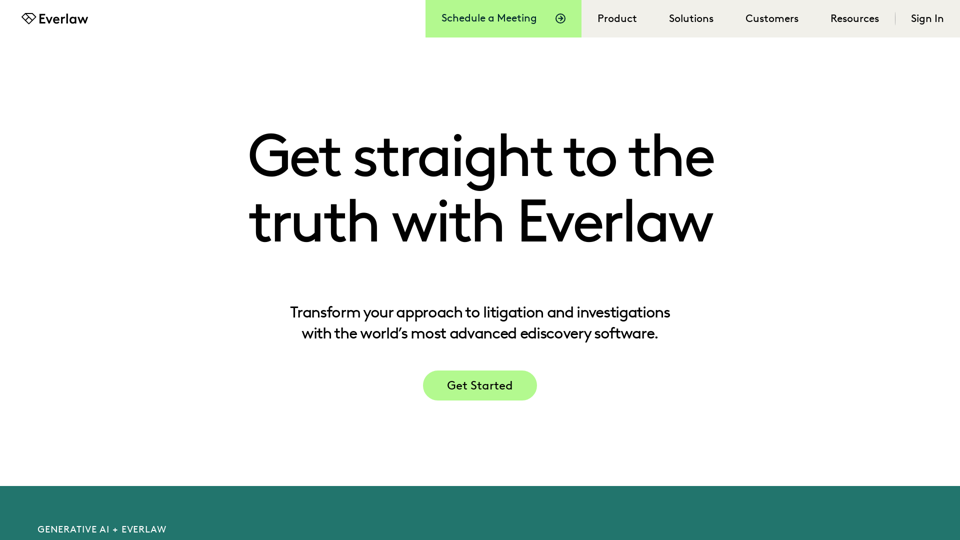
Transform your approach to litigation and investigations with the world's most advanced e-discovery software.
Visit Website
Everlaw Cloud-Native Ediscovery Software | Electronic Discovery | Cloud-Native Ediscovery Software | Everlaw
Visit Website

Introduction

Everlaw is a cloud-native ediscovery software platform that revolutionizes complex legal work for law firms, corporations, and government agencies. It offers advanced tools for electronic discovery, early case assessment, legal holds, trial preparation, data privacy, and internal investigations. With its innovative features and user-friendly interface, Everlaw streamlines the entire ediscovery process, from data ingestion to trial preparation.

Feature

Cloud-Native Architecture

Everlaw's cloud-based platform ensures scalability and accessibility, allowing legal professionals to work efficiently from anywhere.

Advanced Analytics and AI

The platform incorporates machine learning capabilities and the EverlawAI Assistant for generating AI-powered insights, enhancing document review and analysis.

Intuitive User Interface

Designed for ease of use, Everlaw's interface makes complex legal work more manageable for all levels of legal professionals.

Rapid Document Review

Advanced search functionality and AI-assisted insights enable quick and efficient document review processes.

Collaborative Tools

Everlaw provides team-based legal work features, including Storybuilder for collaborative case building.

Comprehensive Security

The platform implements robust security measures to protect sensitive legal data, ensuring client confidentiality.

Scalable Solution

Everlaw's architecture can handle complex cases and large volumes of data, making it suitable for various organization sizes.

Continuous Innovation

Regular release cycles and thoughtful design updates keep the platform at the forefront of legal technology.

FAQ

What types of organizations use Everlaw?

Everlaw caters to a wide range of organizations, including law firms, corporations, and state, local, and federal government agencies.

Is there a free trial available for Everlaw?

The website doesn't mention a free trial, but interested parties can request a demo to explore the platform's capabilities.

How does Everlaw handle different types of data?

Everlaw is designed to process and analyze various data types, including emails, documents, and data from collaborative tools.

What training resources are available for Everlaw users?

Everlaw offers comprehensive training resources, including a knowledge base, training programs, and an Everlaw Product Certification program to help users maximize their use of the platform.

How does Everlaw ensure data security?

While specific details are not provided on the main page, Everlaw implements comprehensive security measures. It's recommended to inquire about their security protocols during a consultation.

Is Everlaw suitable for small law firms?

Everlaw is used by organizations of various sizes. However, it's best to contact them directly to determine if it's a good fit for your specific needs and scale of operations.

Latest Traffic Insights

  • Monthly Visits

    139.03 K

  • Bounce Rate

    29.90%

  • Pages Per Visit

    16.86

  • Time on Site(s)

    667.07

  • Global Rank

    162605

  • Country Rank

    United States 38514

Recent Visits

Traffic Sources

  • Social Media:
    0.45%
  • Paid Referrals:
    0.91%
  • Email:
    0.08%
  • Referrals:
    4.65%
  • Search Engines:
    25.06%
  • Direct:
    68.83%
More Data

Related Websites

Copilot for Microsoft 365 – Microsoft Adoption

Copilot for Microsoft 365 is a powerful AI assistant that helps you work smarter and faster across Microsoft 365 apps and services. It combines the power of large language models (LLMs) with your organization's data in the Microsoft Graph and Microsoft 365 apps to turn your words into the most powerful productivity tool on the planet.

Copilot is designed to help you:

• Unleash creativity
• Unlock productivity
• Uplevel skills

Copilot is built on Microsoft's comprehensive approach to security, compliance, and privacy. Copilot in Microsoft 365 apps and services:

• Does not use your data to train the underlying LLM
• Does not replace human ingenuity and judgment
• Is designed to keep humans in the loop

Copilot is currently available in Word, Excel, PowerPoint, Outlook, Teams, and more.

Getting Started with Copilot

To get started with Copilot, follow these steps:

1. Check availability: Ensure your organization has access to Copilot.
2. Learn the basics: Familiarize yourself with Copilot's capabilities and how to use it effectively.
3. Explore use cases: Discover how Copilot can help you in your specific role and tasks.
4. Practice and refine: Use Copilot regularly and refine your prompts for better results.
5. Share and collaborate: Collaborate with colleagues using Copilot and share best practices.

Best Practices for Using Copilot

1. Be specific in your prompts
2. Provide context for better results
3. Review and edit Copilot's output
4. Use Copilot as a starting point, not a final product
5. Experiment with different approaches
6. Stay informed about new features and updates

Copilot in Different Microsoft 365 Apps

• Word: Draft, edit, summarize, and rewrite content
• Excel: Analyze data, create formulas, and generate insights
• PowerPoint: Create presentations, design slides, and generate content
• Outlook: Compose emails, summarize threads, and manage your inbox
• Teams: Summarize meetings, generate action items, and create meeting notes

Responsible AI and Copilot

Microsoft is committed to developing AI systems responsibly. When using Copilot, keep in mind:

• AI-generated content may contain biases or inaccuracies
• Always review and verify Copilot's output
• Use your judgment and expertise alongside Copilot's suggestions
• Be aware of your organization's policies regarding AI use

Conclusion

Copilot for Microsoft 365 is a powerful tool that can significantly enhance your productivity and creativity. By understanding its capabilities, following best practices, and using it responsibly, you can make the most of this AI assistant in your daily work.
View Detail

Copilot for Microsoft 365 – Microsoft Adoption Copilot for Microsoft 365 is a powerful AI assistant that helps you work smarter and faster across Microsoft 365 apps and services. It combines the power of large language models (LLMs) with your organization's data in the Microsoft Graph and Microsoft 365 apps to turn your words into the most powerful productivity tool on the planet. Copilot is designed to help you: • Unleash creativity • Unlock productivity • Uplevel skills Copilot is built on Microsoft's comprehensive approach to security, compliance, and privacy. Copilot in Microsoft 365 apps and services: • Does not use your data to train the underlying LLM • Does not replace human ingenuity and judgment • Is designed to keep humans in the loop Copilot is currently available in Word, Excel, PowerPoint, Outlook, Teams, and more. Getting Started with Copilot To get started with Copilot, follow these steps: 1. Check availability: Ensure your organization has access to Copilot. 2. Learn the basics: Familiarize yourself with Copilot's capabilities and how to use it effectively. 3. Explore use cases: Discover how Copilot can help you in your specific role and tasks. 4. Practice and refine: Use Copilot regularly and refine your prompts for better results. 5. Share and collaborate: Collaborate with colleagues using Copilot and share best practices. Best Practices for Using Copilot 1. Be specific in your prompts 2. Provide context for better results 3. Review and edit Copilot's output 4. Use Copilot as a starting point, not a final product 5. Experiment with different approaches 6. Stay informed about new features and updates Copilot in Different Microsoft 365 Apps • Word: Draft, edit, summarize, and rewrite content • Excel: Analyze data, create formulas, and generate insights • PowerPoint: Create presentations, design slides, and generate content • Outlook: Compose emails, summarize threads, and manage your inbox • Teams: Summarize meetings, generate action items, and create meeting notes Responsible AI and Copilot Microsoft is committed to developing AI systems responsibly. When using Copilot, keep in mind: • AI-generated content may contain biases or inaccuracies • Always review and verify Copilot's output • Use your judgment and expertise alongside Copilot's suggestions • Be aware of your organization's policies regarding AI use Conclusion Copilot for Microsoft 365 is a powerful tool that can significantly enhance your productivity and creativity. By understanding its capabilities, following best practices, and using it responsibly, you can make the most of this AI assistant in your daily work.

Copilot for Microsoft 365 – Microsoft Adoption Copilot for Microsoft 365 is a powerful AI assistant that helps you work smarter and faster across Microsoft 365 apps and services. It combines the power of large language models (LLMs) with your organization's data in the Microsoft Graph and Microsoft 365 apps to turn your words into the most powerful productivity tool on the planet. Copilot is designed to help you: • Unleash creativity • Unlock productivity • Uplevel skills Copilot is built on Microsoft's comprehensive approach to security, compliance, and privacy. Copilot in Microsoft 365 apps and services: • Does not use your data to train the underlying LLM • Does not replace human ingenuity and judgment • Is designed to keep humans in the loop Copilot is currently available in Word, Excel, PowerPoint, Outlook, Teams, and more. Getting Started with Copilot To get started with Copilot, follow these steps: 1. Check availability: Ensure your organization has access to Copilot. 2. Learn the basics: Familiarize yourself with Copilot's capabilities and how to use it effectively. 3. Explore use cases: Discover how Copilot can help you in your specific role and tasks. 4. Practice and refine: Use Copilot regularly and refine your prompts for better results. 5. Share and collaborate: Collaborate with colleagues using Copilot and share best practices. Best Practices for Using Copilot 1. Be specific in your prompts 2. Provide context for better results 3. Review and edit Copilot's output 4. Use Copilot as a starting point, not a final product 5. Experiment with different approaches 6. Stay informed about new features and updates Copilot in Different Microsoft 365 Apps • Word: Draft, edit, summarize, and rewrite content • Excel: Analyze data, create formulas, and generate insights • PowerPoint: Create presentations, design slides, and generate content • Outlook: Compose emails, summarize threads, and manage your inbox • Teams: Summarize meetings, generate action items, and create meeting notes Responsible AI and Copilot Microsoft is committed to developing AI systems responsibly. When using Copilot, keep in mind: • AI-generated content may contain biases or inaccuracies • Always review and verify Copilot's output • Use your judgment and expertise alongside Copilot's suggestions • Be aware of your organization's policies regarding AI use Conclusion Copilot for Microsoft 365 is a powerful tool that can significantly enhance your productivity and creativity. By understanding its capabilities, following best practices, and using it responsibly, you can make the most of this AI assistant in your daily work.

Microsoft Copilot combines the power of large language models (LLMs) with your organization's data to turn your words into one of the most powerful productivity tools on the planet.

608.60 K
Merlin AI | Ask AI to Research, Write, Summarize in 1-click
View Detail

Merlin AI | Ask AI to Research, Write, Summarize in 1-click

Merlin AI | Ask AI to Research, Write, Summarize in 1-click

Free AI Chat to answer all your questions. Ask Merlin to summarize videos, articles, PDFs, and websites, write emails and content for social media, and review content using an AI detector.

1.84 M
AiAssistWorks - AI for Google Sheets™ - GPT- Claude - Gemini - Llama, Mistral, OpenRouter, Groq.
View Detail

AiAssistWorks - AI for Google Sheets™ - GPT- Claude - Gemini - Llama, Mistral, OpenRouter, Groq.

AiAssistWorks - AI for Google Sheets™ - GPT- Claude - Gemini - Llama, Mistral, OpenRouter, Groq.

4.99 K
Parabola | Simplify complex logic
View Detail

Parabola | Simplify complex logic

Parabola | Simplify complex logic

Parabola is the spreadsheet alternative that allows you to integrate data from across your company and create automated workflows.

87.60 K
Blog | ShowHNToday
View Detail

Blog | ShowHNToday

Blog | ShowHNToday

New blog posts, recommendations, tutorials

3.26 K
Magic ToDo - GoblinTools
View Detail

Magic ToDo - GoblinTools

Magic ToDo - GoblinTools

Magic ToDo is a versatile task management tool that combines standard to-do list functionality with AI-powered features.

939.21 K
AI PDF Summarizer - Summarize lengthy PDF documents online.
View Detail

AI PDF Summarizer - Summarize lengthy PDF documents online.

AI PDF Summarizer - Summarize lengthy PDF documents online.

Get concise summaries and ask questions with our PDF analyzer — perfect for efficient document review. Summarize PDFs quickly with our AI-powered tool.

5.90 M
Filo - AI Email Client & To-Do
View Detail

Filo - AI Email Client & To-Do

Filo - AI Email Client & To-Do

Turn overwhelming emails into clear summaries, quick replies, and AI-generated to-dos in one second.

6.31 K