Open-source RightAI Tools Directory
  • Discover AI
  • Submit
  • Startup
  • Blog
Open-source RightAI Tools Directory
Discover the best AI tools of 2025 with the RightAI Tools Directory!

Friend Links

AI Anime GeneratorToolsApp AI

Support

Tap4
Privacy policyTerms & ConditionsContact Us
Loading...
loading...

Magic ToDo - GoblinTools

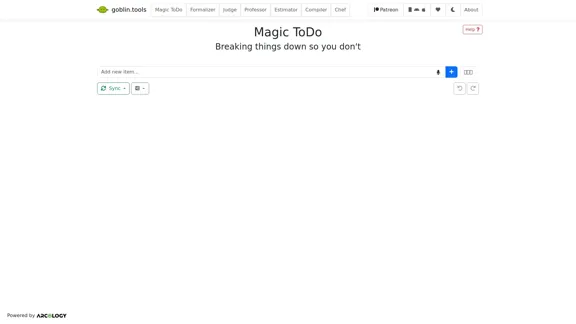
Magic ToDo is a versatile task management tool that combines standard to-do list functionality with AI-powered features.
Visit Website
Magic ToDo - GoblinTools
Visit Website

Introduction

Magic ToDo is a versatile task management tool that combines standard to-do list functionality with AI-powered features. It offers users an innovative way to break down tasks, categorize them automatically, and manage their workload efficiently. The tool is designed to help users tackle complex tasks by providing automated step-by-step breakdowns and offering various organizational features.

Feature

  1. AI-Powered Task Breakdown

    • Utilizes a "magic" button to automatically generate steps for accomplishing tasks
    • Adjustable "spiciness" level to indicate task complexity and stress level
    • More steps are generated for spicier (more complex) tasks
  2. Automatic Categorization

    • Assigns emojis to top-level tasks for easy categorization
    • Allows filtering of tasks by category using the filter button
  3. Task Management Tools

    • Edit, remove, add subtask, and estimate features available for each item
    • Drag-and-drop functionality for reordering tasks
  4. List-wide Actions

    • Synchronization between devices (experimental feature)
    • Export options (file save, clipboard copy, print, Todoist template, iCal file)
    • Undo and redo functionality
    • Bulk actions (estimate all tasks, mark all as not completed, clear estimates/completed tasks/entire list)
  5. User Interface

    • Clean and intuitive design
    • Easy access to common tools and actions
    • Visual representation of task categories and completion status
  6. Cross-Platform Availability

    • Available as a web app
    • Android and Apple app store versions (paid, supporting free web version)
  7. Data Privacy

    • Optional cloud synchronization with encrypted data storage
    • No account required, uses unique username and password for sync

How to Use?

  1. Utilize the spiciness level: Adjust the 🌶️ spiciness level to get more detailed breakdowns for complex tasks.

  2. Leverage automatic categorization: Use the emoji categories to quickly identify and filter tasks by type.

  3. Regularly sync and backup: If using the experimental sync feature, make sure to backup your data regularly using the export options.

  4. Customize your workflow: Experiment with the various tools and features to find the best way to manage your tasks.

  5. Use bulk actions: Save time by using bulk actions for routine list maintenance, such as clearing completed tasks or resetting estimates.

FAQ

How does the spiciness level affect task breakdown?

The spiciness level gives the AI a hint about how complex or stressful you find the task. Higher spiciness levels prompt the system to break the task down into more steps, providing a more detailed guide for completion.

Is cloud synchronization secure?

Yes, the cloud synchronization feature encrypts your data on your device using your unique username and password. This means that even the administrators cannot see or decrypt your task list without your credentials.

Can I use Magic ToDo across multiple devices?

Yes, Magic ToDo is available as a web app and on both Android and Apple app stores. You can also use the experimental cloud synchronization feature to keep your tasks updated across all your devices.

How can I support the development of Magic ToDo?

You can support Magic ToDo by purchasing the app from the Android or Apple app stores. These purchases help keep the website completely free and ad-free for all users.

Evaluation

  1. Magic ToDo offers a unique blend of traditional task management and AI-powered assistance, making it stand out in the crowded to-do list app market. The automatic task breakdown feature is particularly innovative and could be extremely helpful for users who struggle with task planning.

  2. The automatic categorization and filtering system is a strong point, allowing users to quickly organize and find tasks without manual input. This can save significant time and mental effort in managing large task lists.

  3. The experimental cloud synchronization feature shows promise, especially with its focus on privacy through local encryption. However, its experimental nature may deter some users who require guaranteed reliability for their task management.

  4. The variety of export options is commendable, allowing for easy integration with other tools and systems. This flexibility enhances the tool's usefulness in diverse workflows and environments.

  5. While the tool offers many features, there might be a learning curve for new users to fully utilize all its capabilities. More guided onboarding or tutorials could help users maximize the tool's potential.

  6. The freemium model, with a free web version supported by paid mobile apps, is a fair approach. However, some users might prefer a unified experience across all platforms.

  7. Areas for improvement could include more advanced collaboration features for team task management and integration with popular productivity ecosystems like Google Workspace or Microsoft 365.

Related Websites

Drive Business Performance With Planning Software | Anaplan
View Detail

Drive Business Performance With Planning Software | Anaplan

Drive Business Performance With Planning Software | Anaplan

See, plan, and lead financial, supply chain, and sales strategies that drive business performance using the Anaplan connected planning platform.

1.03 M
Slashit App
View Detail

Slashit App

Slashit App

Turn your regular text into shortcuts.

258
Copilot for Microsoft 365 – Microsoft Adoption

Copilot for Microsoft 365 is a powerful AI assistant that helps you work smarter and faster across Microsoft 365 apps and services. It combines the power of large language models (LLMs) with your organization's data in the Microsoft Graph and Microsoft 365 apps to turn your words into the most powerful productivity tool on the planet.

Copilot is designed to help you:

• Unleash creativity
• Unlock productivity
• Uplevel skills

Copilot is built on Microsoft's comprehensive approach to security, compliance, and privacy. Copilot in Microsoft 365 apps and services:

• Does not use your data to train the underlying LLM
• Does not replace human ingenuity and judgment
• Is designed to keep humans in the loop

Copilot is currently available in Word, Excel, PowerPoint, Outlook, Teams, and more.

Getting Started with Copilot

To get started with Copilot, follow these steps:

1. Check availability: Ensure your organization has access to Copilot.
2. Learn the basics: Familiarize yourself with Copilot's capabilities and how to use it effectively.
3. Explore use cases: Discover how Copilot can help you in your specific role and tasks.
4. Practice and refine: Use Copilot regularly and refine your prompts for better results.
5. Share and collaborate: Collaborate with colleagues using Copilot and share best practices.

Best Practices for Using Copilot

1. Be specific in your prompts
2. Provide context for better results
3. Review and edit Copilot's output
4. Use Copilot as a starting point, not a final product
5. Experiment with different approaches
6. Stay informed about new features and updates

Copilot in Different Microsoft 365 Apps

• Word: Draft, edit, summarize, and rewrite content
• Excel: Analyze data, create formulas, and generate insights
• PowerPoint: Create presentations, design slides, and generate content
• Outlook: Compose emails, summarize threads, and manage your inbox
• Teams: Summarize meetings, generate action items, and create meeting notes

Responsible AI and Copilot

Microsoft is committed to developing AI systems responsibly. When using Copilot, keep in mind:

• AI-generated content may contain biases or inaccuracies
• Always review and verify Copilot's output
• Use your judgment and expertise alongside Copilot's suggestions
• Be aware of your organization's policies regarding AI use

Conclusion

Copilot for Microsoft 365 is a powerful tool that can significantly enhance your productivity and creativity. By understanding its capabilities, following best practices, and using it responsibly, you can make the most of this AI assistant in your daily work.
View Detail

Copilot for Microsoft 365 – Microsoft Adoption Copilot for Microsoft 365 is a powerful AI assistant that helps you work smarter and faster across Microsoft 365 apps and services. It combines the power of large language models (LLMs) with your organization's data in the Microsoft Graph and Microsoft 365 apps to turn your words into the most powerful productivity tool on the planet. Copilot is designed to help you: • Unleash creativity • Unlock productivity • Uplevel skills Copilot is built on Microsoft's comprehensive approach to security, compliance, and privacy. Copilot in Microsoft 365 apps and services: • Does not use your data to train the underlying LLM • Does not replace human ingenuity and judgment • Is designed to keep humans in the loop Copilot is currently available in Word, Excel, PowerPoint, Outlook, Teams, and more. Getting Started with Copilot To get started with Copilot, follow these steps: 1. Check availability: Ensure your organization has access to Copilot. 2. Learn the basics: Familiarize yourself with Copilot's capabilities and how to use it effectively. 3. Explore use cases: Discover how Copilot can help you in your specific role and tasks. 4. Practice and refine: Use Copilot regularly and refine your prompts for better results. 5. Share and collaborate: Collaborate with colleagues using Copilot and share best practices. Best Practices for Using Copilot 1. Be specific in your prompts 2. Provide context for better results 3. Review and edit Copilot's output 4. Use Copilot as a starting point, not a final product 5. Experiment with different approaches 6. Stay informed about new features and updates Copilot in Different Microsoft 365 Apps • Word: Draft, edit, summarize, and rewrite content • Excel: Analyze data, create formulas, and generate insights • PowerPoint: Create presentations, design slides, and generate content • Outlook: Compose emails, summarize threads, and manage your inbox • Teams: Summarize meetings, generate action items, and create meeting notes Responsible AI and Copilot Microsoft is committed to developing AI systems responsibly. When using Copilot, keep in mind: • AI-generated content may contain biases or inaccuracies • Always review and verify Copilot's output • Use your judgment and expertise alongside Copilot's suggestions • Be aware of your organization's policies regarding AI use Conclusion Copilot for Microsoft 365 is a powerful tool that can significantly enhance your productivity and creativity. By understanding its capabilities, following best practices, and using it responsibly, you can make the most of this AI assistant in your daily work.

Copilot for Microsoft 365 – Microsoft Adoption Copilot for Microsoft 365 is a powerful AI assistant that helps you work smarter and faster across Microsoft 365 apps and services. It combines the power of large language models (LLMs) with your organization's data in the Microsoft Graph and Microsoft 365 apps to turn your words into the most powerful productivity tool on the planet. Copilot is designed to help you: • Unleash creativity • Unlock productivity • Uplevel skills Copilot is built on Microsoft's comprehensive approach to security, compliance, and privacy. Copilot in Microsoft 365 apps and services: • Does not use your data to train the underlying LLM • Does not replace human ingenuity and judgment • Is designed to keep humans in the loop Copilot is currently available in Word, Excel, PowerPoint, Outlook, Teams, and more. Getting Started with Copilot To get started with Copilot, follow these steps: 1. Check availability: Ensure your organization has access to Copilot. 2. Learn the basics: Familiarize yourself with Copilot's capabilities and how to use it effectively. 3. Explore use cases: Discover how Copilot can help you in your specific role and tasks. 4. Practice and refine: Use Copilot regularly and refine your prompts for better results. 5. Share and collaborate: Collaborate with colleagues using Copilot and share best practices. Best Practices for Using Copilot 1. Be specific in your prompts 2. Provide context for better results 3. Review and edit Copilot's output 4. Use Copilot as a starting point, not a final product 5. Experiment with different approaches 6. Stay informed about new features and updates Copilot in Different Microsoft 365 Apps • Word: Draft, edit, summarize, and rewrite content • Excel: Analyze data, create formulas, and generate insights • PowerPoint: Create presentations, design slides, and generate content • Outlook: Compose emails, summarize threads, and manage your inbox • Teams: Summarize meetings, generate action items, and create meeting notes Responsible AI and Copilot Microsoft is committed to developing AI systems responsibly. When using Copilot, keep in mind: • AI-generated content may contain biases or inaccuracies • Always review and verify Copilot's output • Use your judgment and expertise alongside Copilot's suggestions • Be aware of your organization's policies regarding AI use Conclusion Copilot for Microsoft 365 is a powerful tool that can significantly enhance your productivity and creativity. By understanding its capabilities, following best practices, and using it responsibly, you can make the most of this AI assistant in your daily work.

Microsoft Copilot combines the power of large language models (LLMs) with your organization's data to turn your words into one of the most powerful productivity tools on the planet.

608.60 K
Create Incredible Content with Just a Few Clicks.
View Detail

Create Incredible Content with Just a Few Clicks.

Create Incredible Content with Just a Few Clicks.

Turn Recordings into Limitless Content Transcripts, AI Writing, Viral Clips, Image Generation, Chatbots, and more. Start Free Trial Watch Demo 51,594 hours of content already […]

38.94 K
CVBee.ai: AI-Powered Online CV Maker | Resume Builder & CV Optimization
View Detail

CVBee.ai: AI-Powered Online CV Maker | Resume Builder & CV Optimization

CVBee.ai: AI-Powered Online CV Maker | Resume Builder & CV Optimization

CVBee.ai is an AI-powered online CV maker that helps you create, optimize, and refine professional resumes. Whether you're a job seeker or an experienced professional, CVBee.ai ensures your CV is ATS-friendly and perfectly structured.

0
Hostinger - Bring Your Idea to Life Online With a Website
View Detail

Hostinger - Bring Your Idea to Life Online With a Website

Hostinger - Bring Your Idea to Life Online With a Website

Choose Hostinger and create the ideal website. From Shared Hosting and Domains to VPS and Cloud plans. We offer everything you need for online success.

37.72 M
Accounting AI software for faster invoice processing
View Detail

Accounting AI software for faster invoice processing

Accounting AI software for faster invoice processing

Transform invoice processing and enhance PO matching with Vic.ai's autonomous accounting solutions. Our platform offers robust AI capabilities, ensuring accuracy and speed in your financial operations and elevating your accounts payable process.

79.80 K
AI to PDF
View Detail

AI to PDF

AI to PDF

AI to PDF Converter is a free and fast online file conversion service.

0