Open-source RightAI Tools Directory
  • Discover AI
  • Submit
  • Startup
  • Blog
Open-source RightAI Tools Directory
Discover the best AI tools of 2025 with the RightAI Tools Directory!

Friend Links

AI Anime GeneratorToolsApp AI

Support

Tap4
Privacy policyTerms & ConditionsContact Us
Loading...
loading...

VMX – Powered by LotLinx

Utilize Lotlinx's AI platform to match buyer demand to specific vehicles, according to your sales goals.
Visit Website
VMX – Powered by LotLinx
Visit Website

Introduction

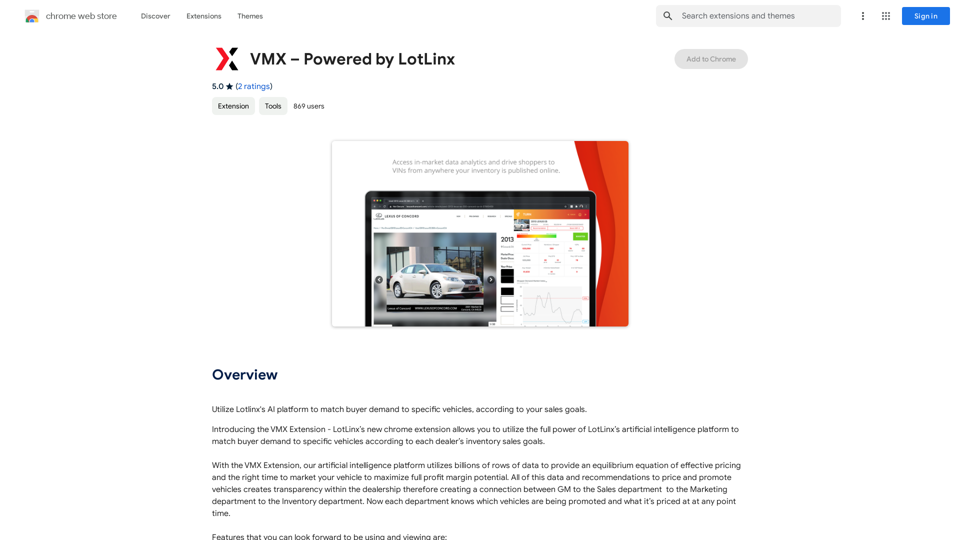
VMX is a Chrome extension powered by LotLinx, an AI-driven platform for the automotive industry. It leverages billions of data points to optimize vehicle pricing and marketing timing, aiming to maximize profit margins for dealerships. VMX offers a suite of features designed to enhance vehicle sales strategies through data-driven insights and AI-powered recommendations.

Feature

AI-Powered Boosting

VMX's AI platform recommends optimal times to promote vehicles, a feature called "Boost". This function utilizes LotLinx's machine learning omnichannel platform to drive potential buyers to Vehicle Detail Pages (VDPs).

Intelligent Price Recommendation

The extension provides price recommendations based on LotLinx's proprietary shopper and market data. This feature allows dealers to compare their current listing prices with AI-suggested prices, offering a competitive edge beyond simple discounting.

Shopper Demand Analysis

VMX includes a proprietary Shopper Demand Market Index, displaying the number of shoppers and rated demand in the dealer's market area for specific vehicles. This data is presented in an easy-to-understand graph showing high or low demand.

VDP and Price Correlation

A graph feature correlates Google Analytics VDP data with pricing information, providing insights into the relationship between a vehicle's price and its VDP views over time.

Third-Party Listing Integration

VMX compiles badges and rankings from major listing portals (CarGurus, Autotrader, and Cars.com) for each vehicle, offering context on current pricing in relation to these platforms.

FAQ

What is the primary purpose of VMX?

VMX is designed to help automotive dealers optimize their vehicle pricing and marketing strategies using AI-driven insights and recommendations.

How does the Boosting feature work?

The Boosting feature uses AI to recommend the best times to promote a vehicle, effectively advertising it through LotLinx's platform to drive potential buyers to the dealer's VDPs.

Can VMX help with pricing strategies?

Yes, VMX offers a Price Recommendation feature that compares current listing prices with AI-suggested prices based on market data and shopper demand.

Does VMX provide information on market demand?

VMX includes a Shopper Demand Market Index that shows the number of shoppers and rated demand for specific vehicles in the dealer's market area.

How does VMX integrate with third-party listing sites?

VMX compiles badges and rankings from CarGurus, Autotrader, and Cars.com, providing context on how a vehicle's current price compares on these platforms.

Latest Traffic Insights

  • Monthly Visits

    193.90 M

  • Bounce Rate

    56.27%

  • Pages Per Visit

    2.71

  • Time on Site(s)

    115.91

  • Global Rank

    -

  • Country Rank

    -

Recent Visits

Traffic Sources

  • Social Media:
    0.48%
  • Paid Referrals:
    0.55%
  • Email:
    0.15%
  • Referrals:
    12.81%
  • Search Engines:
    16.21%
  • Direct:
    69.81%
More Data

Related Websites

Image to text converter, converting image text to text, how to extract text from an image.
View Detail

Image to text converter, converting image text to text, how to extract text from an image.

Image to text converter, converting image text to text, how to extract text from an image.

Transform images with text into editable, searchable content instantly. Our advanced AI technology extracts text from any image with remarkable accuracy, supporting multiple languages and document types. Simply upload your picture, and watch as handwritten notes, printed documents, screenshots, and signs are converted to crisp, copyable text in seconds.

0
AVCLabs AI: Enhance Your Video and Photo Quality with AI
View Detail

AVCLabs AI: Enhance Your Video and Photo Quality with AI

AVCLabs AI: Enhance Your Video and Photo Quality with AI

AVCLabs is an AI products provider, which is dedicated to serving customers with products including Video Enhancer, Photo Editor, Photo Enhancer, and Video Blur AI.

356.07 K
IC Light v2
View Detail

IC Light v2

IC Light v2

IC-Light is a project to manipulate the illumination of images. IC-Light V2 is a series of Flux-based IC-Light models with 16ch VAE and native high resolution.

0
Ziko.ai Extension
View Detail

Ziko.ai Extension

Ziko.ai Extension

Here are some examples of auto-replies you can use for Google Business reviews: For Positive Reviews: * "Thank you so much for the wonderful review! We're thrilled you had a positive experience. We appreciate your business and look forward to seeing you again soon." * "We're so happy to hear you enjoyed your time with us! Your feedback means a lot to us. Thanks for taking the time to leave a review." * "Wow, thank you for the kind words! We strive to provide excellent service and we're glad we met your expectations. We appreciate your support!" For Negative Reviews: * "We're sorry to hear that you had a negative experience. We value your feedback and would like to learn more about what happened. Please contact us directly at [phone number] or [email address] so we can address your concerns." * "Thank you for your honest feedback. We apologize that we didn't meet your expectations. We're always working to improve our services and we appreciate you bringing this to our attention." * "We understand your frustration and sincerely apologize for any inconvenience caused. We'd like to make things right. Please contact us at [phone number] or [email address] so we can discuss this further." Tips: * Be prompt: Respond to reviews as quickly as possible. * Be genuine: Your responses should sound sincere and authentic. * Be professional: Avoid getting defensive or argumentative. * Keep it concise: Get to the point and avoid writing lengthy responses. * Offer solutions: If possible, offer a way to resolve the issue.

193.90 M
Batch Save ChatGPT to Notion

This is a guide on how to save multiple ChatGPT responses to Notion in a batch. 

Tools You'll Need:

* ChatGPT: An AI chatbot that can generate text.
* Notion: A note-taking and project management tool.
* Python: A programming language.
* Requests Library: A Python library for making HTTP requests.

Steps:

1. Get Your Notion API Token:
   - Go to your Notion workspace settings.
   - Navigate to the "Integrations" tab.
   - Click "Create new integration" and choose "API Token".
   - Copy your API token.

2. Install Python Libraries:
   - Open your terminal or command prompt.
   - Type `pip install requests` and press Enter.

3. Write Python Script:
   - Create a new Python file (e.g., `save_chatgpt_to_notion.py`).
   - Paste the following code into the file, replacing `YOUR_NOTION_API_TOKEN` with your actual token:

```python
import requests

def save_chatgpt_response_to_notion(response, page_id, token):
  """Saves a ChatGPT response to a Notion page."""
  url = f"https://api.notion.com/v1/pages/{page_id}/children"
  headers = {"Authorization": f"Bearer {token}"}
  data = {
    "parent": {
      "page_id": page_id
    },
    "properties": {
      "title": {
        "title": [
          {
            "text": {
              "content": "ChatGPT Response"
            }
          }
        ]
      },
      "content": {
        "rich_text": [
          {
            "text": {
              "content": response
            }
          }
        ]
      }
    }
  }
  response = requests.post(url, headers=headers, json=data)
  print(response.status_code)

Example usage
page_id = "YOUR_NOTION_PAGE_ID"
token = "YOUR_NOTION_API_TOKEN"

Get ChatGPT responses (replace with your actual ChatGPT interaction)
chatgpt_responses = [
  "This is the first ChatGPT response.",
  "This is the second ChatGPT response.",
  "This is the third ChatGPT response."
]

Save each response to Notion
for response in chatgpt_responses:
  save_chatgpt_response_to_notion(response, page_id, token)
```

4. Run the Script:
   - In your terminal, navigate to the directory where you saved the Python file.
   - Type `python save_chatgpt_to_notion.py` and press Enter.

5. Check Notion:
   - Open your Notion workspace and go to the page specified by `page_id`.
   - You should see your ChatGPT responses saved as separate blocks.
View Detail

Batch Save ChatGPT to Notion This is a guide on how to save multiple ChatGPT responses to Notion in a batch. Tools You'll Need: * ChatGPT: An AI chatbot that can generate text. * Notion: A note-taking and project management tool. * Python: A programming language. * Requests Library: A Python library for making HTTP requests. Steps: 1. Get Your Notion API Token: - Go to your Notion workspace settings. - Navigate to the "Integrations" tab. - Click "Create new integration" and choose "API Token". - Copy your API token. 2. Install Python Libraries: - Open your terminal or command prompt. - Type `pip install requests` and press Enter. 3. Write Python Script: - Create a new Python file (e.g., `save_chatgpt_to_notion.py`). - Paste the following code into the file, replacing `YOUR_NOTION_API_TOKEN` with your actual token: ```python import requests def save_chatgpt_response_to_notion(response, page_id, token): """Saves a ChatGPT response to a Notion page.""" url = f"https://api.notion.com/v1/pages/{page_id}/children" headers = {"Authorization": f"Bearer {token}"} data = { "parent": { "page_id": page_id }, "properties": { "title": { "title": [ { "text": { "content": "ChatGPT Response" } } ] }, "content": { "rich_text": [ { "text": { "content": response } } ] } } } response = requests.post(url, headers=headers, json=data) print(response.status_code) Example usage page_id = "YOUR_NOTION_PAGE_ID" token = "YOUR_NOTION_API_TOKEN" Get ChatGPT responses (replace with your actual ChatGPT interaction) chatgpt_responses = [ "This is the first ChatGPT response.", "This is the second ChatGPT response.", "This is the third ChatGPT response." ] Save each response to Notion for response in chatgpt_responses: save_chatgpt_response_to_notion(response, page_id, token) ``` 4. Run the Script: - In your terminal, navigate to the directory where you saved the Python file. - Type `python save_chatgpt_to_notion.py` and press Enter. 5. Check Notion: - Open your Notion workspace and go to the page specified by `page_id`. - You should see your ChatGPT responses saved as separate blocks.

Batch Save ChatGPT to Notion This is a guide on how to save multiple ChatGPT responses to Notion in a batch. Tools You'll Need: * ChatGPT: An AI chatbot that can generate text. * Notion: A note-taking and project management tool. * Python: A programming language. * Requests Library: A Python library for making HTTP requests. Steps: 1. Get Your Notion API Token: - Go to your Notion workspace settings. - Navigate to the "Integrations" tab. - Click "Create new integration" and choose "API Token". - Copy your API token. 2. Install Python Libraries: - Open your terminal or command prompt. - Type `pip install requests` and press Enter. 3. Write Python Script: - Create a new Python file (e.g., `save_chatgpt_to_notion.py`). - Paste the following code into the file, replacing `YOUR_NOTION_API_TOKEN` with your actual token: ```python import requests def save_chatgpt_response_to_notion(response, page_id, token): """Saves a ChatGPT response to a Notion page.""" url = f"https://api.notion.com/v1/pages/{page_id}/children" headers = {"Authorization": f"Bearer {token}"} data = { "parent": { "page_id": page_id }, "properties": { "title": { "title": [ { "text": { "content": "ChatGPT Response" } } ] }, "content": { "rich_text": [ { "text": { "content": response } } ] } } } response = requests.post(url, headers=headers, json=data) print(response.status_code) Example usage page_id = "YOUR_NOTION_PAGE_ID" token = "YOUR_NOTION_API_TOKEN" Get ChatGPT responses (replace with your actual ChatGPT interaction) chatgpt_responses = [ "This is the first ChatGPT response.", "This is the second ChatGPT response.", "This is the third ChatGPT response." ] Save each response to Notion for response in chatgpt_responses: save_chatgpt_response_to_notion(response, page_id, token) ``` 4. Run the Script: - In your terminal, navigate to the directory where you saved the Python file. - Type `python save_chatgpt_to_notion.py` and press Enter. 5. Check Notion: - Open your Notion workspace and go to the page specified by `page_id`. - You should see your ChatGPT responses saved as separate blocks.

Save ChatGPT Conversations to Notion with One Click Export your ChatGPT conversations directly to Notion with a single click.

193.90 M
Eureka AI - The Ultimate Search Companion
View Detail

Eureka AI - The Ultimate Search Companion

Eureka AI - The Ultimate Search Companion

Eurekaa is an all-in-one AI & Search Assistant, with Bing, ChatGPT, Bard, & more! ⚡

193.90 M
MarketingAI: You don't need more features. You need marketing.
View Detail

MarketingAI: You don't need more features. You need marketing.

MarketingAI: You don't need more features. You need marketing.

Get a 15-page marketing action plan tailored to your SaaS business, including a step-by-step guide on acquiring users and a projected return on investment (ROI).

0
The #1 YouTube Thumbnails Generator for Viral Videos
View Detail

The #1 YouTube Thumbnails Generator for Viral Videos

The #1 YouTube Thumbnails Generator for Viral Videos

The AI thumbnail generator used by the top YouTube content creators. Create viral thumbnails with ThumbnailPro. Ideal for YouTube thumbnails.

0