Open-source RightAI Tools Directory
  • Discover AI
  • Submit
  • Startup
  • Blog
Open-source RightAI Tools Directory
Discover the best AI tools of 2025 with the RightAI Tools Directory!

Friend Links

AI Anime GeneratorToolsApp AI

Support

Tap4
Privacy policyTerms & ConditionsContact Us
Loading...
loading...

popup

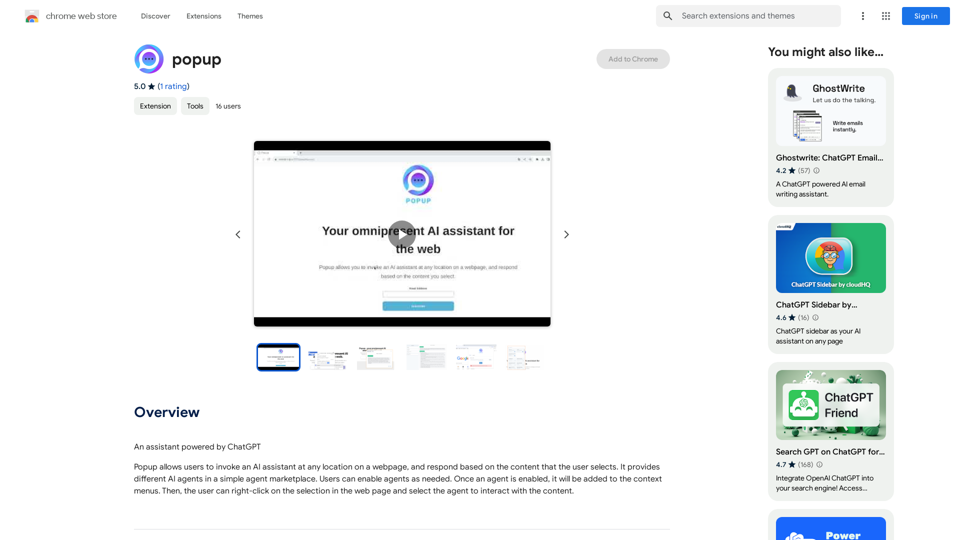
An assistant powered by ChatGPT
Visit Website
popup
Visit Website

Introduction

Popup is a versatile AI assistant powered by ChatGPT that enhances web browsing experiences. It allows users to interact with an AI assistant directly on any webpage, providing context-aware responses based on selected content. With its agent marketplace and customizable context menus, Popup offers a flexible and powerful tool for various AI-assisted tasks while browsing.

Feature

AI Assistant Integration

Popup seamlessly integrates an AI assistant into your web browsing experience, allowing you to interact with selected content on any webpage.

Agent Marketplace

Access a diverse range of AI agents through Popup's marketplace, enabling users to customize their AI assistance based on specific needs and preferences.

Contextual Interaction

Right-click on selected text to access AI agents through context menus, providing a smooth and intuitive way to interact with web content.

Customizable Context Menus

Tailor your Popup experience by adding or removing AI agents from the context menus, ensuring quick access to your most-used tools.

Flexible Invocation

Easily summon the AI assistant at any location on a webpage by clicking the Popup icon, offering seamless integration with your browsing workflow.

In-App Purchases

Enhance your Popup experience with additional features and functionality through in-app purchases, allowing for a more personalized and powerful tool.

FAQ

How does Popup enhance web browsing?

Popup integrates an AI assistant directly into web pages, allowing users to interact with selected content and receive context-aware responses, streamlining information processing and task completion while browsing.

What types of information does Popup handle?

Popup handles several types of sensitive information:

Information TypeDescription
Personally Identifiable InformationUser data that can be used to identify individuals
Financial and Payment InformationData related to financial transactions and payment methods
Authentication InformationCredentials and data used for user authentication

How can I customize my Popup experience?

You can customize Popup by:

  1. Exploring the agent marketplace to find AI agents that suit your needs
  2. Enabling or disabling agents as required
  3. Customizing context menus to add or remove agents for quick access

Is Popup free to use?

While Popup offers basic functionality, it also provides in-app purchases for additional features and enhanced capabilities, allowing users to tailor the tool to their specific requirements.

Latest Traffic Insights

  • Monthly Visits

    193.90 M

  • Bounce Rate

    56.27%

  • Pages Per Visit

    2.71

  • Time on Site(s)

    115.91

  • Global Rank

    -

  • Country Rank

    -

Recent Visits

Traffic Sources

  • Social Media:
    0.48%
  • Paid Referrals:
    0.55%
  • Email:
    0.15%
  • Referrals:
    12.81%
  • Search Engines:
    16.21%
  • Direct:
    69.81%
More Data

Related Websites

Get MailMaestro
View Detail

Get MailMaestro

Get MailMaestro

Enhance your email productivity with MailMaestro. Enjoy AI-assisted email summaries, unique style personalization, and top-quality drafts. Check our features today!

222.20 K
Orthoscribe
View Detail

Orthoscribe

Orthoscribe

Orthographic transcription

193.90 M
ChatGPT Keyboard Shortcuts

#Navigation

* Ctrl + →: Move to the next message
* Ctrl + ←: Move to the previous message
* Home: Move to the beginning of the conversation
* End: Move to the end of the conversation

#Editing

* Ctrl + A: Select all text
* Ctrl + C: Copy selected text
* Ctrl + X: Cut selected text
* Ctrl + V: Paste copied or cut text
* Ctrl + Z: Undo
* Ctrl + Y: Redo
* Ctrl + Shift + F: Format text as code

#Actions

* Enter: Send the message
* Shift + Enter: Insert a new line
* Ctrl + Shift + Enter: Send the message and insert a new line
* Esc: Cancel editing and close the message input field
* Ctrl + Shift + Space: Open the emoji picker
* Ctrl + Shift + /: Open the help menu

#Accessibility

* Ctrl + +: Increase font size
* Ctrl + -: Decrease font size
* Ctrl + 0: Reset font size to default
View Detail

ChatGPT Keyboard Shortcuts #Navigation * Ctrl + →: Move to the next message * Ctrl + ←: Move to the previous message * Home: Move to the beginning of the conversation * End: Move to the end of the conversation #Editing * Ctrl + A: Select all text * Ctrl + C: Copy selected text * Ctrl + X: Cut selected text * Ctrl + V: Paste copied or cut text * Ctrl + Z: Undo * Ctrl + Y: Redo * Ctrl + Shift + F: Format text as code #Actions * Enter: Send the message * Shift + Enter: Insert a new line * Ctrl + Shift + Enter: Send the message and insert a new line * Esc: Cancel editing and close the message input field * Ctrl + Shift + Space: Open the emoji picker * Ctrl + Shift + /: Open the help menu #Accessibility * Ctrl + +: Increase font size * Ctrl + -: Decrease font size * Ctrl + 0: Reset font size to default

ChatGPT Keyboard Shortcuts #Navigation * Ctrl + →: Move to the next message * Ctrl + ←: Move to the previous message * Home: Move to the beginning of the conversation * End: Move to the end of the conversation #Editing * Ctrl + A: Select all text * Ctrl + C: Copy selected text * Ctrl + X: Cut selected text * Ctrl + V: Paste copied or cut text * Ctrl + Z: Undo * Ctrl + Y: Redo * Ctrl + Shift + F: Format text as code #Actions * Enter: Send the message * Shift + Enter: Insert a new line * Ctrl + Shift + Enter: Send the message and insert a new line * Esc: Cancel editing and close the message input field * Ctrl + Shift + Space: Open the emoji picker * Ctrl + Shift + /: Open the help menu #Accessibility * Ctrl + +: Increase font size * Ctrl + -: Decrease font size * Ctrl + 0: Reset font size to default

Enhance your ChatGPT experience with easy-to-use keyboard shortcuts.

193.90 M
NotionAI Plugin
View Detail

NotionAI Plugin

NotionAI Plugin

The best alternative to a Notion AI subscription.

193.90 M
Sentimetric

Sentimetric is a method used to measure the sentiment of text data, such as customer reviews, comments, or social media posts. It involves analyzing the emotional tone or attitude conveyed by the text, whether it's positive, negative, or neutral.
View Detail

Sentimetric Sentimetric is a method used to measure the sentiment of text data, such as customer reviews, comments, or social media posts. It involves analyzing the emotional tone or attitude conveyed by the text, whether it's positive, negative, or neutral.

Sentimetric Sentimetric is a method used to measure the sentiment of text data, such as customer reviews, comments, or social media posts. It involves analyzing the emotional tone or attitude conveyed by the text, whether it's positive, negative, or neutral.

Unlock your career potential with our AI-powered job application presentation builder designed to help you stand out in the competitive job market. Our app goes beyond traditional cover letters and resumes by creating personalized presentations that show recruiters how your skills and experience align with company goals and values. Plus, we provide project ideas with SWOT analyses that will impress every recruiter.

0
Make a similarity service
View Detail

Make a similarity service

Make a similarity service

Comparing Similarity for nb.no Book and Image Search Results Let's explore how to measure the similarity between: * Book search results from nb.no (the Norwegian National Library) * Image search results from various sources This comparison can be valuable for understanding: * How well visual representations match textual descriptions. * Potential for using images to enhance book discovery. * Developing new search functionalities that combine text and image data. We can use various techniques to assess similarity, including: * Textual Similarity: Analyzing the keywords, topics, and overall content of book descriptions and image captions. * Visual Similarity: Comparing the visual features of images using algorithms like convolutional neural networks (CNNs). * Hybrid Approaches: Combining textual and visual similarity measures for a more comprehensive evaluation. By comparing similarity scores across different methods, we can gain insights into the strengths and weaknesses of each approach and identify the most effective way to connect books and images.

193.90 M
Algae
View Detail

Algae

Algae

Offers ideas for MSP support requests.

193.90 M
Converting JPG Images to Text

Converting a JPG image to text is a process known as Optical Character Recognition (OCR). This technology enables you to extract text from images, scanned documents, and photos. Here's how to do it:

Method 1: Online OCR Tools

You can use online OCR tools to convert JPG images to text. Here are the steps:

1. Upload your JPG image: Go to an online OCR tool website, such as Online OCR Tools or OCR.space, and upload your JPG image.
2. Select the language: Choose the language of the text in your image.
3. Click on "Convert": The tool will convert the image to text.
4. Download the text: You can download the extracted text as a Word document, PDF, or plain text file.

Method 2: Google Drive

You can also use Google Drive to convert JPG images to text. Here's how:

1. Upload your JPG image: Upload your JPG image to Google Drive.
2. Right-click on the image: Right-click on the uploaded image and select "Open with" > "Google Docs".
3. The image will be converted: Google Docs will automatically convert the image to text.
4. Edit and download: You can edit the extracted text and download it as a Word document or PDF.

Method 3: Adobe Acrobat

If you have Adobe Acrobat installed on your computer, you can use it to convert JPG images to text. Here's how:

1. Open Adobe Acrobat: Open Adobe Acrobat on your computer.
2. Create a new document: Create a new document and click on "Tools" > "Recognize Text".
3. Select the image: Select the JPG image you want to convert.
4. Click on "Recognize": Adobe Acrobat will convert the image to text.
5. Edit and save: You can edit the extracted text and save it as a Word document or PDF.

These are the three methods to convert JPG images to text. Choose the method that works best for you!
View Detail

Converting JPG Images to Text Converting a JPG image to text is a process known as Optical Character Recognition (OCR). This technology enables you to extract text from images, scanned documents, and photos. Here's how to do it: Method 1: Online OCR Tools You can use online OCR tools to convert JPG images to text. Here are the steps: 1. Upload your JPG image: Go to an online OCR tool website, such as Online OCR Tools or OCR.space, and upload your JPG image. 2. Select the language: Choose the language of the text in your image. 3. Click on "Convert": The tool will convert the image to text. 4. Download the text: You can download the extracted text as a Word document, PDF, or plain text file. Method 2: Google Drive You can also use Google Drive to convert JPG images to text. Here's how: 1. Upload your JPG image: Upload your JPG image to Google Drive. 2. Right-click on the image: Right-click on the uploaded image and select "Open with" > "Google Docs". 3. The image will be converted: Google Docs will automatically convert the image to text. 4. Edit and download: You can edit the extracted text and download it as a Word document or PDF. Method 3: Adobe Acrobat If you have Adobe Acrobat installed on your computer, you can use it to convert JPG images to text. Here's how: 1. Open Adobe Acrobat: Open Adobe Acrobat on your computer. 2. Create a new document: Create a new document and click on "Tools" > "Recognize Text". 3. Select the image: Select the JPG image you want to convert. 4. Click on "Recognize": Adobe Acrobat will convert the image to text. 5. Edit and save: You can edit the extracted text and save it as a Word document or PDF. These are the three methods to convert JPG images to text. Choose the method that works best for you!

Converting JPG Images to Text Converting a JPG image to text is a process known as Optical Character Recognition (OCR). This technology enables you to extract text from images, scanned documents, and photos. Here's how to do it: Method 1: Online OCR Tools You can use online OCR tools to convert JPG images to text. Here are the steps: 1. Upload your JPG image: Go to an online OCR tool website, such as Online OCR Tools or OCR.space, and upload your JPG image. 2. Select the language: Choose the language of the text in your image. 3. Click on "Convert": The tool will convert the image to text. 4. Download the text: You can download the extracted text as a Word document, PDF, or plain text file. Method 2: Google Drive You can also use Google Drive to convert JPG images to text. Here's how: 1. Upload your JPG image: Upload your JPG image to Google Drive. 2. Right-click on the image: Right-click on the uploaded image and select "Open with" > "Google Docs". 3. The image will be converted: Google Docs will automatically convert the image to text. 4. Edit and download: You can edit the extracted text and download it as a Word document or PDF. Method 3: Adobe Acrobat If you have Adobe Acrobat installed on your computer, you can use it to convert JPG images to text. Here's how: 1. Open Adobe Acrobat: Open Adobe Acrobat on your computer. 2. Create a new document: Create a new document and click on "Tools" > "Recognize Text". 3. Select the image: Select the JPG image you want to convert. 4. Click on "Recognize": Adobe Acrobat will convert the image to text. 5. Edit and save: You can edit the extracted text and save it as a Word document or PDF. These are the three methods to convert JPG images to text. Choose the method that works best for you!

It is an online tool that uses Optical Character Recognition (OCR) to make it possible to extract text from images in JPG format.

193.90 M