Open-source RightAI Tools Directory
  • Discover AI
  • Submit
  • Startup
  • Blog
Open-source RightAI Tools Directory
Discover the best AI tools of 2025 with the RightAI Tools Directory!

Friend Links

AI Anime GeneratorToolsApp AI

Support

Tap4
Privacy policyTerms & ConditionsContact Us
Loading...
loading...

ChatGPT - Google, Bing, Baidu, More

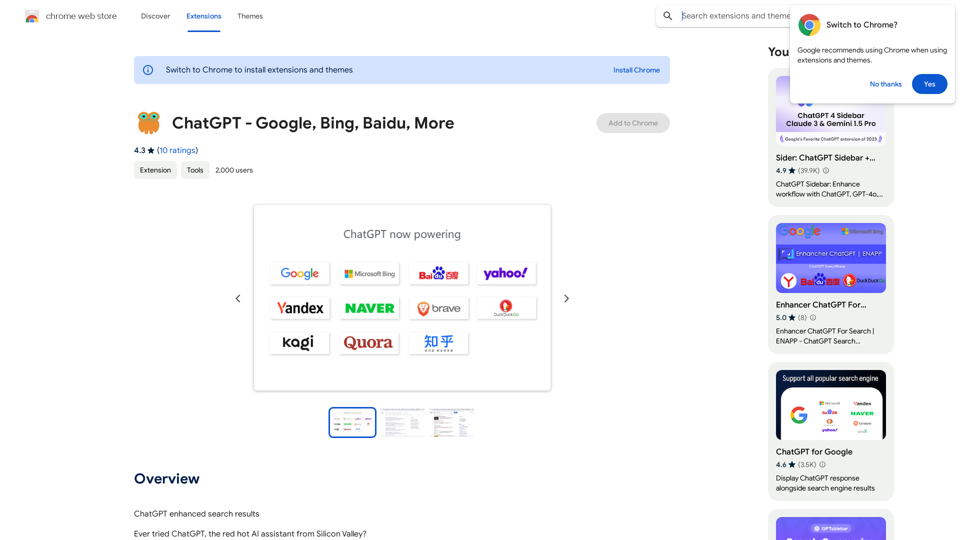
ChatGPT-powered search results
Visit Website
ChatGPT - Google, Bing, Baidu, More
Visit Website

Introduction

ChatGPT is an AI-powered platform that integrates various AI technologies, focusing on text generation and image understanding. It enhances search results by incorporating ChatGPT answers alongside traditional search engine results. The platform supports multiple major international search engines and offers convenient features like shared account settings, making it a versatile tool for users seeking AI-assisted information retrieval and processing.

Feature

Extensive Search Engine Support

ChatGPT supports 16 major international search engines, including Google, Bing, and Baidu, providing users with a wide range of search options and enhanced results.

Shared Account Setting

Users can benefit from a shared account setting, eliminating the need for frequent OpenAI login requirements and streamlining the user experience.

AI Technology Integration

The platform provides access to a variety of AI technologies, particularly excelling in text generation and image understanding capabilities.

Easy Setup Process

Setting up ChatGPT is straightforward:

  1. Create a free OpenAI account at https://chat.openai.com
  2. Choose between personal (login required) or shared account (no login required)
  3. Install the ChatGPT extension from the Chrome Web Store

Daily Free Uses

Users can take advantage of daily free uses of GPT-4o document reading and Dalle's image generation, maximizing the platform's utility without additional costs.

Privacy Protection

ChatGPT prioritizes user privacy by not collecting or using personal data for training purposes, as outlined in the developer's privacy policy.

FAQ

What types of AI technologies does ChatGPT offer?

ChatGPT provides access to various AI technologies, with a focus on text generation and image understanding. These capabilities can be used to enhance search results and support a wide range of tasks.

Can ChatGPT generate images?

No, ChatGPT primarily focuses on text generation and image understanding. It does not have built-in image generation capabilities.

How many free GPT-4o conversations are available daily?

Users have access to 20 free GPT-4o conversations per day. If this limit is insufficient for your needs, you may consider subscribing to the platform for additional usage.

Is a subscription necessary to use ChatGPT?

A subscription is not mandatory for basic use. However, if you heavily rely on GPT-4o and require more than the daily free limit of 20 conversations, a subscription may be beneficial.

Latest Traffic Insights

  • Monthly Visits

    193.90 M

  • Bounce Rate

    56.27%

  • Pages Per Visit

    2.71

  • Time on Site(s)

    115.91

  • Global Rank

    -

  • Country Rank

    -

Recent Visits

Traffic Sources

  • Social Media:
    0.48%
  • Paid Referrals:
    0.55%
  • Email:
    0.15%
  • Referrals:
    12.81%
  • Search Engines:
    16.21%
  • Direct:
    69.81%
More Data

Related Websites

Linkster.ai
View Detail

Linkster.ai

Linkster.ai

Transform your video experience: AI summaries, mood insights, & trending highlights in one plugin!

193.90 M
Integrito — Analyze Text, Check Plagiarism & AI
View Detail

Integrito — Analyze Text, Check Plagiarism & AI

Integrito — Analyze Text, Check Plagiarism & AI

This extension is a helpful all-in-one tool for education and working with texts.

193.90 M
ChatGPT Browser Extension
View Detail

ChatGPT Browser Extension

ChatGPT Browser Extension

An AI chat plugin similar to ChatGPT, based on the OpenAI API, that supports third-party interfaces like Api2 and Azure.

193.90 M
Knowz AI Search Engine: A New Era of Online Searching Experience
View Detail

Knowz AI Search Engine: A New Era of Online Searching Experience

Knowz AI Search Engine: A New Era of Online Searching Experience

Discover the power of Knowz, a free AI search designed to deliver fast, accurate, and clutter-free answers, revolutionizing your online searches.

270
AI Photo Caption - Text Generator on the App Store
View Detail

AI Photo Caption - Text Generator on the App Store

AI Photo Caption - Text Generator on the App Store

Welcome to PhotoCaption AI – where your photos speak a thousand words in multiple languages! Do you often find yourself struggling to come up with the perfect caption for your amazing photos?

654.73 K
LeadSpot Flex - AI Messaging on LinkedIn
View Detail

LeadSpot Flex - AI Messaging on LinkedIn

LeadSpot Flex - AI Messaging on LinkedIn

AI Messaging on LinkedIn Let's explore the potential and pitfalls of using AI for messaging on LinkedIn. Potential Benefits: * Increased Efficiency: AI can automate repetitive tasks like sending personalized connection requests or follow-up messages, freeing up your time for more strategic activities. * Improved Targeting: AI algorithms can analyze user profiles and identify potential connections based on shared interests, industry, or other relevant criteria. * Enhanced Personalization: AI can help craft personalized messages that resonate with individual recipients, increasing the likelihood of engagement. * Data-Driven Insights: AI can track message performance and provide insights into which messages are most effective, allowing you to refine your approach. Potential Pitfalls: * Lack of Authenticity: Overly generic or robotic messages can come across as impersonal and insincere, damaging your professional reputation. * Ethical Concerns: Using AI to manipulate or deceive users on LinkedIn raises ethical questions about transparency and consent. * Technical Limitations: Current AI technology may struggle to understand nuanced conversations or respond appropriately to complex queries. * Spam and Abuse: Malicious actors could exploit AI to send spam messages or engage in other harmful activities on LinkedIn. Best Practices: * Use AI as a Tool, Not a Replacement: Leverage AI to enhance your messaging, but always maintain human oversight and authenticity. * Prioritize Quality over Quantity: Focus on sending personalized messages to a targeted audience rather than mass-sending generic content. * Be Transparent: Disclose when you are using AI to assist with your messaging, and respect user preferences for communication. * Stay Informed: Keep up-to-date on the latest developments in AI ethics and best practices for using AI on LinkedIn.

193.90 M
Get ChatGPT for Free with Google

You can now access ChatGPT, a powerful language model, for free with Google. Here's how:

Method 1: Google Colab

* Open Google Colab ([colab.research.google.com](http://colab.research.google.com))
* Create a new notebook
* Install the `transformers` library by running `!pip install transformers`
* Import the `transformers` library and load the ChatGPT model using `from transformers import AutoModelForCausalLM, AutoTokenizer; model = AutoModelForCausalLM.from_pretrained('chatgpt'); tokenizer = AutoTokenizer.from_pretrained('chatgpt')`
* Use the model to generate text using `input_text = "Your input here"; inputs = tokenizer.encode_plus(input_text, return_tensors='pt', max_length=1024, padding='max_length', truncation=True); output = model(inputs['input_ids'], attention_mask=inputs['attention_mask']); print(tokenizer.decode(output.logits[0], skip_special_tokens=True))`

Method 2: Google Apps Script

* Open Google Apps Script ([script.google.com](http://script.google.com))
* Create a new project
* Install the `transformers` library by running `npm install transformers`
* Import the `transformers` library and load the ChatGPT model using `const { AutoModelForCausalLM, AutoTokenizer } = require('transformers'); const model = new AutoModelForCausalLM('chatgpt'); const tokenizer = new AutoTokenizer('chatgpt');`
* Use the model to generate text using `const inputText = "Your input here"; const inputs = tokenizer.encodePlus(inputText, { return_tensors: 'pt', max_length: 1024, padding: 'max_length', truncation: true }); const output = model(inputs.inputIds, inputs.attentionMask); console.log(tokenizer.decode(output.logits[0], { skipSpecialTokens: true }));`

Note: These methods require some technical knowledge and may have limitations compared to the original ChatGPT model.
View Detail

Get ChatGPT for Free with Google You can now access ChatGPT, a powerful language model, for free with Google. Here's how: Method 1: Google Colab * Open Google Colab ([colab.research.google.com](http://colab.research.google.com)) * Create a new notebook * Install the `transformers` library by running `!pip install transformers` * Import the `transformers` library and load the ChatGPT model using `from transformers import AutoModelForCausalLM, AutoTokenizer; model = AutoModelForCausalLM.from_pretrained('chatgpt'); tokenizer = AutoTokenizer.from_pretrained('chatgpt')` * Use the model to generate text using `input_text = "Your input here"; inputs = tokenizer.encode_plus(input_text, return_tensors='pt', max_length=1024, padding='max_length', truncation=True); output = model(inputs['input_ids'], attention_mask=inputs['attention_mask']); print(tokenizer.decode(output.logits[0], skip_special_tokens=True))` Method 2: Google Apps Script * Open Google Apps Script ([script.google.com](http://script.google.com)) * Create a new project * Install the `transformers` library by running `npm install transformers` * Import the `transformers` library and load the ChatGPT model using `const { AutoModelForCausalLM, AutoTokenizer } = require('transformers'); const model = new AutoModelForCausalLM('chatgpt'); const tokenizer = new AutoTokenizer('chatgpt');` * Use the model to generate text using `const inputText = "Your input here"; const inputs = tokenizer.encodePlus(inputText, { return_tensors: 'pt', max_length: 1024, padding: 'max_length', truncation: true }); const output = model(inputs.inputIds, inputs.attentionMask); console.log(tokenizer.decode(output.logits[0], { skipSpecialTokens: true }));` Note: These methods require some technical knowledge and may have limitations compared to the original ChatGPT model.

Get ChatGPT for Free with Google You can now access ChatGPT, a powerful language model, for free with Google. Here's how: Method 1: Google Colab * Open Google Colab ([colab.research.google.com](http://colab.research.google.com)) * Create a new notebook * Install the `transformers` library by running `!pip install transformers` * Import the `transformers` library and load the ChatGPT model using `from transformers import AutoModelForCausalLM, AutoTokenizer; model = AutoModelForCausalLM.from_pretrained('chatgpt'); tokenizer = AutoTokenizer.from_pretrained('chatgpt')` * Use the model to generate text using `input_text = "Your input here"; inputs = tokenizer.encode_plus(input_text, return_tensors='pt', max_length=1024, padding='max_length', truncation=True); output = model(inputs['input_ids'], attention_mask=inputs['attention_mask']); print(tokenizer.decode(output.logits[0], skip_special_tokens=True))` Method 2: Google Apps Script * Open Google Apps Script ([script.google.com](http://script.google.com)) * Create a new project * Install the `transformers` library by running `npm install transformers` * Import the `transformers` library and load the ChatGPT model using `const { AutoModelForCausalLM, AutoTokenizer } = require('transformers'); const model = new AutoModelForCausalLM('chatgpt'); const tokenizer = new AutoTokenizer('chatgpt');` * Use the model to generate text using `const inputText = "Your input here"; const inputs = tokenizer.encodePlus(inputText, { return_tensors: 'pt', max_length: 1024, padding: 'max_length', truncation: true }); const output = model(inputs.inputIds, inputs.attentionMask); console.log(tokenizer.decode(output.logits[0], { skipSpecialTokens: true }));` Note: These methods require some technical knowledge and may have limitations compared to the original ChatGPT model.

How to Add ChatGPT to All Google Searches ===================================================== Step 1: Create a Custom Search Engine -------------------------------------- * Go to the [Google Custom Search Engine](https://cse.google.com/) website and sign in with your Google account. * Click on the "New Search Engine" button. * Fill in the required information, such as the name and description of your search engine. * Click on the "Create" button. Step 2: Add ChatGPT to the Search Engine ----------------------------------------- * In the "Setup" tab, click on the "Add" button next to "Sites to search". * Enter the following URL: `https://chat.openai.com/` * Click on the "Add" button. Step 3: Configure the Search Engine -------------------------------------- * In the "Setup" tab, click on the "Edit" button next to "Search engine keywords". * Add the following keywords: `ChatGPT` * Click on the "Save" button. Step 4: Get the Search Engine Code ------------------------------------- * In the "Setup" tab, click on the "Get code" button. * Copy the HTML code provided. Step 5: Add the Search Engine to Your Browser ------------------------------------------------ * Open your browser and go to the "Settings" or "Options" page. * Look for the "Search engine" or "Default search engine" option. * Click on the "Add" or "Manage search engines" button. * Paste the HTML code you copied earlier. * Click on the "Add" or "Save" button. You're Done! =============== Now, whenever you search on Google, ChatGPT will be included in the search results. You can also use the custom search engine URL provided by Google to search directly.

193.90 M
WebWise ChatGPT English (USA)
View Detail

WebWise ChatGPT English (USA)

WebWise ChatGPT English (USA)

ChatGPT's power in Chrome: Seamlessly integrated, engage from the toolbar to search results.

193.90 M