Open-source RightAI Tools Directory
  • Discover AI
  • Submit
  • Startup
  • Blog
Open-source RightAI Tools Directory
Discover the best AI tools of 2025 with the RightAI Tools Directory!

Friend Links

AI Anime GeneratorToolsApp AI

Support

Tap4
Privacy policyTerms & ConditionsContact Us
Loading...
loading...

Noam - ChatGPT Translation Assistant & Deep Translation

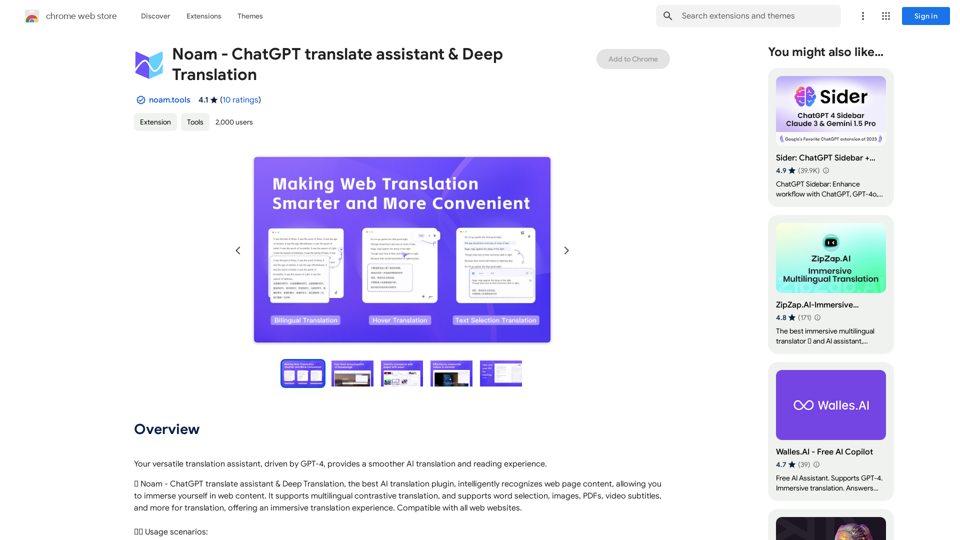
Your versatile translation assistant, driven by GPT-4, provides a smoother AI translation and reading experience.
Visit Website
Noam - ChatGPT Translation Assistant & Deep Translation
Visit Website

Introduction

Noam is a ChatGPT translate assistant & Deep Translation plugin that enhances AI translation and reading experiences. Powered by GPT-4, it intelligently recognizes web page content, allowing users to immerse themselves in foreign language content. Noam offers features like intelligent content area recognition, PDF document translation, efficient mouse hover interaction, image content translation, and a built-in AI dictionary.

Feature

Intelligent Content Area Recognition

Noam translates web pages without altering the original format, preserving the original language while adding translation contrast. This simplifies reading interaction and provides an immersive experience.

PDF Document Translation

Users can upload PDF documents for bilingual contrastive translation without changing the document content, enabling immersive PDF reading.

Efficient Mouse Hover Interaction

Simply hover the mouse over any foreign paragraph on a webpage to get instant bilingual contrastive translation.

One-Click Image Content Translation

Noam supports translating image content with a single click, making visual content more accessible.

Built-in AI Dictionary

The integrated AI dictionary allows for convenient word lookup anytime, anywhere.

Quick Start Guide

  1. Click "Translate Current Site" for AI-powered immersive translation.
  2. Use mouse hover or hover + shortcut keys for immersive translation effects.
  3. Automatic language detection and one-click translation to the target language.
  4. Access the built-in AI dictionary for quick word lookup.

FAQ

How do I turn on/off the translation service?

Click the plugin icon on the right side of the webpage to toggle the service on or off.

What is the plugin's capability based on?

Noam's capabilities are based on AI large language models, which provide more contextually accurate translations compared to traditional machine translation.

What about permissions?

Noam requires permission to read and change website data to provide translation services. This permission is solely used for translation purposes and not for any other activities.

How can I contact Noam for support or feedback?

You can email [email protected] or visit the official website at https://noam.tools for customer service.

Latest Traffic Insights

  • Monthly Visits

    193.90 M

  • Bounce Rate

    56.27%

  • Pages Per Visit

    2.71

  • Time on Site(s)

    115.91

  • Global Rank

    -

  • Country Rank

    -

Recent Visits

Traffic Sources

  • Social Media:
    0.48%
  • Paid Referrals:
    0.55%
  • Email:
    0.15%
  • Referrals:
    12.81%
  • Search Engines:
    16.21%
  • Direct:
    69.81%
More Data

Related Websites

Easy Summaries
View Detail

Easy Summaries

Easy Summaries

Turn reading into a breeze! Summarize anything in less than 10 seconds.

193.90 M
IntelliMark
View Detail

IntelliMark

IntelliMark

An intelligent bookmark finder! Just tell it what you're looking for in your own words, and it will find the most useful bookmarks for you!

193.90 M
Join Task Hub AI - Empower Your AI Journey Today!
View Detail

Join Task Hub AI - Empower Your AI Journey Today!

Join Task Hub AI - Empower Your AI Journey Today!

Unlock the power of AI with Task Hub AI. Learn from experts, collaborate with peers, and innovate with our AI community. Sign up now to turn your AI ideas into reality!

0
DocuProbe
View Detail

DocuProbe

DocuProbe

Docuprobe is a browser extension that summarizes long webpages and extracts key information by simply asking questions.

193.90 M
Real-Time Video & Audio Translation
View Detail

Real-Time Video & Audio Translation

Real-Time Video & Audio Translation

AI-powered real-time translation for any video, meeting, or live-stream across 100+ languages.

193.90 M
Converting JPG Images to Text

Converting a JPG image to text is a process known as Optical Character Recognition (OCR). This technology enables you to extract text from images, scanned documents, and photos. Here's how to do it:

Method 1: Online OCR Tools

You can use online OCR tools to convert JPG images to text. Here are the steps:

1. Upload your JPG image: Go to an online OCR tool website, such as Online OCR Tools or OCR.space, and upload your JPG image.
2. Select the language: Choose the language of the text in your image.
3. Click on "Convert": The tool will convert the image to text.
4. Download the text: You can download the extracted text as a Word document, PDF, or plain text file.

Method 2: Google Drive

You can also use Google Drive to convert JPG images to text. Here's how:

1. Upload your JPG image: Upload your JPG image to Google Drive.
2. Right-click on the image: Right-click on the uploaded image and select "Open with" > "Google Docs".
3. The image will be converted: Google Docs will automatically convert the image to text.
4. Edit and download: You can edit the extracted text and download it as a Word document or PDF.

Method 3: Adobe Acrobat

If you have Adobe Acrobat installed on your computer, you can use it to convert JPG images to text. Here's how:

1. Open Adobe Acrobat: Open Adobe Acrobat on your computer.
2. Create a new document: Create a new document and click on "Tools" > "Recognize Text".
3. Select the image: Select the JPG image you want to convert.
4. Click on "Recognize": Adobe Acrobat will convert the image to text.
5. Edit and save: You can edit the extracted text and save it as a Word document or PDF.

These are the three methods to convert JPG images to text. Choose the method that works best for you!
View Detail

Converting JPG Images to Text Converting a JPG image to text is a process known as Optical Character Recognition (OCR). This technology enables you to extract text from images, scanned documents, and photos. Here's how to do it: Method 1: Online OCR Tools You can use online OCR tools to convert JPG images to text. Here are the steps: 1. Upload your JPG image: Go to an online OCR tool website, such as Online OCR Tools or OCR.space, and upload your JPG image. 2. Select the language: Choose the language of the text in your image. 3. Click on "Convert": The tool will convert the image to text. 4. Download the text: You can download the extracted text as a Word document, PDF, or plain text file. Method 2: Google Drive You can also use Google Drive to convert JPG images to text. Here's how: 1. Upload your JPG image: Upload your JPG image to Google Drive. 2. Right-click on the image: Right-click on the uploaded image and select "Open with" > "Google Docs". 3. The image will be converted: Google Docs will automatically convert the image to text. 4. Edit and download: You can edit the extracted text and download it as a Word document or PDF. Method 3: Adobe Acrobat If you have Adobe Acrobat installed on your computer, you can use it to convert JPG images to text. Here's how: 1. Open Adobe Acrobat: Open Adobe Acrobat on your computer. 2. Create a new document: Create a new document and click on "Tools" > "Recognize Text". 3. Select the image: Select the JPG image you want to convert. 4. Click on "Recognize": Adobe Acrobat will convert the image to text. 5. Edit and save: You can edit the extracted text and save it as a Word document or PDF. These are the three methods to convert JPG images to text. Choose the method that works best for you!

Converting JPG Images to Text Converting a JPG image to text is a process known as Optical Character Recognition (OCR). This technology enables you to extract text from images, scanned documents, and photos. Here's how to do it: Method 1: Online OCR Tools You can use online OCR tools to convert JPG images to text. Here are the steps: 1. Upload your JPG image: Go to an online OCR tool website, such as Online OCR Tools or OCR.space, and upload your JPG image. 2. Select the language: Choose the language of the text in your image. 3. Click on "Convert": The tool will convert the image to text. 4. Download the text: You can download the extracted text as a Word document, PDF, or plain text file. Method 2: Google Drive You can also use Google Drive to convert JPG images to text. Here's how: 1. Upload your JPG image: Upload your JPG image to Google Drive. 2. Right-click on the image: Right-click on the uploaded image and select "Open with" > "Google Docs". 3. The image will be converted: Google Docs will automatically convert the image to text. 4. Edit and download: You can edit the extracted text and download it as a Word document or PDF. Method 3: Adobe Acrobat If you have Adobe Acrobat installed on your computer, you can use it to convert JPG images to text. Here's how: 1. Open Adobe Acrobat: Open Adobe Acrobat on your computer. 2. Create a new document: Create a new document and click on "Tools" > "Recognize Text". 3. Select the image: Select the JPG image you want to convert. 4. Click on "Recognize": Adobe Acrobat will convert the image to text. 5. Edit and save: You can edit the extracted text and save it as a Word document or PDF. These are the three methods to convert JPG images to text. Choose the method that works best for you!

It is an online tool that uses Optical Character Recognition (OCR) to make it possible to extract text from images in JPG format.

193.90 M
AiReelGenerator.com | Faceless Videos on Autopilot.
View Detail

AiReelGenerator.com | Faceless Videos on Autopilot.

AiReelGenerator.com | Faceless Videos on Autopilot.

Discover AiReelGenerator, the newest app that automatically makes videos without faces. Just pick a subject, and our AI will make and upload fresh videos to your YouTube, TikTok, Instagram, or Facebook account every day.

196
BNNGPT - Discover the Impossible.
View Detail

BNNGPT - Discover the Impossible.

BNNGPT - Discover the Impossible.

Real-time, accurate responses driven by cutting-edge AI. Enjoy an elegant, visually appealing interface. Experience the future of search with BNNGPT.

0