Open-source RightAI Tools Directory
  • Discover AI
  • Submit
  • Startup
  • Blog
Open-source RightAI Tools Directory
Discover the best AI tools of 2025 with the RightAI Tools Directory!

Friend Links

AI Anime GeneratorToolsApp AI

Support

Tap4
Privacy policyTerms & ConditionsContact Us
Loading...
loading...

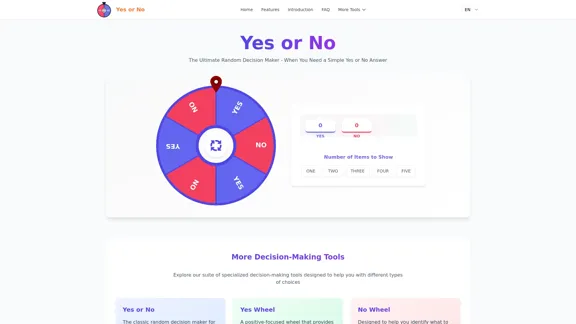
Yes or No | Tool for Making Decisions & Generating Random Answers

Make difficult decisions easier with YesOrNo.run - the yes or no decision maker. Use our simple online decision maker to get instant answers to your questions.
Visit Website
Yes or No | Tool for Making Decisions & Generating Random Answers
Visit Website

Introduction

Yes or No is a browser-based decision-making tool designed to provide instant yes or no answers for various situations. It helps users resolve indecision, settle debates, and adds an element of fun to group activities. The tool features silent question thinking, visual animations, and answer history, making decision-making quick and stress-free.

Feature

  1. Silent Question Thinking

    Users can think of their yes or no question without typing, allowing for a more intuitive decision-making process.

  2. Visual Animation Options

    Engaging animations enhance the experience as users await their random answer, creating anticipation.

  3. Answer History

    The tool keeps track of previous questions and answers, enabling users to review their decision-making journey.

  4. Customization Options

    Users can personalize their experience with different themes and animation styles for a unique session each time.

  5. Mobile Support

    Fully optimized for smartphones and tablets, the tool ensures a seamless experience across devices.

  6. Offline Capability

    Users can make decisions without an internet connection once the app is loaded, providing flexibility in usage.

How to Use?

  1. Be Specific

    Frame your questions clearly to ensure they can be answered with a simple yes or no.

  2. Consider the Stakes

    Use the tool for lighter decisions, as significant life choices may require more thorough consideration.

  3. Use for Breaking Deadlocks

    When stuck between two appealing options, a random yes or no can help you move forward.

  4. Have Fun With It

    Incorporate Yes or No into lighthearted decisions to add spontaneity to your day.

FAQ

Is Yes or No completely free?

Yes, the basic features are available at no cost, allowing unlimited yes or no answers.

Does it work on mobile devices?

Absolutely! Yes or No is optimized for mobile use, making it accessible on any device with a browser.

Are the yes or no answers truly random?

Yes, the tool uses a high-quality random number generator to ensure unbiased answers.

How does thinking of my question silently work?

This process helps connect with your intuition, making the decision feel more meaningful.

Can Yes or No help with important life decisions?

While it can assist in breaking decision paralysis, it should be used as a supplement to more thorough decision-making processes.

What if I don't like the answer I receive?

If disappointed, it may reveal your true preference, suggesting you follow your gut feeling instead.

Is it possible to save my decision history?

Yes, the tool automatically saves recent decision history locally on your device for easy reference.

Price

  • Free Plan: $0/month
  • Basic Features: Unlimited yes or no answers at no cost
The price is for reference only, please refer to the latest official data for actual information.

Evaluation

  1. Yes or No effectively simplifies decision-making, providing quick and random answers that can alleviate indecision.
  2. The visual animations and customization options enhance user engagement, making the experience enjoyable.
  3. However, the tool may not be suitable for significant life decisions, as it lacks depth in analysis.
  4. Users should be cautious about relying solely on this tool for critical choices, as it is best used for lighter, more trivial decisions.
  5. Overall, Yes or No serves as a fun and practical decision-making aid, but users should balance its use with more comprehensive decision-making strategies.

Latest Traffic Insights

  • Monthly Visits

    0

  • Bounce Rate

    0.00%

  • Pages Per Visit

    0.00

  • Time on Site(s)

    0.00

  • Global Rank

    -

  • Country Rank

    -

Recent Visits

Traffic Sources

  • Social Media:
    0.00%
  • Paid Referrals:
    0.00%
  • Email:
    0.00%
  • Referrals:
    0.00%
  • Search Engines:
    0.00%
  • Direct:
    0.00%
More Data

Related Websites

Copilot for Microsoft 365 – Microsoft Adoption

Copilot for Microsoft 365 is a powerful AI assistant that helps you work smarter and faster across Microsoft 365 apps and services. It combines the power of large language models (LLMs) with your organization's data in the Microsoft Graph and Microsoft 365 apps to turn your words into the most powerful productivity tool on the planet.

Copilot is designed to help you:

β€’ Unleash creativity
β€’ Unlock productivity
β€’ Uplevel skills

Copilot is built on Microsoft's comprehensive approach to security, compliance, and privacy. Copilot in Microsoft 365 apps and services:

β€’ Does not use your data to train the underlying LLM
β€’ Does not replace human ingenuity and judgment
β€’ Is designed to keep humans in the loop

Copilot is currently available in Word, Excel, PowerPoint, Outlook, Teams, and more.

Getting Started with Copilot

To get started with Copilot, follow these steps:

1. Check availability: Ensure your organization has access to Copilot.
2. Learn the basics: Familiarize yourself with Copilot's capabilities and how to use it effectively.
3. Explore use cases: Discover how Copilot can help you in your specific role and tasks.
4. Practice and refine: Use Copilot regularly and refine your prompts for better results.
5. Share and collaborate: Collaborate with colleagues using Copilot and share best practices.

Best Practices for Using Copilot

1. Be specific in your prompts
2. Provide context for better results
3. Review and edit Copilot's output
4. Use Copilot as a starting point, not a final product
5. Experiment with different approaches
6. Stay informed about new features and updates

Copilot in Different Microsoft 365 Apps

β€’ Word: Draft, edit, summarize, and rewrite content
β€’ Excel: Analyze data, create formulas, and generate insights
β€’ PowerPoint: Create presentations, design slides, and generate content
β€’ Outlook: Compose emails, summarize threads, and manage your inbox
β€’ Teams: Summarize meetings, generate action items, and create meeting notes

Responsible AI and Copilot

Microsoft is committed to developing AI systems responsibly. When using Copilot, keep in mind:

β€’ AI-generated content may contain biases or inaccuracies
β€’ Always review and verify Copilot's output
β€’ Use your judgment and expertise alongside Copilot's suggestions
β€’ Be aware of your organization's policies regarding AI use

Conclusion

Copilot for Microsoft 365 is a powerful tool that can significantly enhance your productivity and creativity. By understanding its capabilities, following best practices, and using it responsibly, you can make the most of this AI assistant in your daily work.
View Detail

Copilot for Microsoft 365 – Microsoft Adoption Copilot for Microsoft 365 is a powerful AI assistant that helps you work smarter and faster across Microsoft 365 apps and services. It combines the power of large language models (LLMs) with your organization's data in the Microsoft Graph and Microsoft 365 apps to turn your words into the most powerful productivity tool on the planet. Copilot is designed to help you: β€’ Unleash creativity β€’ Unlock productivity β€’ Uplevel skills Copilot is built on Microsoft's comprehensive approach to security, compliance, and privacy. Copilot in Microsoft 365 apps and services: β€’ Does not use your data to train the underlying LLM β€’ Does not replace human ingenuity and judgment β€’ Is designed to keep humans in the loop Copilot is currently available in Word, Excel, PowerPoint, Outlook, Teams, and more. Getting Started with Copilot To get started with Copilot, follow these steps: 1. Check availability: Ensure your organization has access to Copilot. 2. Learn the basics: Familiarize yourself with Copilot's capabilities and how to use it effectively. 3. Explore use cases: Discover how Copilot can help you in your specific role and tasks. 4. Practice and refine: Use Copilot regularly and refine your prompts for better results. 5. Share and collaborate: Collaborate with colleagues using Copilot and share best practices. Best Practices for Using Copilot 1. Be specific in your prompts 2. Provide context for better results 3. Review and edit Copilot's output 4. Use Copilot as a starting point, not a final product 5. Experiment with different approaches 6. Stay informed about new features and updates Copilot in Different Microsoft 365 Apps β€’ Word: Draft, edit, summarize, and rewrite content β€’ Excel: Analyze data, create formulas, and generate insights β€’ PowerPoint: Create presentations, design slides, and generate content β€’ Outlook: Compose emails, summarize threads, and manage your inbox β€’ Teams: Summarize meetings, generate action items, and create meeting notes Responsible AI and Copilot Microsoft is committed to developing AI systems responsibly. When using Copilot, keep in mind: β€’ AI-generated content may contain biases or inaccuracies β€’ Always review and verify Copilot's output β€’ Use your judgment and expertise alongside Copilot's suggestions β€’ Be aware of your organization's policies regarding AI use Conclusion Copilot for Microsoft 365 is a powerful tool that can significantly enhance your productivity and creativity. By understanding its capabilities, following best practices, and using it responsibly, you can make the most of this AI assistant in your daily work.

Copilot for Microsoft 365 – Microsoft Adoption Copilot for Microsoft 365 is a powerful AI assistant that helps you work smarter and faster across Microsoft 365 apps and services. It combines the power of large language models (LLMs) with your organization's data in the Microsoft Graph and Microsoft 365 apps to turn your words into the most powerful productivity tool on the planet. Copilot is designed to help you: β€’ Unleash creativity β€’ Unlock productivity β€’ Uplevel skills Copilot is built on Microsoft's comprehensive approach to security, compliance, and privacy. Copilot in Microsoft 365 apps and services: β€’ Does not use your data to train the underlying LLM β€’ Does not replace human ingenuity and judgment β€’ Is designed to keep humans in the loop Copilot is currently available in Word, Excel, PowerPoint, Outlook, Teams, and more. Getting Started with Copilot To get started with Copilot, follow these steps: 1. Check availability: Ensure your organization has access to Copilot. 2. Learn the basics: Familiarize yourself with Copilot's capabilities and how to use it effectively. 3. Explore use cases: Discover how Copilot can help you in your specific role and tasks. 4. Practice and refine: Use Copilot regularly and refine your prompts for better results. 5. Share and collaborate: Collaborate with colleagues using Copilot and share best practices. Best Practices for Using Copilot 1. Be specific in your prompts 2. Provide context for better results 3. Review and edit Copilot's output 4. Use Copilot as a starting point, not a final product 5. Experiment with different approaches 6. Stay informed about new features and updates Copilot in Different Microsoft 365 Apps β€’ Word: Draft, edit, summarize, and rewrite content β€’ Excel: Analyze data, create formulas, and generate insights β€’ PowerPoint: Create presentations, design slides, and generate content β€’ Outlook: Compose emails, summarize threads, and manage your inbox β€’ Teams: Summarize meetings, generate action items, and create meeting notes Responsible AI and Copilot Microsoft is committed to developing AI systems responsibly. When using Copilot, keep in mind: β€’ AI-generated content may contain biases or inaccuracies β€’ Always review and verify Copilot's output β€’ Use your judgment and expertise alongside Copilot's suggestions β€’ Be aware of your organization's policies regarding AI use Conclusion Copilot for Microsoft 365 is a powerful tool that can significantly enhance your productivity and creativity. By understanding its capabilities, following best practices, and using it responsibly, you can make the most of this AI assistant in your daily work.

Microsoft Copilot combines the power of large language models (LLMs) with your organization's data to turn your words into one of the most powerful productivity tools on the planet.

608.60 K
Tomat.AI - Data Analysis with AI
View Detail

Tomat.AI - Data Analysis with AI

Tomat.AI - Data Analysis with AI

Load CSV and analyze it in a visual step-by-step interface. Cleanup, extract, summarize, or make sentiment analysis with your personal AI agent.

5.64 K
Slashit App
View Detail

Slashit App

Slashit App

Turn your regular text into shortcuts.

258
Ninja AI | An All-In-One AI Agent for Unlimited Productivity
View Detail

Ninja AI | An All-In-One AI Agent for Unlimited Productivity

Ninja AI | An All-In-One AI Agent for Unlimited Productivity

Accomplish more every day with the best AI tools for research, writing, coding, image generation, file analysis, and more. Try Ninja for free today.

740.62 K
Digital All-in-One Planner for Productivity & Time Management | Elisi
View Detail

Digital All-in-One Planner for Productivity & Time Management | Elisi

Digital All-in-One Planner for Productivity & Time Management | Elisi

Elisi is a user-friendly, cross-device All-in-one Planner to help you improve personal productivity and manage your time effectively. Features include pre-templated modules in a bullet journal along with task planning, habit tracking, project management and note taking. Try Elisi on your iPhone or Android device today!

8.90 K
Reclaim – AI Calendar for Work and Life
View Detail

Reclaim – AI Calendar for Work and Life

Reclaim – AI Calendar for Work and Life

Reclaim is an AI-powered app that creates 40% more time for teams by automatically scheduling tasks, habits, meetings, and breaks β€” available for free on Google Calendar and Outlook Calendar.

1.06 M
The AI Office Suite
View Detail

The AI Office Suite

The AI Office Suite

An office suite for the AI era. It's the best way to integrate AI into your work.

163.98 K
Interview Intelligence Platform for Streamlined Hiring | BrightHire
View Detail

Interview Intelligence Platform for Streamlined Hiring | BrightHire

Interview Intelligence Platform for Streamlined Hiring | BrightHire

An Interview Intelligence platform that creates recruitment strategies, produces interview summaries and key points, provides candidate insights, and offers additional features.

40.01 K