Open-source RightAI Tools Directory
  • Discover AI
  • Submit
  • Startup
  • Blog
Open-source RightAI Tools Directory
Discover the best AI tools of 2025 with the RightAI Tools Directory!

Friend Links

AI Anime GeneratorToolsApp AI

Support

Tap4
Privacy policyTerms & ConditionsContact Us
Loading...
loading...

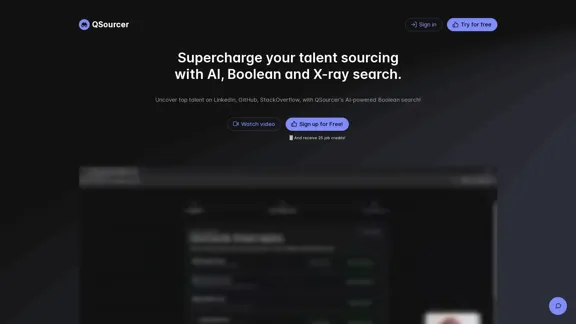
qsourcer.com - Talent Acquisition with AI, Boolean and X-ray Search.

Discover top-tier professionals on LinkedIn, GitHub, and StackOverflow using qSourcer's AI-powered Boolean search recruitment software.
Visit Website
qsourcer.com - Talent Acquisition with AI, Boolean and X-ray Search.
Visit Website

Introduction

QSourcer is an AI-powered talent acquisition platform that revolutionizes the recruitment process. It utilizes advanced Boolean and X-ray search techniques to efficiently find top talent across various job platforms. Designed for recruiters and hiring professionals, QSourcer streamlines talent sourcing, making it more accurate and user-friendly.

Feature

AI-Powered Boolean Search

QSourcer leverages artificial intelligence to create complex Boolean search queries, significantly improving the efficiency and accuracy of talent searches.

Multi-Platform Compatibility

The platform supports a wide range of job platforms, including LinkedIn, Indeed, GitHub, Stack Overflow, and many others, providing comprehensive coverage for talent sourcing.

Keyword Generation

QSourcer's AI generates industry-specific synonyms and relevant keywords, enhancing the breadth and depth of talent searches.

Language Detection and Support

With multi-language support, QSourcer facilitates international talent searches, broadening the scope of potential candidates.

X-ray Search Capabilities

The platform incorporates X-ray search techniques, allowing for more precise and targeted talent identification.

User-Friendly Interface

QSourcer's intuitive interface caters to both expert recruiters and newcomers, simplifying the talent sourcing process.

Pricing Options

QSourcer offers flexible pricing plans:

PlanPriceFeatures
Free$010 job credits
Paid PlansVariesAdditional monthly job credits

A 15% early bird discount is currently available for paid plans.

FAQ

Which job platforms does QSourcer support?

QSourcer supports a wide range of platforms, including LinkedIn (Basic & Recruiter), Indeed, Google Resumes, Xing, GitHub, Stack Overflow, Quora, About.me, Kaggle, X (Twitter), Post Job Free, and Jobvertise (US only).

Do unused job credits carry over to the next billing cycle?

No, job credits do not carry over. They reset to the amount specified in your subscription plan at the start of each billing cycle.

Can I cancel my subscription?

Yes, you can cancel your subscription at any time. Manage your subscription through the Stripe portal accessible from your account page.

Does QSourcer offer refunds?

QSourcer does not offer refunds. However, when you cancel your subscription, it remains active until the end of the current billing cycle.

How soon are job credits added to my account after upgrading?

Job credits are added instantly to your account upon upgrading. New credits are allocated at the beginning of each billing cycle for subscription plans.

Related Websites

Copilot for Microsoft 365 – Microsoft Adoption

Copilot for Microsoft 365 is a powerful AI assistant that helps you work smarter and faster across Microsoft 365 apps and services. It combines the power of large language models (LLMs) with your organization's data in the Microsoft Graph and Microsoft 365 apps to turn your words into the most powerful productivity tool on the planet.

Copilot is designed to help you:

β€’ Unleash creativity
β€’ Unlock productivity
β€’ Uplevel skills

Copilot is built on Microsoft's comprehensive approach to security, compliance, and privacy. Copilot in Microsoft 365 apps and services:

β€’ Does not use your data to train the underlying LLM
β€’ Does not replace human ingenuity and judgment
β€’ Is designed to keep humans in the loop

Copilot is currently available in Word, Excel, PowerPoint, Outlook, Teams, and more.

Getting Started with Copilot

To get started with Copilot, follow these steps:

1. Check availability: Ensure your organization has access to Copilot.
2. Learn the basics: Familiarize yourself with Copilot's capabilities and how to use it effectively.
3. Explore use cases: Discover how Copilot can help you in your specific role and tasks.
4. Practice and refine: Use Copilot regularly and refine your prompts for better results.
5. Share and collaborate: Collaborate with colleagues using Copilot and share best practices.

Best Practices for Using Copilot

1. Be specific in your prompts
2. Provide context for better results
3. Review and edit Copilot's output
4. Use Copilot as a starting point, not a final product
5. Experiment with different approaches
6. Stay informed about new features and updates

Copilot in Different Microsoft 365 Apps

β€’ Word: Draft, edit, summarize, and rewrite content
β€’ Excel: Analyze data, create formulas, and generate insights
β€’ PowerPoint: Create presentations, design slides, and generate content
β€’ Outlook: Compose emails, summarize threads, and manage your inbox
β€’ Teams: Summarize meetings, generate action items, and create meeting notes

Responsible AI and Copilot

Microsoft is committed to developing AI systems responsibly. When using Copilot, keep in mind:

β€’ AI-generated content may contain biases or inaccuracies
β€’ Always review and verify Copilot's output
β€’ Use your judgment and expertise alongside Copilot's suggestions
β€’ Be aware of your organization's policies regarding AI use

Conclusion

Copilot for Microsoft 365 is a powerful tool that can significantly enhance your productivity and creativity. By understanding its capabilities, following best practices, and using it responsibly, you can make the most of this AI assistant in your daily work.
View Detail

Copilot for Microsoft 365 – Microsoft Adoption Copilot for Microsoft 365 is a powerful AI assistant that helps you work smarter and faster across Microsoft 365 apps and services. It combines the power of large language models (LLMs) with your organization's data in the Microsoft Graph and Microsoft 365 apps to turn your words into the most powerful productivity tool on the planet. Copilot is designed to help you: β€’ Unleash creativity β€’ Unlock productivity β€’ Uplevel skills Copilot is built on Microsoft's comprehensive approach to security, compliance, and privacy. Copilot in Microsoft 365 apps and services: β€’ Does not use your data to train the underlying LLM β€’ Does not replace human ingenuity and judgment β€’ Is designed to keep humans in the loop Copilot is currently available in Word, Excel, PowerPoint, Outlook, Teams, and more. Getting Started with Copilot To get started with Copilot, follow these steps: 1. Check availability: Ensure your organization has access to Copilot. 2. Learn the basics: Familiarize yourself with Copilot's capabilities and how to use it effectively. 3. Explore use cases: Discover how Copilot can help you in your specific role and tasks. 4. Practice and refine: Use Copilot regularly and refine your prompts for better results. 5. Share and collaborate: Collaborate with colleagues using Copilot and share best practices. Best Practices for Using Copilot 1. Be specific in your prompts 2. Provide context for better results 3. Review and edit Copilot's output 4. Use Copilot as a starting point, not a final product 5. Experiment with different approaches 6. Stay informed about new features and updates Copilot in Different Microsoft 365 Apps β€’ Word: Draft, edit, summarize, and rewrite content β€’ Excel: Analyze data, create formulas, and generate insights β€’ PowerPoint: Create presentations, design slides, and generate content β€’ Outlook: Compose emails, summarize threads, and manage your inbox β€’ Teams: Summarize meetings, generate action items, and create meeting notes Responsible AI and Copilot Microsoft is committed to developing AI systems responsibly. When using Copilot, keep in mind: β€’ AI-generated content may contain biases or inaccuracies β€’ Always review and verify Copilot's output β€’ Use your judgment and expertise alongside Copilot's suggestions β€’ Be aware of your organization's policies regarding AI use Conclusion Copilot for Microsoft 365 is a powerful tool that can significantly enhance your productivity and creativity. By understanding its capabilities, following best practices, and using it responsibly, you can make the most of this AI assistant in your daily work.

Copilot for Microsoft 365 – Microsoft Adoption Copilot for Microsoft 365 is a powerful AI assistant that helps you work smarter and faster across Microsoft 365 apps and services. It combines the power of large language models (LLMs) with your organization's data in the Microsoft Graph and Microsoft 365 apps to turn your words into the most powerful productivity tool on the planet. Copilot is designed to help you: β€’ Unleash creativity β€’ Unlock productivity β€’ Uplevel skills Copilot is built on Microsoft's comprehensive approach to security, compliance, and privacy. Copilot in Microsoft 365 apps and services: β€’ Does not use your data to train the underlying LLM β€’ Does not replace human ingenuity and judgment β€’ Is designed to keep humans in the loop Copilot is currently available in Word, Excel, PowerPoint, Outlook, Teams, and more. Getting Started with Copilot To get started with Copilot, follow these steps: 1. Check availability: Ensure your organization has access to Copilot. 2. Learn the basics: Familiarize yourself with Copilot's capabilities and how to use it effectively. 3. Explore use cases: Discover how Copilot can help you in your specific role and tasks. 4. Practice and refine: Use Copilot regularly and refine your prompts for better results. 5. Share and collaborate: Collaborate with colleagues using Copilot and share best practices. Best Practices for Using Copilot 1. Be specific in your prompts 2. Provide context for better results 3. Review and edit Copilot's output 4. Use Copilot as a starting point, not a final product 5. Experiment with different approaches 6. Stay informed about new features and updates Copilot in Different Microsoft 365 Apps β€’ Word: Draft, edit, summarize, and rewrite content β€’ Excel: Analyze data, create formulas, and generate insights β€’ PowerPoint: Create presentations, design slides, and generate content β€’ Outlook: Compose emails, summarize threads, and manage your inbox β€’ Teams: Summarize meetings, generate action items, and create meeting notes Responsible AI and Copilot Microsoft is committed to developing AI systems responsibly. When using Copilot, keep in mind: β€’ AI-generated content may contain biases or inaccuracies β€’ Always review and verify Copilot's output β€’ Use your judgment and expertise alongside Copilot's suggestions β€’ Be aware of your organization's policies regarding AI use Conclusion Copilot for Microsoft 365 is a powerful tool that can significantly enhance your productivity and creativity. By understanding its capabilities, following best practices, and using it responsibly, you can make the most of this AI assistant in your daily work.

Microsoft Copilot combines the power of large language models (LLMs) with your organization's data to turn your words into one of the most powerful productivity tools on the planet.

608.60 K
AI for Email Security & Sustainability | mxHERO Inc.
View Detail

AI for Email Security & Sustainability | mxHERO Inc.

AI for Email Security & Sustainability | mxHERO Inc.

mxHERO AI combines the power of LLM AI with your email in a single dashboard. It offers robust email security, governance, and environmental sustainability features.

20.76 K
Beyz AI | AI Interview Assistant
View Detail

Beyz AI | AI Interview Assistant

Beyz AI | AI Interview Assistant

Beyz AI listens to interviewer questions and delivers concise, accurate answers tailored to your background in real-time, boosting your interview success.

0
Translation tool for professionals | SYSTRAN
View Detail

Translation tool for professionals | SYSTRAN

Translation tool for professionals | SYSTRAN

Translate texts, documents and much more in over 55 languages with SYSTRAN's fully secure professional translation solutions. API & CAT Tool integration

314.63 K
Automatic Technical Documentation Updates with AI
View Detail

Automatic Technical Documentation Updates with AI

Automatic Technical Documentation Updates with AI

Promptless keeps your technical documents up to date by automatically drafting document updates from GitHub pull requests, enhancing customer satisfaction and increasing free user conversions while reducing implementation time and support requests.

2.23 K
Workflow – The simplest way to manage creative work
View Detail

Workflow – The simplest way to manage creative work

Workflow – The simplest way to manage creative work

A minimalist collaboration platform for creative teams. Manage tasks, get AI reviews, and share work, all in one place.

5.88 K
Resume Creator
View Detail

Resume Creator

Resume Creator

Build and customize your resume with AI assistance.

578
AI Posts Generator - Robopost AI

Generate high-quality content in minutes with Robopost AI, the ultimate AI posts generator.
View Detail

AI Posts Generator - Robopost AI Generate high-quality content in minutes with Robopost AI, the ultimate AI posts generator.

AI Posts Generator - Robopost AI Generate high-quality content in minutes with Robopost AI, the ultimate AI posts generator.

Generate engaging and compelling social media posts with Robopost AI. Our AI-powered tool helps you create content that resonates with your audience.

73.03 K