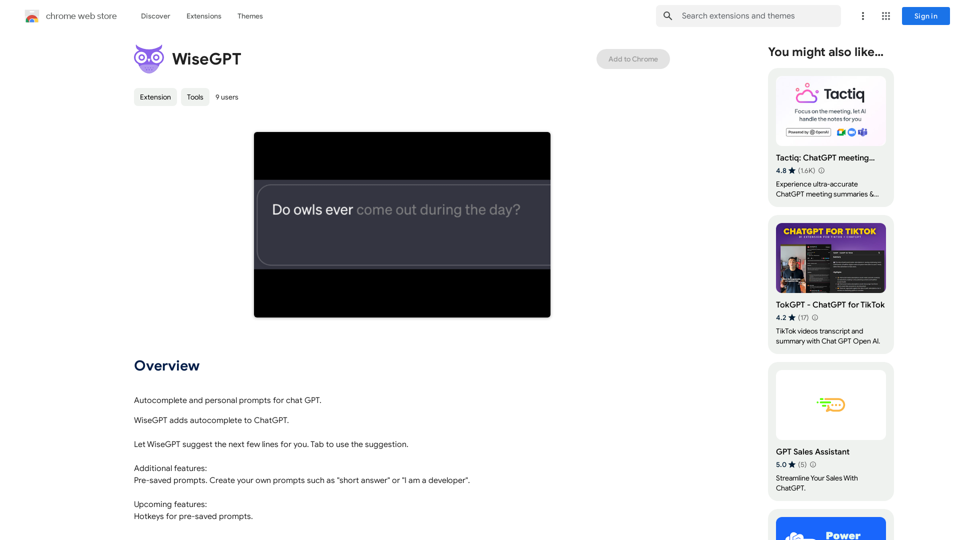
WiseGPT is a powerful extension designed to enhance the ChatGPT experience. It introduces autocomplete functionality and personal prompts, making ChatGPT more user-friendly and efficient. This tool allows users to create custom prompts and access them quickly through hotkeys, streamlining the interaction process with ChatGPT.
WiseGPT
Autocomplete and personal prompts for ChatGPT.
Introduction
Feature
Autocomplete and Personal Prompts
WiseGPT offers intelligent autocomplete suggestions for ChatGPT, enabling users to complete sentences and ideas swiftly. Users can create personalized prompts like "short answer" or "I am a developer" to maintain focus and boost productivity.
Pre-Saved Prompts
The extension allows users to save frequently used prompts for easy access. This feature facilitates quick recall and usage of favorite prompts, saving time and effort in the process.
Free to Use
WiseGPT is available as a free extension, with no subscription or payment required. Users can utilize all features without any limitations.
Easy Integration
To use WiseGPT, users simply need to install the extension and continue using ChatGPT as usual. The extension automatically provides autocomplete suggestions and access to pre-saved prompts.
FAQ
Is WiseGPT compatible with other chatbots?
No, WiseGPT is specifically designed for use with ChatGPT and is not compatible with other chatbots.
How can I create my own personal prompts?
You can create your own personal prompts by clicking on the "Create Prompt" button in the WiseGPT extension.
What are some helpful tips for using WiseGPT?
- Utilize the autocomplete feature to quickly complete sentences and ideas
- Create personal prompts to maintain focus and productivity
- Use the pre-saved prompts feature to quickly access your favorite prompts
Related Websites
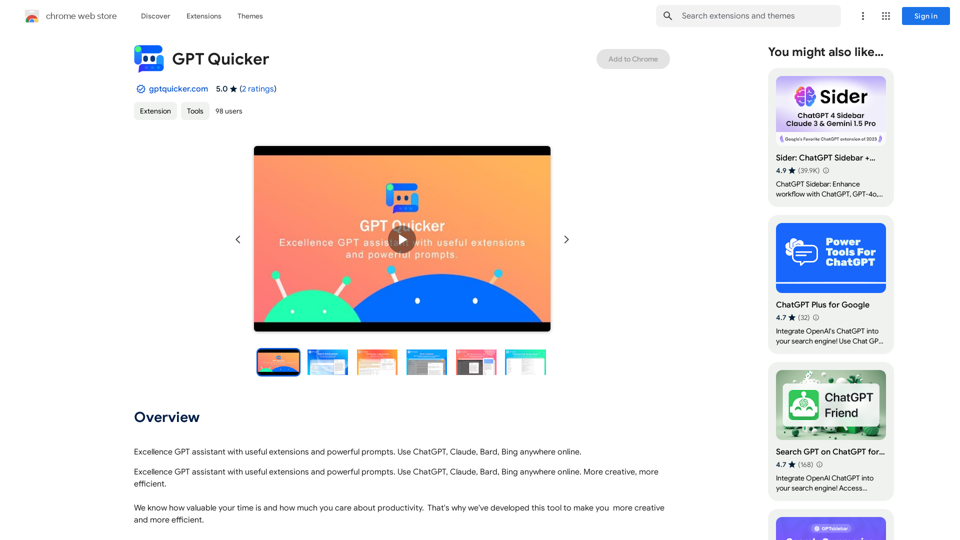
Excellent GPT assistant with useful extensions and powerful prompts. Use ChatGPT, Claude, Bard, Bing on any website.
193.90 M
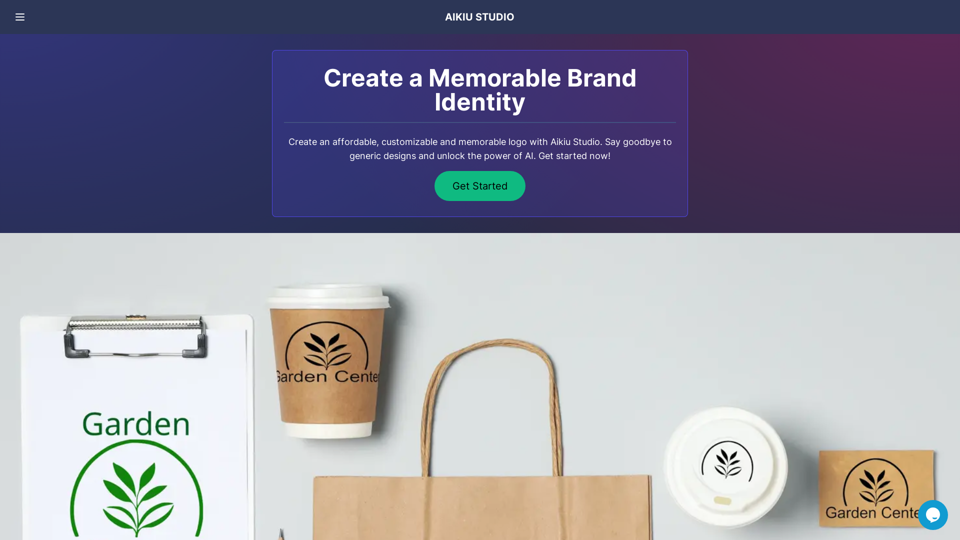
Fast and Affordable Logo Generator for Small Businesses
Fast and Affordable Logo Generator for Small BusinessesGenerate unique logos quickly and affordably with Aikiu Studio. Create professional designs for small businesses and solopreneurs in minutes. Get high-quality, hassle-free logo creation.
0
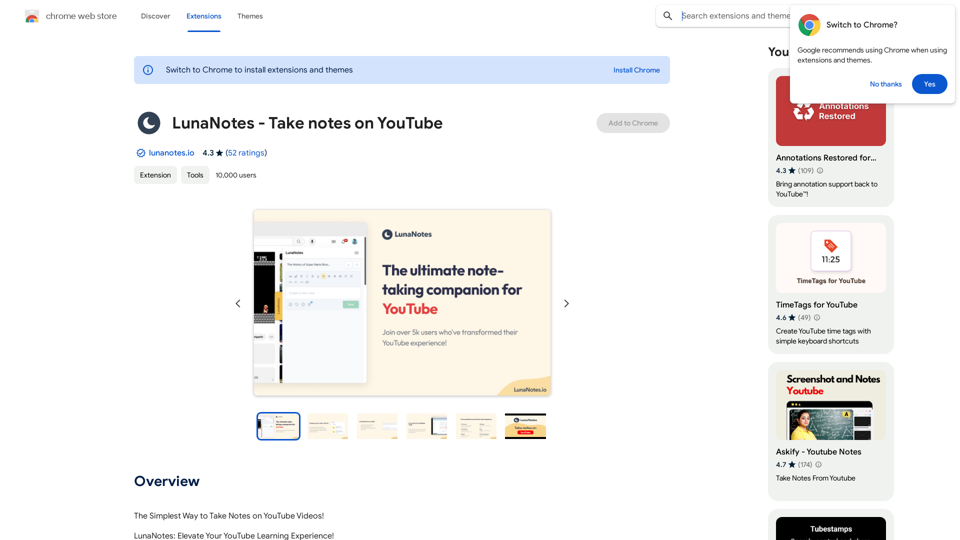
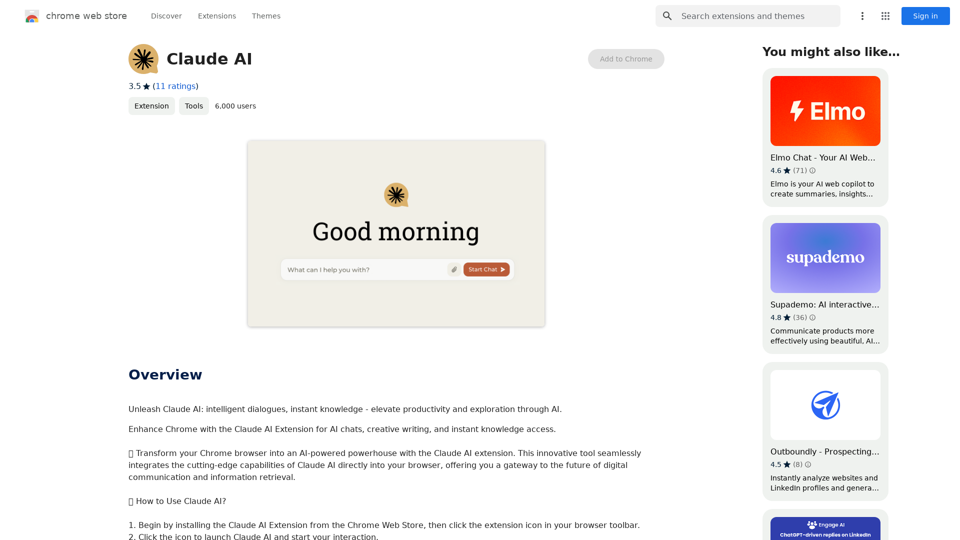
Claude AI Claude AI is an artificial intelligence model that can understand and respond to human input in a conversational manner. It is trained on a massive dataset of text from the internet and can generate human-like responses to a wide range of topics and questions. Claude AI is designed to be highly engaging and can even exhibit a sense of humor, making it a popular choice for chatbots and virtual assistants.
Claude AI Claude AI is an artificial intelligence model that can understand and respond to human input in a conversational manner. It is trained on a massive dataset of text from the internet and can generate human-like responses to a wide range of topics and questions. Claude AI is designed to be highly engaging and can even exhibit a sense of humor, making it a popular choice for chatbots and virtual assistants.Unleash Claude AI: Intelligent Dialogues, Instant Knowledge - Elevate Productivity and Exploration through AI.
193.90 M

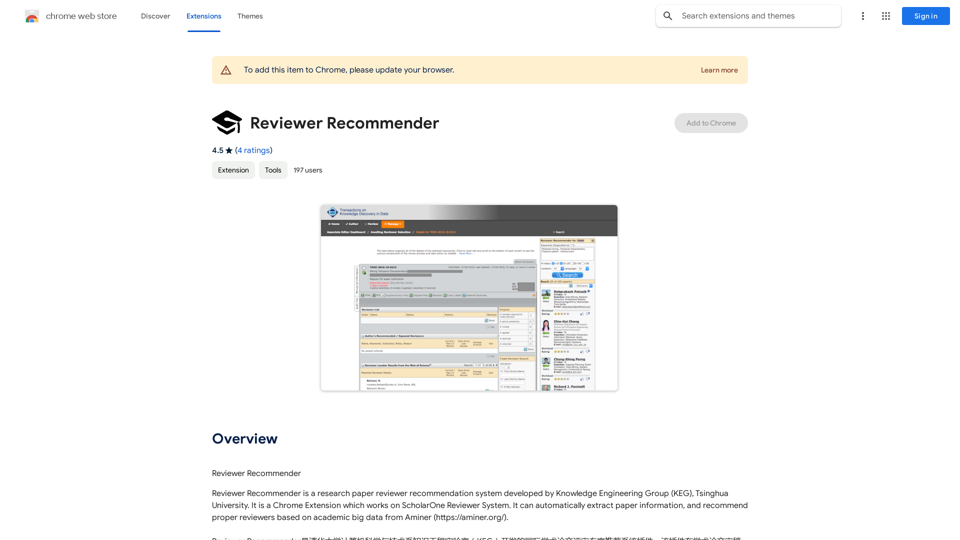
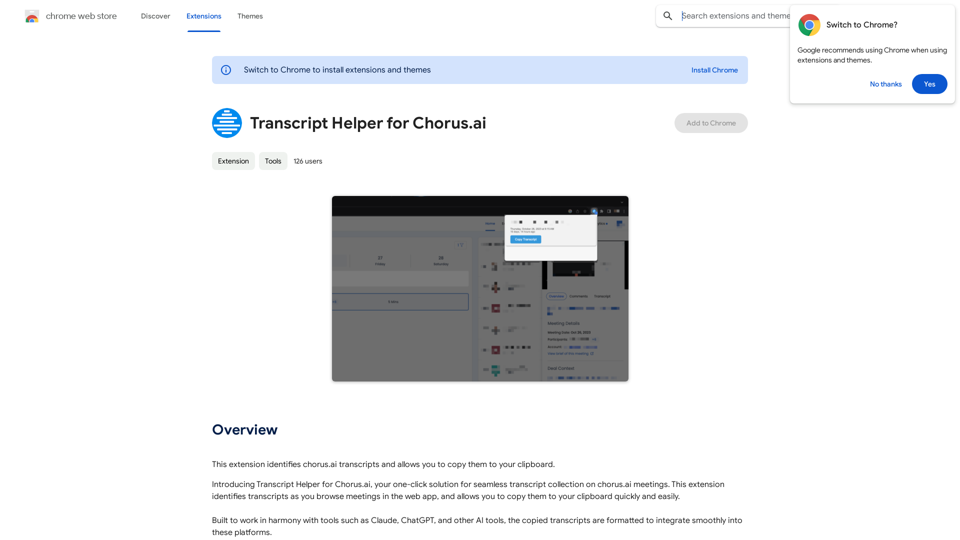
Transcript Helper for Chorus.ai This is a tool designed to help you work with transcripts generated by Chorus.ai. Let me know what you need help with! For example, you can ask me to: * Summarize a transcript: Give me a transcript and I'll provide a concise summary of the main points. * Find specific information: Tell me what you're looking for (e.g., "find all mentions of product X") and I'll search the transcript for relevant text. * Identify key speakers: I can analyze the transcript and tell you who the main speakers are. * Generate action items: Based on the transcript, I can help you identify tasks that need to be completed. * Translate the transcript: I can translate the transcript into another language. What can I do for you today?
Transcript Helper for Chorus.ai This is a tool designed to help you work with transcripts generated by Chorus.ai. Let me know what you need help with! For example, you can ask me to: * Summarize a transcript: Give me a transcript and I'll provide a concise summary of the main points. * Find specific information: Tell me what you're looking for (e.g., "find all mentions of product X") and I'll search the transcript for relevant text. * Identify key speakers: I can analyze the transcript and tell you who the main speakers are. * Generate action items: Based on the transcript, I can help you identify tasks that need to be completed. * Translate the transcript: I can translate the transcript into another language. What can I do for you today?This extension finds chorus.ai transcripts and lets you copy them to your clipboard.
193.90 M