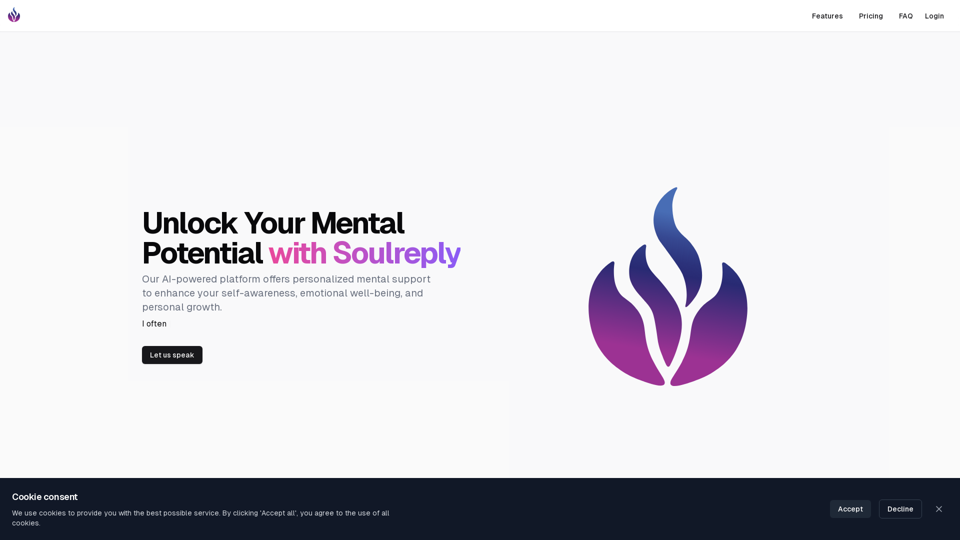
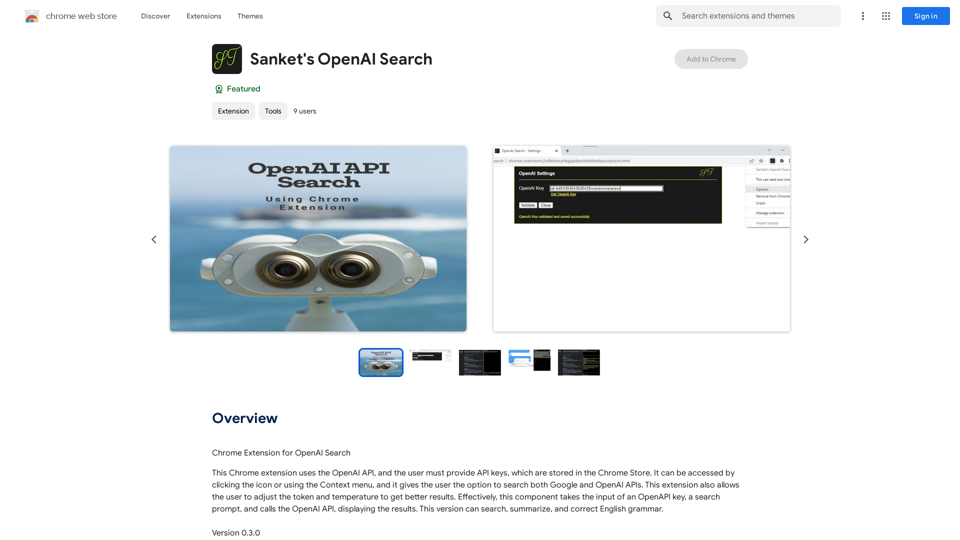
Sanket's OpenAI Search is a Chrome extension that enhances web searching by combining Google and OpenAI APIs. This powerful tool allows users to access a wide range of information, customize search parameters, and utilize additional features to optimize their search experience. The extension is free to use and requires users to provide their OpenAI API keys for functionality.
Sanket's OpenAI Search
Chrome Extension for OpenAI Search
This is a Chrome extension that integrates OpenAI's powerful search capabilities directly into your browser.
Features:
* Seamless Search: Access OpenAI's search results directly from your address bar or by clicking a dedicated button.
* Contextual Understanding: The extension leverages OpenAI's advanced language models to understand the context of your search queries, delivering more relevant and insightful results.
* Summarization and Insights: Get concise summaries and key takeaways from search results, saving you time and effort.
* Customizable Settings: Tailor your search experience with options to adjust parameters like temperature and top_p for fine-tuned results.
Benefits:
* Enhanced Research: Uncover deeper insights and explore information more effectively.
* Improved Productivity: Quickly find the information you need and streamline your workflow.
* New Ways to Explore: Discover unexpected connections and gain a broader understanding of topics.
Introduction
Feature
Dual API Search Capability
Sanket's OpenAI Search enables users to search both Google and OpenAI APIs simultaneously, providing access to a vast array of information from multiple sources.
Customizable Search Parameters
Users can adjust token and temperature settings to fine-tune their search results, allowing for more precise and relevant information retrieval.
Enhanced Search Features
The extension includes additional functionalities such as TL;DR (Too Long; Didn't Read) summaries and note-taking capabilities, helping users efficiently process and organize search results.
User-Friendly Installation
Users can easily install Sanket's OpenAI Search from the Chrome Web Store, making it readily accessible to Chrome browser users.
Free to Use
The extension is available at no cost, allowing users to benefit from its advanced search capabilities without any financial commitment.
FAQ
How do I get started with Sanket's OpenAI Search?
To begin using Sanket's OpenAI Search:
- Install the extension from the Chrome Web Store
- Provide your OpenAI API keys
- Start searching using both Google and OpenAI APIs
What are the key features of Sanket's OpenAI Search?
The main features include:
- Dual API search (Google and OpenAI)
- Adjustable token and temperature settings
- Additional search features like TL;DR and Notes
- Free to use
Are there any tips for optimizing my search experience?
To get the most out of Sanket's OpenAI Search:
- Experiment with token and temperature adjustments to refine your results
- Utilize the TL;DR and Notes features for efficient information processing
- Take advantage of the dual API search to access a broader range of information
Related Websites
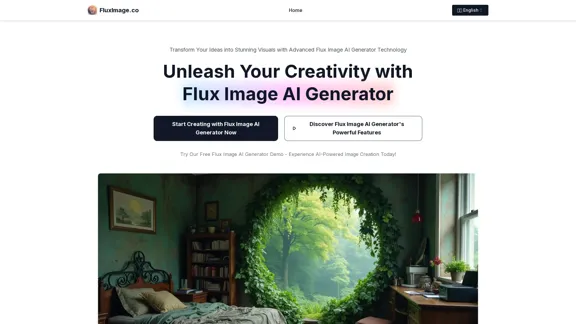
Flux Image AI Generator Online Free | FluxImage.co
Flux Image AI Generator Online Free | FluxImage.coCreate captivating images and videos with Flux Image AI Generator, the state-of-the-art AI image generation tool available for free online
2.35 K
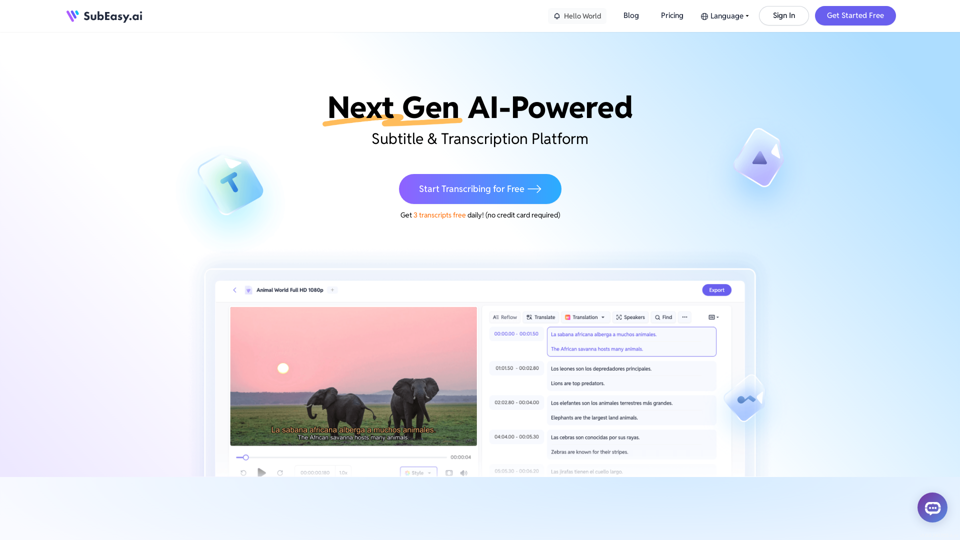
SubEasy: AI Powered Audio Transcription & Video Subtitles
SubEasy: AI Powered Audio Transcription & Video SubtitlesSubEasy.ai提供具有无与伦比的准确性的人工智能自动转录和翻译服务,跨越100种语言的上下文感知AI翻译。现在注册!
422.02 K
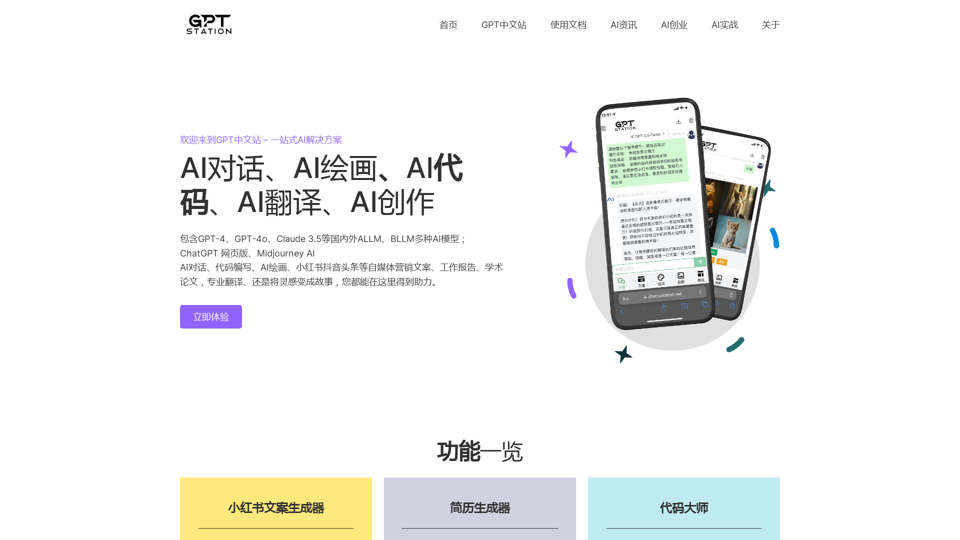
GPT Chinese Station - Experience the Official Chinese Website of ChatGPT, GPT-4, Midjourney AI Painting, AI Programming, AI Translation, and AI Creation.
GPT Chinese Station - Experience the Official Chinese Website of ChatGPT, GPT-4, Midjourney AI Painting, AI Programming, AI Translation, and AI Creation.Experience the Chinese official website of ChatGPT, GPT-4, Midjourney AI painting, AI programming, AI translation, and AI creation.
1.25 K
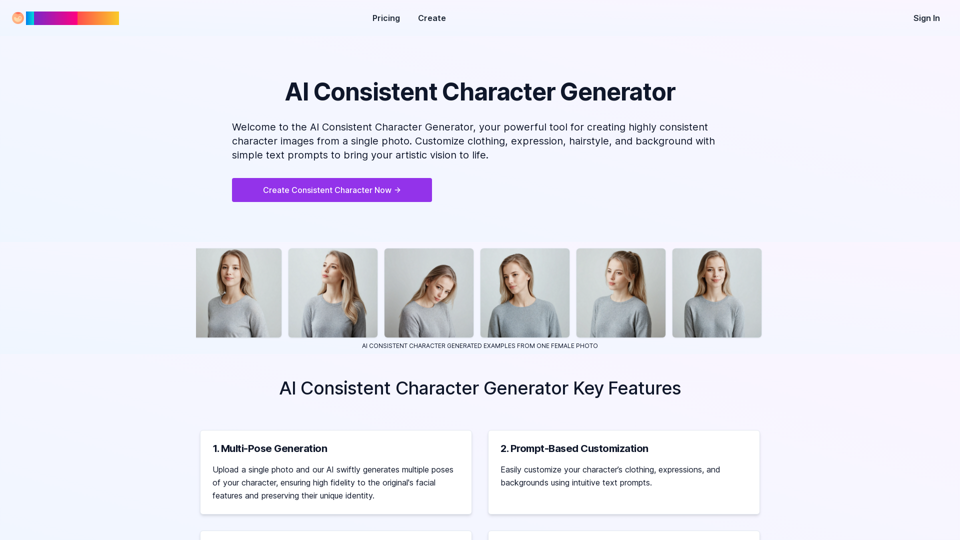
Create a Consistent Character Across Different Looks! Imagine this: * Your character rocking a cool new outfit. * Your character with a fresh hairstyle. * Your character in a variety of exciting backgrounds. But... * They always look like *themselves*. * Their personality shines through, no matter the change. That's where a Consistent Character Generator comes in! This powerful tool lets you: * Generate variations of your character with different: * Poses * Clothing * Hairstyles * Backgrounds * Maintain consistency in your character's appearance and essence. Say goodbye to: * Inconsistent character designs that break immersion. * Spending hours tweaking details to keep your character recognizable. Say hello to: * A library of diverse character variations, all true to your vision. * Effortless character customization for your projects.
Create a Consistent Character Across Different Looks! Imagine this: * Your character rocking a cool new outfit. * Your character with a fresh hairstyle. * Your character in a variety of exciting backgrounds. But... * They always look like *themselves*. * Their personality shines through, no matter the change. That's where a Consistent Character Generator comes in! This powerful tool lets you: * Generate variations of your character with different: * Poses * Clothing * Hairstyles * Backgrounds * Maintain consistency in your character's appearance and essence. Say goodbye to: * Inconsistent character designs that break immersion. * Spending hours tweaking details to keep your character recognizable. Say hello to: * A library of diverse character variations, all true to your vision. * Effortless character customization for your projects.Unlock your creative potential with the AI Consistent Character Generator. Effortlessly generate, customize, and transform characters with consistent features for photography, gaming, art, and more. Start your creative journey today!
37.98 K
Transform Photos into Ghibli Style Images for Free.
Transform Photos into Ghibli Style Images for Free.Experience AI Ghibli, the revolutionary photo transformation tool that converts your ordinary images into magical Ghibli-style artwork with just one click.
51
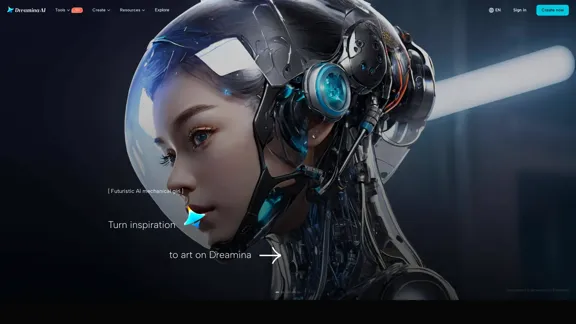
Dreamina: Free AI Image Generator - Create Art and Images from Text
Dreamina: Free AI Image Generator - Create Art and Images from TextCreate stunning art, images, and more with prompts. Turn your images into captivating animations. Dreamina is an AI platform designed to simplify your creation.
5.53 M
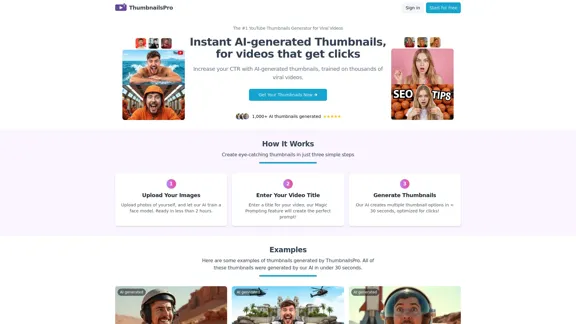
The #1 YouTube Thumbnails Generator for Viral Videos
The #1 YouTube Thumbnails Generator for Viral VideosThe AI thumbnail generator used by the top YouTube content creators. Create viral thumbnails with ThumbnailPro. Ideal for YouTube thumbnails.
0