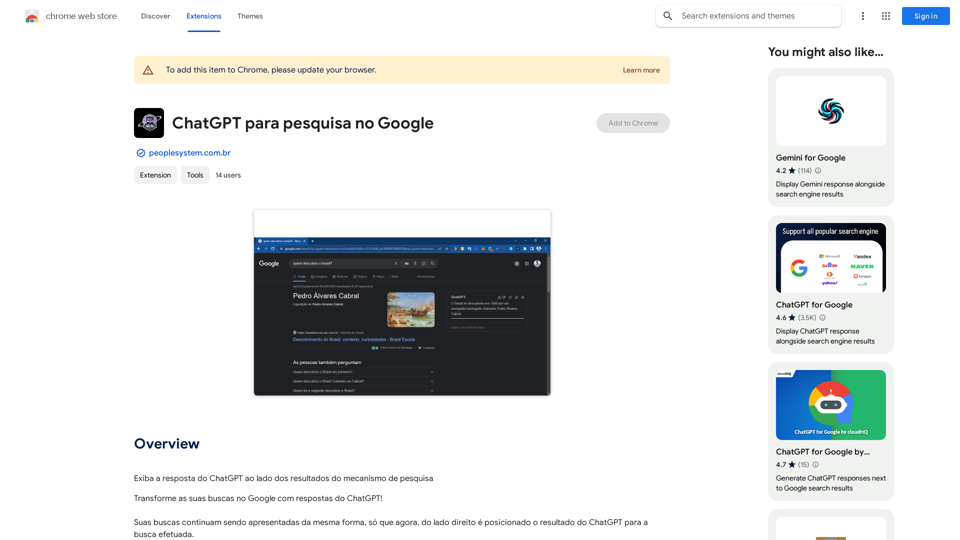
ChatGPT for Google search is a browser extension that integrates ChatGPT responses with Google search results. Developed by People System, this tool enhances the search experience by providing AI-generated answers alongside traditional search engine results. It's designed to offer users a more comprehensive and efficient way to find information online.
ChatGPT for Google Search
Show the ChatGPT response next to the search engine results.
Introduction
Feature
Display ChatGPT Responses with Search Results
The extension seamlessly integrates ChatGPT's responses next to Google search results, allowing users to compare and verify information from multiple sources quickly.
Intelligent Search Enhancement
Leveraging OpenAI's technology, the extension provides more accurate and relevant search results, improving the overall search experience.
User-Friendly Interface
With a simple installation process and intuitive functionality, the extension is accessible to users of all technical levels.
Free to Use
ChatGPT for Google search is available at no cost, with no subscription or payment required.
Multi-Device Compatibility
Users can install and use the extension on multiple devices, though separate installations are necessary for each device.
Privacy-Focused
The extension prioritizes user privacy and does not collect or use personal data.
FAQ
Is ChatGPT for Google search safe to use?
Yes, the extension is designed with safety in mind and does not collect or use your personal data.
How do I start using the extension?
Simply install the extension in your browser and begin searching on Google. The ChatGPT responses will automatically appear alongside the search results.
Can I uninstall the extension if I no longer need it?
Yes, you can easily uninstall the extension at any time through your browser's extension management settings.
Are there any tips for getting the most out of this extension?
- Utilize the extension to obtain more precise and relevant search results
- Always verify the information provided by ChatGPT for accuracy
- Use the tool to gain a more comprehensive understanding of your search topics
Related Websites

Universal Listening Comprehension - Speech-to-Text, Bilingual Subtitle Translation
Universal Listening Comprehension - Speech-to-Text, Bilingual Subtitle TranslationAlibaba's free large model application, real-time speech recognition, AI subtitle translation, and intelligent summarization. Essential for online courses, chasing dramas, and online meetings. Record, transcribe, translate, and summarize online courses and meetings from any web page.
193.90 M
Summarize and Translate with Gemini Gemini是一个基于人工智能的多语言翻译和文本摘要工具。它可以将长篇文本转换为简洁的摘要,同时提供多种语言的翻译选项。 #Key Features * Multilingual Translation: Gemini支持多种语言的翻译,包括英语、法语、德语、西班牙语、葡萄牙语、意大利语、荷兰语、俄语、中文、日语和韩语等。 * Text Summarization: Gemini可以将长篇文本转换为简洁的摘要,帮助用户快速了解文本的主要内容。 * AI-powered: Gemini基于人工智能技术,能够智能地识别和处理语言,提供高质量的翻译和摘要结果。 #How to Use Gemini 1. Copy and Paste: 将需要翻译或摘要的文本复制并粘贴到Gemini的输入框中。 2. Select Language: 选择需要翻译的语言或摘要的格式。 3. Get Result: Gemini将提供翻译或摘要结果,用户可以根据需要进行调整和编辑。 #Benefits * Save Time: Gemini可以快速地翻译和摘要长篇文本,节省用户的时间和精力。 * Improve Efficiency: Gemini的翻译和摘要结果可以帮助用户更好地理解和处理文本,提高工作效率。 * Enhance Productivity: Gemini可以帮助用户更好地与他人交流和合作,提高生产力和效率。
Summarize and Translate with Gemini Gemini是一个基于人工智能的多语言翻译和文本摘要工具。它可以将长篇文本转换为简洁的摘要,同时提供多种语言的翻译选项。 #Key Features * Multilingual Translation: Gemini支持多种语言的翻译,包括英语、法语、德语、西班牙语、葡萄牙语、意大利语、荷兰语、俄语、中文、日语和韩语等。 * Text Summarization: Gemini可以将长篇文本转换为简洁的摘要,帮助用户快速了解文本的主要内容。 * AI-powered: Gemini基于人工智能技术,能够智能地识别和处理语言,提供高质量的翻译和摘要结果。 #How to Use Gemini 1. Copy and Paste: 将需要翻译或摘要的文本复制并粘贴到Gemini的输入框中。 2. Select Language: 选择需要翻译的语言或摘要的格式。 3. Get Result: Gemini将提供翻译或摘要结果,用户可以根据需要进行调整和编辑。 #Benefits * Save Time: Gemini可以快速地翻译和摘要长篇文本,节省用户的时间和精力。 * Improve Efficiency: Gemini的翻译和摘要结果可以帮助用户更好地理解和处理文本,提高工作效率。 * Enhance Productivity: Gemini可以帮助用户更好地与他人交流和合作,提高生产力和效率。Summarize and Translate Web Pages This tool utilizes Gemini as its backend to provide a convenient way to summarize and translate web pages.
193.90 M
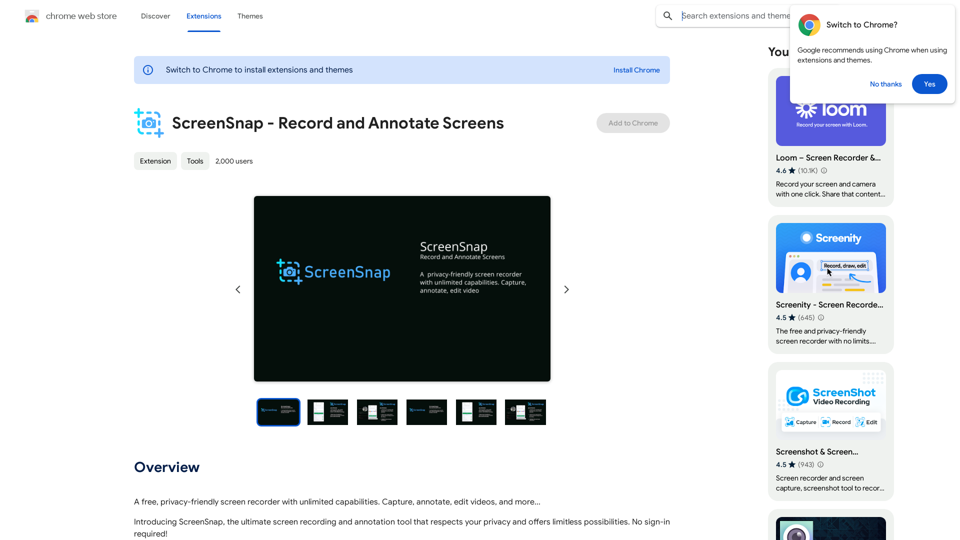
A free, privacy-friendly screen recorder with unlimited capabilities. Capture, annotate, edit videos, and more...
193.90 M
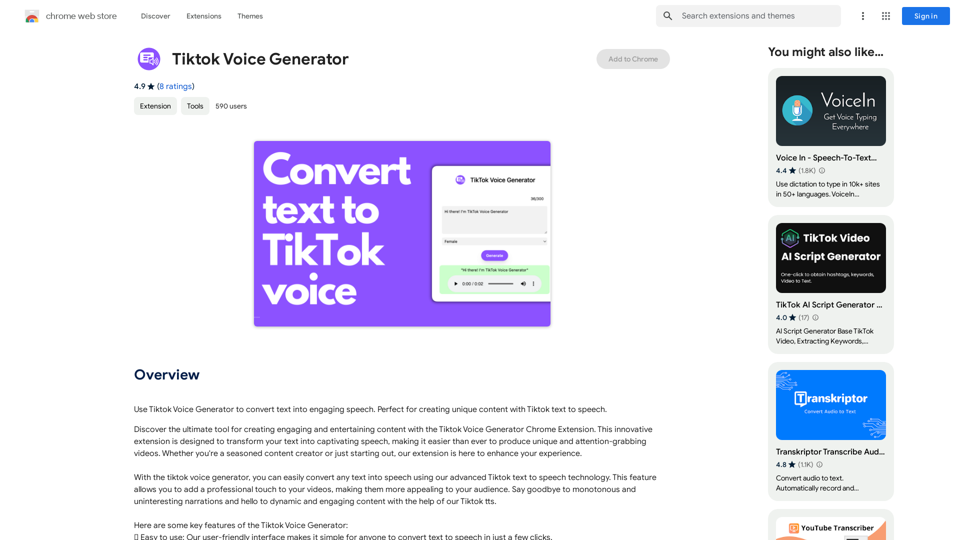
TikTok Voice Generator ========================== The TikTok voice generator is a popular feature on the social media platform that allows users to create and share videos with unique and entertaining voiceovers. This feature has become a sensation among TikTok users, with many using it to add humor, creativity, and personality to their videos. How Does it Work? -------------------- The TikTok voice generator uses advanced AI technology to convert written text into a spoken voice. Users can type in the text they want to convert, and the generator will produce a natural-sounding voiceover in a matter of seconds. The voice generator offers a range of voices, accents, and languages to choose from, allowing users to customize their voiceovers to fit their style and preferences. Features and Benefits ------------------------- Variety of Voices The TikTok voice generator offers a vast library of voices, including male and female voices, different accents, and languages. This allows users to experiment with different voices and find the one that best suits their content. Easy to Use The voice generator is incredibly easy to use. Users simply need to type in the text they want to convert, select the voice they want to use, and the generator will do the rest. Add Humor and Creativity The TikTok voice generator is a great way to add humor and creativity to videos. Users can use the generator to create funny voiceovers, parody songs, or even create their own characters. Increase Engagement Videos with voiceovers generated by the TikTok voice generator tend to perform better in terms of engagement. The unique and entertaining voiceovers can help capture viewers' attention and increase the chances of going viral. Conclusion ---------- The TikTok voice generator is a powerful tool that can help users take their content to the next level. With its advanced AI technology, ease of use, and variety of voices, it's no wonder why it has become a favorite among TikTok users. Whether you're looking to add humor, creativity, or personality to your videos, the TikTok voice generator is definitely worth trying out.
TikTok Voice Generator ========================== The TikTok voice generator is a popular feature on the social media platform that allows users to create and share videos with unique and entertaining voiceovers. This feature has become a sensation among TikTok users, with many using it to add humor, creativity, and personality to their videos. How Does it Work? -------------------- The TikTok voice generator uses advanced AI technology to convert written text into a spoken voice. Users can type in the text they want to convert, and the generator will produce a natural-sounding voiceover in a matter of seconds. The voice generator offers a range of voices, accents, and languages to choose from, allowing users to customize their voiceovers to fit their style and preferences. Features and Benefits ------------------------- Variety of Voices The TikTok voice generator offers a vast library of voices, including male and female voices, different accents, and languages. This allows users to experiment with different voices and find the one that best suits their content. Easy to Use The voice generator is incredibly easy to use. Users simply need to type in the text they want to convert, select the voice they want to use, and the generator will do the rest. Add Humor and Creativity The TikTok voice generator is a great way to add humor and creativity to videos. Users can use the generator to create funny voiceovers, parody songs, or even create their own characters. Increase Engagement Videos with voiceovers generated by the TikTok voice generator tend to perform better in terms of engagement. The unique and entertaining voiceovers can help capture viewers' attention and increase the chances of going viral. Conclusion ---------- The TikTok voice generator is a powerful tool that can help users take their content to the next level. With its advanced AI technology, ease of use, and variety of voices, it's no wonder why it has become a favorite among TikTok users. Whether you're looking to add humor, creativity, or personality to your videos, the TikTok voice generator is definitely worth trying out.Use the Tiktok Voice Generator to convert text into engaging speech. Perfect for creating unique content with Tiktok text to speech.
193.90 M