Open-source RightAI Tools Directory
  • Discover AI
  • Submit
  • Startup
  • Blog
Open-source RightAI Tools Directory
Discover the best AI tools of 2025 with the RightAI Tools Directory!

Friend Links

AI Anime GeneratorToolsApp AI

Support

Tap4
Privacy policyTerms & ConditionsContact Us
Loading...
loading...

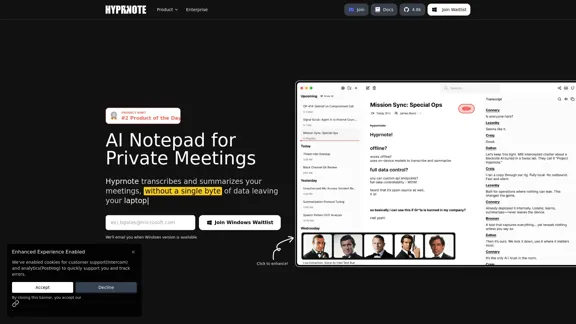
Hyprnote: A Private, Local-First AI Notetaker for Safe Meetings

Hyprnote is an open-source AI notetaker designed for compliance and privacy. Take and organize meeting notes entirely on your device with no data leaving your control. Think of Granola AI, but it operates entirely locally on your device.
Visit Website
Hyprnote: A Private, Local-First AI Notetaker for Safe Meetings
Visit Website

Introduction

Hyprnote is a private, local-first AI notetaker designed for secure meetings. It transcribes and summarizes discussions without sending any data to the cloud, ensuring user privacy. The tool is suitable for various meeting types and supports customizable templates, making it a versatile choice for professionals seeking efficient note-taking solutions.

Feature

  1. AI Notetaking

    Hyprnote assists users by transcribing and summarizing meetings, acting like an executive assistant that keeps track of all discussions.

  2. Local AI

    The tool operates entirely on the user's device, ensuring that no data leaves the laptop, which prioritizes privacy and security.

  3. Customizable Templates

    Users can tailor their note-taking experience with templates that fit different meeting formats, enhancing productivity.

  4. Workflow Automation

    Hyprnote integrates into existing workflows, allowing for seamless meeting management and documentation.

  5. Self-Hosted Deployment

    Organizations can deploy Hyprnote on their infrastructure, providing flexibility and control over data management.

  6. Enterprise Management

    The tool includes features for enterprise-level management, ensuring that it meets the needs of larger organizations.

How to Use?

  1. Sign up for the waitlist to get notified when the Windows version becomes available.
  2. Explore the customizable templates to enhance your note-taking experience.
  3. Utilize the workflow automation features to streamline your meeting processes.
  4. Take advantage of the offline capabilities to remain productive without an internet connection.
  5. Regularly check for updates and new features to maximize the benefits of Hyprnote.

FAQ

What is Hyprnote?

Hyprnote is an AI-powered notetaking tool that transcribes and summarizes meetings while ensuring user privacy through local processing.

How does Hyprnote work?

Hyprnote listens to meeting audio and uses AI to generate real-time transcriptions and summaries, which are stored locally on the user's device.

Can I use Hyprnote for free?

Yes, Hyprnote offers a free plan that includes unlimited AI summaries, although additional features are available through paid plans.

What makes Hyprnote different from other AI notetakers?

Hyprnote prioritizes user privacy by operating locally and not relying on cloud storage, setting it apart from many other notetaking solutions.

Who uses Hyprnote?

Hyprnote is utilized by a diverse range of users, from individuals to large enterprises, across various industries.

Price

PlanMonthly Price
Free$0
Pro$8
EnterpriseCustom pricing available
The price is for reference only, please refer to the latest official data for actual information.

Evaluation

Hyprnote excels in providing a secure and private notetaking experience, making it ideal for users concerned about data privacy. The local-first approach ensures that sensitive information remains on the user's device. The customizable templates and workflow automation features enhance usability and productivity.

However, the reliance on local processing may limit some collaborative features that cloud-based solutions offer. Additionally, while the free plan is robust, users may find that advanced features are necessary for more complex meeting needs, which could lead to additional costs. Overall, Hyprnote is a strong contender in the AI notetaking space, particularly for those prioritizing privacy and security.

Latest Traffic Insights

  • Monthly Visits

    20.63 K

  • Bounce Rate

    48.28%

  • Pages Per Visit

    1.97

  • Time on Site(s)

    35.02

  • Global Rank

    1221256

  • Country Rank

    United States 606307

Recent Visits

Traffic Sources

  • Social Media:
    7.81%
  • Paid Referrals:
    1.08%
  • Email:
    0.08%
  • Referrals:
    8.97%
  • Search Engines:
    15.11%
  • Direct:
    66.87%
More Data

Related Websites

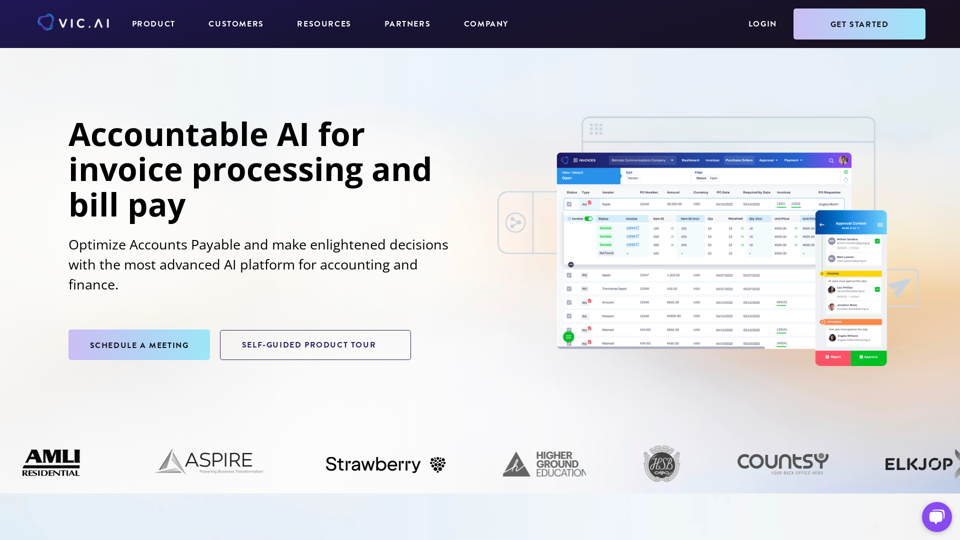
Adaptive Planning EPM Software | Workday US
View Detail

Adaptive Planning EPM Software | Workday US

Adaptive Planning EPM Software | Workday US

Drive enterprise-wide business planning with Workday Adaptive Planning Cloud. Our EPM platform helps organizations plan smarter, report faster, and analyze better.

511.80 K
AiAssistWorks - AI for Google Sheets™ - GPT- Claude - Gemini - Llama, Mistral, OpenRouter, Groq.
View Detail

AiAssistWorks - AI for Google Sheets™ - GPT- Claude - Gemini - Llama, Mistral, OpenRouter, Groq.

AiAssistWorks - AI for Google Sheets™ - GPT- Claude - Gemini - Llama, Mistral, OpenRouter, Groq.

4.99 K
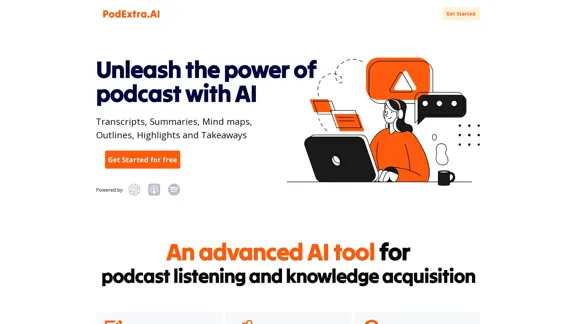
AI PDF Summarizer - Summarize lengthy PDF documents online.
View Detail

AI PDF Summarizer - Summarize lengthy PDF documents online.

AI PDF Summarizer - Summarize lengthy PDF documents online.

Get concise summaries and ask questions with our PDF analyzer — perfect for efficient document review. Summarize PDFs quickly with our AI-powered tool.

5.90 M
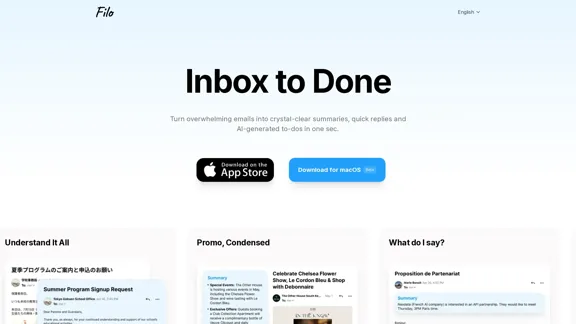
AI for Email Security & Sustainability | mxHERO Inc.
View Detail

AI for Email Security & Sustainability | mxHERO Inc.

AI for Email Security & Sustainability | mxHERO Inc.

mxHERO AI combines the power of LLM AI with your email in a single dashboard. It offers robust email security, governance, and environmental sustainability features.

20.76 K
AI Note Taking & Transcribe & Summarizer | AI Notebook App
View Detail

AI Note Taking & Transcribe & Summarizer | AI Notebook App

AI Note Taking & Transcribe & Summarizer | AI Notebook App

Generate transcripts and AI summarize for College Students in lectures. Specializing in YouTube Video Summarizer, PDF Summarizer, Article Summarizer. Save key insights and review with study guides, quizzes, and flashcards. Build your AI-powered notes library.

0
Pygma – Personal AI social media manager
View Detail

Pygma – Personal AI social media manager

Pygma – Personal AI social media manager

Smart Instagram assistant – create, schedule, engage – all you need to grow on social media

5.70 K
ChatPRD | An AI Copilot for Product Work
View Detail

ChatPRD | An AI Copilot for Product Work

ChatPRD | An AI Copilot for Product Work

An on-demand Chief Product Officer who creates and enhances your Product Requirements Documents (PRDs), while mentoring you to become a top-tier Product Manager.

162.60 K
Copilot for Microsoft 365 – Microsoft Adoption

Copilot for Microsoft 365 is a powerful AI assistant that helps you work smarter and faster across Microsoft 365 apps and services. It combines the power of large language models (LLMs) with your organization's data in the Microsoft Graph and Microsoft 365 apps to turn your words into the most powerful productivity tool on the planet.

Copilot is designed to help you:

• Unleash creativity
• Unlock productivity
• Uplevel skills

Copilot is built on Microsoft's comprehensive approach to security, compliance, and privacy. Copilot in Microsoft 365 apps and services:

• Does not use your data to train the underlying LLM
• Does not replace human ingenuity and judgment
• Is designed to keep humans in the loop

Copilot is currently available in Word, Excel, PowerPoint, Outlook, Teams, and more.

Getting Started with Copilot

To get started with Copilot, follow these steps:

1. Check availability: Ensure your organization has access to Copilot.
2. Learn the basics: Familiarize yourself with Copilot's capabilities and how to use it effectively.
3. Explore use cases: Discover how Copilot can help you in your specific role and tasks.
4. Practice and refine: Use Copilot regularly and refine your prompts for better results.
5. Share and collaborate: Collaborate with colleagues using Copilot and share best practices.

Best Practices for Using Copilot

1. Be specific in your prompts
2. Provide context for better results
3. Review and edit Copilot's output
4. Use Copilot as a starting point, not a final product
5. Experiment with different approaches
6. Stay informed about new features and updates

Copilot in Different Microsoft 365 Apps

• Word: Draft, edit, summarize, and rewrite content
• Excel: Analyze data, create formulas, and generate insights
• PowerPoint: Create presentations, design slides, and generate content
• Outlook: Compose emails, summarize threads, and manage your inbox
• Teams: Summarize meetings, generate action items, and create meeting notes

Responsible AI and Copilot

Microsoft is committed to developing AI systems responsibly. When using Copilot, keep in mind:

• AI-generated content may contain biases or inaccuracies
• Always review and verify Copilot's output
• Use your judgment and expertise alongside Copilot's suggestions
• Be aware of your organization's policies regarding AI use

Conclusion

Copilot for Microsoft 365 is a powerful tool that can significantly enhance your productivity and creativity. By understanding its capabilities, following best practices, and using it responsibly, you can make the most of this AI assistant in your daily work.
View Detail

Copilot for Microsoft 365 – Microsoft Adoption Copilot for Microsoft 365 is a powerful AI assistant that helps you work smarter and faster across Microsoft 365 apps and services. It combines the power of large language models (LLMs) with your organization's data in the Microsoft Graph and Microsoft 365 apps to turn your words into the most powerful productivity tool on the planet. Copilot is designed to help you: • Unleash creativity • Unlock productivity • Uplevel skills Copilot is built on Microsoft's comprehensive approach to security, compliance, and privacy. Copilot in Microsoft 365 apps and services: • Does not use your data to train the underlying LLM • Does not replace human ingenuity and judgment • Is designed to keep humans in the loop Copilot is currently available in Word, Excel, PowerPoint, Outlook, Teams, and more. Getting Started with Copilot To get started with Copilot, follow these steps: 1. Check availability: Ensure your organization has access to Copilot. 2. Learn the basics: Familiarize yourself with Copilot's capabilities and how to use it effectively. 3. Explore use cases: Discover how Copilot can help you in your specific role and tasks. 4. Practice and refine: Use Copilot regularly and refine your prompts for better results. 5. Share and collaborate: Collaborate with colleagues using Copilot and share best practices. Best Practices for Using Copilot 1. Be specific in your prompts 2. Provide context for better results 3. Review and edit Copilot's output 4. Use Copilot as a starting point, not a final product 5. Experiment with different approaches 6. Stay informed about new features and updates Copilot in Different Microsoft 365 Apps • Word: Draft, edit, summarize, and rewrite content • Excel: Analyze data, create formulas, and generate insights • PowerPoint: Create presentations, design slides, and generate content • Outlook: Compose emails, summarize threads, and manage your inbox • Teams: Summarize meetings, generate action items, and create meeting notes Responsible AI and Copilot Microsoft is committed to developing AI systems responsibly. When using Copilot, keep in mind: • AI-generated content may contain biases or inaccuracies • Always review and verify Copilot's output • Use your judgment and expertise alongside Copilot's suggestions • Be aware of your organization's policies regarding AI use Conclusion Copilot for Microsoft 365 is a powerful tool that can significantly enhance your productivity and creativity. By understanding its capabilities, following best practices, and using it responsibly, you can make the most of this AI assistant in your daily work.

Copilot for Microsoft 365 – Microsoft Adoption Copilot for Microsoft 365 is a powerful AI assistant that helps you work smarter and faster across Microsoft 365 apps and services. It combines the power of large language models (LLMs) with your organization's data in the Microsoft Graph and Microsoft 365 apps to turn your words into the most powerful productivity tool on the planet. Copilot is designed to help you: • Unleash creativity • Unlock productivity • Uplevel skills Copilot is built on Microsoft's comprehensive approach to security, compliance, and privacy. Copilot in Microsoft 365 apps and services: • Does not use your data to train the underlying LLM • Does not replace human ingenuity and judgment • Is designed to keep humans in the loop Copilot is currently available in Word, Excel, PowerPoint, Outlook, Teams, and more. Getting Started with Copilot To get started with Copilot, follow these steps: 1. Check availability: Ensure your organization has access to Copilot. 2. Learn the basics: Familiarize yourself with Copilot's capabilities and how to use it effectively. 3. Explore use cases: Discover how Copilot can help you in your specific role and tasks. 4. Practice and refine: Use Copilot regularly and refine your prompts for better results. 5. Share and collaborate: Collaborate with colleagues using Copilot and share best practices. Best Practices for Using Copilot 1. Be specific in your prompts 2. Provide context for better results 3. Review and edit Copilot's output 4. Use Copilot as a starting point, not a final product 5. Experiment with different approaches 6. Stay informed about new features and updates Copilot in Different Microsoft 365 Apps • Word: Draft, edit, summarize, and rewrite content • Excel: Analyze data, create formulas, and generate insights • PowerPoint: Create presentations, design slides, and generate content • Outlook: Compose emails, summarize threads, and manage your inbox • Teams: Summarize meetings, generate action items, and create meeting notes Responsible AI and Copilot Microsoft is committed to developing AI systems responsibly. When using Copilot, keep in mind: • AI-generated content may contain biases or inaccuracies • Always review and verify Copilot's output • Use your judgment and expertise alongside Copilot's suggestions • Be aware of your organization's policies regarding AI use Conclusion Copilot for Microsoft 365 is a powerful tool that can significantly enhance your productivity and creativity. By understanding its capabilities, following best practices, and using it responsibly, you can make the most of this AI assistant in your daily work.

Microsoft Copilot combines the power of large language models (LLMs) with your organization's data to turn your words into one of the most powerful productivity tools on the planet.

608.60 K