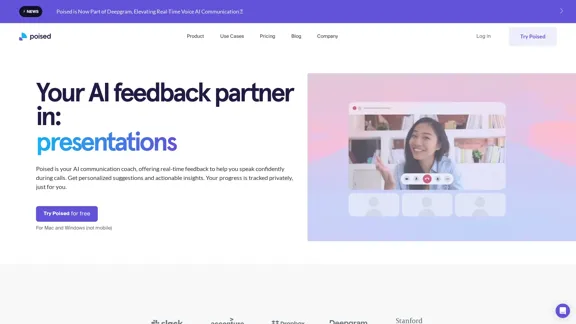
BeforeSunset AI is an AI-powered workspace designed for busy professionals and teams to plan and manage their day effectively. It offers an AI personal assistant that creates daily and weekly plans based on users' schedules and to-do lists, utilizing time-blocking on calendars. The platform aims to help users save time, minimize distractions, and work more efficiently.
BeforeSunset AI - Home
Focus on completing your tasks while BeforeSunset AI plans the ideal schedule for you. Daily planning has never been simpler.
Introduction
Feature
AI-Powered Daily Planning
- AI analyzes schedules and to-do lists to create optimized daily plans
- Time-blocks tasks on calendars for better time management
- Converts to-dos into actionable items and suggests subtasks
Team Collaboration Tools
- Team Feed for visibility on teammates' availability and tasks
- Member Details feature to learn about team members' interests and special dates
- Analytics page for insights into team projects and progress tracking
Productivity Enhancements
- Focus mode to minimize distractions
- Time tracking to monitor actual vs. planned time spent on tasks
- Customizable tags for task categorization
- Recurring to-dos for regular tasks and events
Integration and Synchronization
- Syncs with Google Calendar
- Integrates personal and work tasks in one place
- Allows differentiation between personal and shared team tasks
Analytics and Insights
- Provides performance overview and analytics
- Identifies areas for growth and improvement
- Analyzes work-life balance to prevent burnout
Additional Features
- Note-taking functionality
- Bookmarking for important tasks
- History section to revisit and duplicate unfinished to-dos
- Prioritization tags for task importance
FAQ
How does BeforeSunset AI help with daily planning?
BeforeSunset AI uses artificial intelligence to analyze your schedule and to-do list, creating an optimized daily plan by time-blocking tasks on your calendar. This helps you visualize your day, prioritize tasks, and manage your time more effectively.
Can BeforeSunset AI be used for team collaboration?
Yes, BeforeSunset AI offers team collaboration features such as Team Feed for visibility on teammates' tasks and availability, Member Details for team bonding, and a shared Analytics page for tracking team progress and projects.
What productivity features does BeforeSunset AI offer?
BeforeSunset AI includes features like focus mode, time tracking, customizable tags, recurring to-dos, subtasks, and a history section. These tools help users minimize distractions, track time spent on tasks, categorize work, and manage recurring responsibilities efficiently.
How does BeforeSunset AI integrate with existing tools?
BeforeSunset AI syncs with Google Calendar and allows users to manage both personal and work tasks in one place. It can differentiate between personal and shared team tasks, ensuring privacy while facilitating collaboration.
What kind of insights does BeforeSunset AI provide?
The platform offers analytics and insights on user performance, identifying areas for growth and improvement. It also analyzes work-life balance to help prevent burnout and provides actionable insights for enhancing productivity and time management.
Latest Traffic Insights
Monthly Visits
76.01 K
Bounce Rate
39.61%
Pages Per Visit
1.79
Time on Site(s)
25.07
Global Rank
472258
Country Rank
United States 434589
Recent Visits
Traffic Sources
- Social Media:3.67%
- Paid Referrals:1.07%
- Email:0.11%
- Referrals:10.71%
- Search Engines:45.51%
- Direct:38.53%
Related Websites
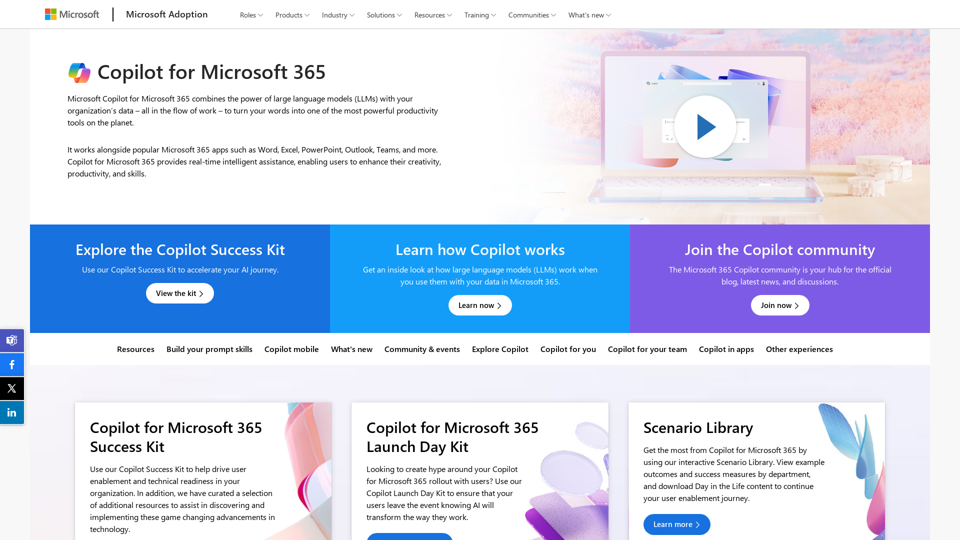
Copilot for Microsoft 365 – Microsoft Adoption Copilot for Microsoft 365 is a powerful AI assistant that helps you work smarter and faster across Microsoft 365 apps and services. It combines the power of large language models (LLMs) with your organization's data in the Microsoft Graph and Microsoft 365 apps to turn your words into the most powerful productivity tool on the planet. Copilot is designed to help you: • Unleash creativity • Unlock productivity • Uplevel skills Copilot is built on Microsoft's comprehensive approach to security, compliance, and privacy. Copilot in Microsoft 365 apps and services: • Does not use your data to train the underlying LLM • Does not replace human ingenuity and judgment • Is designed to keep humans in the loop Copilot is currently available in Word, Excel, PowerPoint, Outlook, Teams, and more. Getting Started with Copilot To get started with Copilot, follow these steps: 1. Check availability: Ensure your organization has access to Copilot. 2. Learn the basics: Familiarize yourself with Copilot's capabilities and how to use it effectively. 3. Explore use cases: Discover how Copilot can help you in your specific role and tasks. 4. Practice and refine: Use Copilot regularly and refine your prompts for better results. 5. Share and collaborate: Collaborate with colleagues using Copilot and share best practices. Best Practices for Using Copilot 1. Be specific in your prompts 2. Provide context for better results 3. Review and edit Copilot's output 4. Use Copilot as a starting point, not a final product 5. Experiment with different approaches 6. Stay informed about new features and updates Copilot in Different Microsoft 365 Apps • Word: Draft, edit, summarize, and rewrite content • Excel: Analyze data, create formulas, and generate insights • PowerPoint: Create presentations, design slides, and generate content • Outlook: Compose emails, summarize threads, and manage your inbox • Teams: Summarize meetings, generate action items, and create meeting notes Responsible AI and Copilot Microsoft is committed to developing AI systems responsibly. When using Copilot, keep in mind: • AI-generated content may contain biases or inaccuracies • Always review and verify Copilot's output • Use your judgment and expertise alongside Copilot's suggestions • Be aware of your organization's policies regarding AI use Conclusion Copilot for Microsoft 365 is a powerful tool that can significantly enhance your productivity and creativity. By understanding its capabilities, following best practices, and using it responsibly, you can make the most of this AI assistant in your daily work.
Copilot for Microsoft 365 – Microsoft Adoption Copilot for Microsoft 365 is a powerful AI assistant that helps you work smarter and faster across Microsoft 365 apps and services. It combines the power of large language models (LLMs) with your organization's data in the Microsoft Graph and Microsoft 365 apps to turn your words into the most powerful productivity tool on the planet. Copilot is designed to help you: • Unleash creativity • Unlock productivity • Uplevel skills Copilot is built on Microsoft's comprehensive approach to security, compliance, and privacy. Copilot in Microsoft 365 apps and services: • Does not use your data to train the underlying LLM • Does not replace human ingenuity and judgment • Is designed to keep humans in the loop Copilot is currently available in Word, Excel, PowerPoint, Outlook, Teams, and more. Getting Started with Copilot To get started with Copilot, follow these steps: 1. Check availability: Ensure your organization has access to Copilot. 2. Learn the basics: Familiarize yourself with Copilot's capabilities and how to use it effectively. 3. Explore use cases: Discover how Copilot can help you in your specific role and tasks. 4. Practice and refine: Use Copilot regularly and refine your prompts for better results. 5. Share and collaborate: Collaborate with colleagues using Copilot and share best practices. Best Practices for Using Copilot 1. Be specific in your prompts 2. Provide context for better results 3. Review and edit Copilot's output 4. Use Copilot as a starting point, not a final product 5. Experiment with different approaches 6. Stay informed about new features and updates Copilot in Different Microsoft 365 Apps • Word: Draft, edit, summarize, and rewrite content • Excel: Analyze data, create formulas, and generate insights • PowerPoint: Create presentations, design slides, and generate content • Outlook: Compose emails, summarize threads, and manage your inbox • Teams: Summarize meetings, generate action items, and create meeting notes Responsible AI and Copilot Microsoft is committed to developing AI systems responsibly. When using Copilot, keep in mind: • AI-generated content may contain biases or inaccuracies • Always review and verify Copilot's output • Use your judgment and expertise alongside Copilot's suggestions • Be aware of your organization's policies regarding AI use Conclusion Copilot for Microsoft 365 is a powerful tool that can significantly enhance your productivity and creativity. By understanding its capabilities, following best practices, and using it responsibly, you can make the most of this AI assistant in your daily work.Microsoft Copilot combines the power of large language models (LLMs) with your organization's data to turn your words into one of the most powerful productivity tools on the planet.
608.60 K
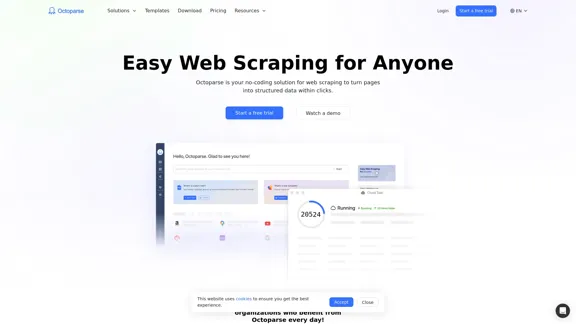
Web scraping simplified. Gather information from any website in minutes using our code-free web crawler. Obtain the essential data to propel your business forward. Begin at no cost today!
309.69 K
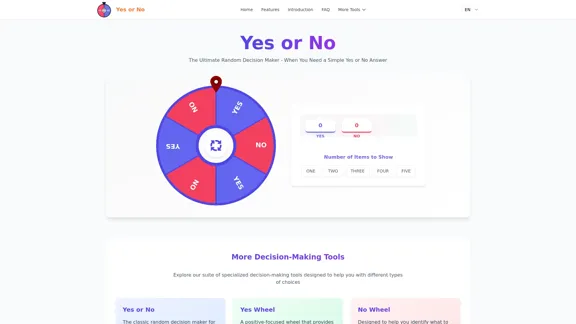
Yes or No | Tool for Making Decisions & Generating Random Answers
Yes or No | Tool for Making Decisions & Generating Random AnswersMake difficult decisions easier with YesOrNo.run - the yes or no decision maker. Use our simple online decision maker to get instant answers to your questions.
0
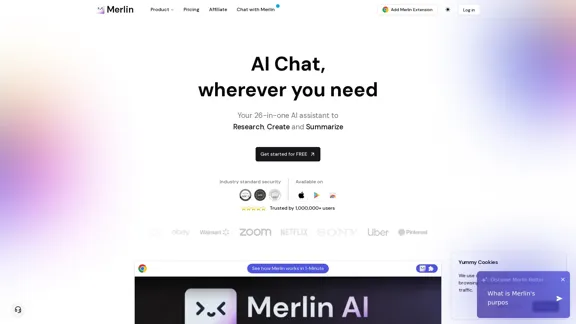
Merlin AI | Ask AI to Research, Write, Summarize in 1-click
Merlin AI | Ask AI to Research, Write, Summarize in 1-clickFree AI Chat to answer all your questions. Ask Merlin to summarize videos, articles, PDFs, and websites, write emails and content for social media, and review content using an AI detector.
1.84 M
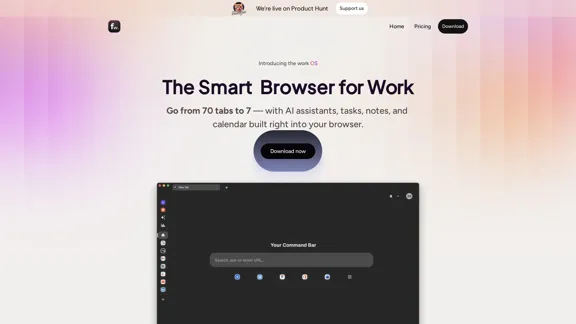
Floutwork – The AI-Enhanced Browser for Work and Efficiency
Floutwork – The AI-Enhanced Browser for Work and EfficiencyFloutwork is an AI-powered productivity browser that brings together workspaces, organizes your tabs, and integrates AI assistants directly into your workflow. It is designed to help you stay focused, streamline tasks, and accomplish more without distractions.
0
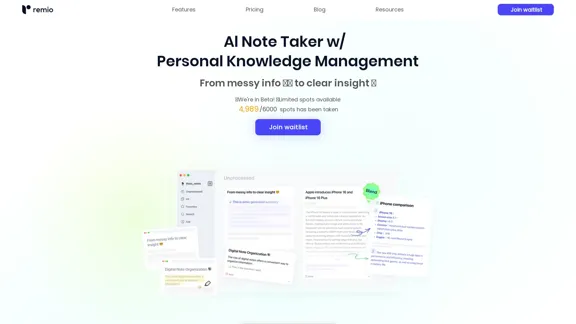
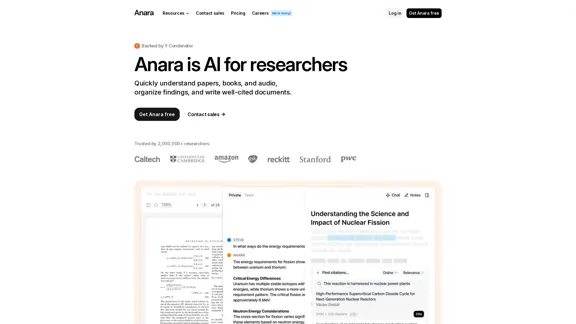
Automate your research workflows with Anara's AI. Build a research library, verify sources, and collaborate with your team. Trusted by researchers worldwide.
1.40 M