Open-source RightAI Tools Directory
  • Discover AI
  • Submit
  • Startup
  • Blog
Open-source RightAI Tools Directory
Discover the best AI tools of 2025 with the RightAI Tools Directory!

Friend Links

AI Anime GeneratorToolsApp AI

Support

Tap4
Privacy policyTerms & ConditionsContact Us
Loading...
loading...

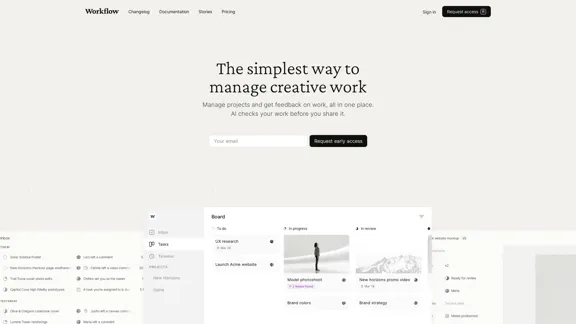
Flowith - AI for Deep Work

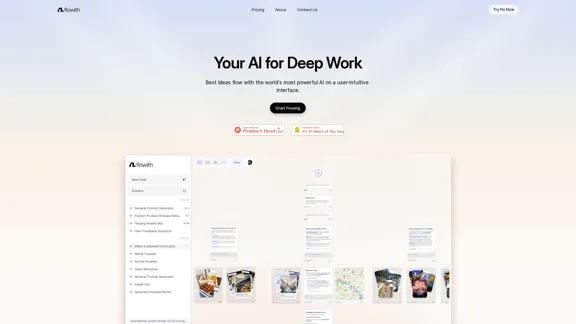
Surpassing traditional chat-based tools, Flowith streamlines tasks on a multi-thread interface powered by a most advanced agent framework. The intuitive canvas and smart framework boost productivity, helping users stay in the flow.
Visit Website
Flowith - AI for Deep Work
Visit Website

Introduction

Flowith is an AI-powered platform designed for deep work and enhanced productivity. It offers a user-intuitive interface with powerful AI capabilities, allowing users to manage complex tasks, collaborate seamlessly, and visualize ideas in real-time. Flowith integrates advanced features like autonomous planning, intelligent tool selection, and a multithread canvas interface to revolutionize workflow and boost creativity.

Feature

Oracle Super Agent

Oracle, Flowith's next-gen AIOS, efficiently manages complex tasks through:

  • Autonomous planning
  • Intent recognition
  • Smart task breakdown
  • Adaptive planning
  • Efficient execution

Canvas Multithread

The canvas-based UX system offers:

  • Infinite flexibility
  • Enhanced navigation
  • Seamless organization
  • Intuitive interaction

Community Based

Users can boost productivity by utilizing effective recipes generated by other users in the Flowith community.

Unlimited Tools

Oracle selects from unlimited tools to tackle any problem, providing:

  • Seamless integration
  • Intelligent tool selection
  • Dynamic interaction
  • Versatile platform

Deep Work Applications

Flowith handles various deep work tasks, including:

  • Code development
  • Academic research
  • Content creation
  • Design prototyping
  • Strategic planning
  • Data analysis

Collaboration Features

  • Real-time collaboration
  • Intuitive navigation
  • Real-time online search
  • Live feedback

Top-Notch AI Models

  • Intelligent ensemble of diverse AI models
  • Knowledge extraction capabilities

FAQ

What is Flowith?

Flowith is a canvas-based AI tool for content generation. It allows users to interact with multiple AI agents on the same canvas, generating various types of content efficiently, including long text, code, and pictures. The Oracle pattern can divide tasks, summarize search results, and automatically send integrated results via email.

What makes Flowith unique?

Flowith's uniqueness lies in its canvas-based interaction, which effectively addresses the issue of tracing historical records in traditional multi-turn conversations with AI. It offers a visual way to organize research and discussions on multi-faceted topics, transforming chatbot conversations into an infinite canvas experience.

What AI models are available in Flowith?

Flowith provides access to a diverse range of top AI models, allowing users to freely explore and enhance their workflow and project management. The platform uses an intelligent ensemble of these models to provide comprehensive capabilities.

Can I collaborate with my team in real-time using Flowith?

Yes, Flowith offers real-time collaboration features. Users can engage in seamless teamwork, share ideas, and provide live feedback within the platform.

Am I the right user for Flowith?

Flowith is designed for users engaged in deep work that requires cognitive skills beyond existing AI tools. It's suitable for professionals in various fields, including software development, academic research, content creation, design, strategic planning, and data analysis.

Related Websites

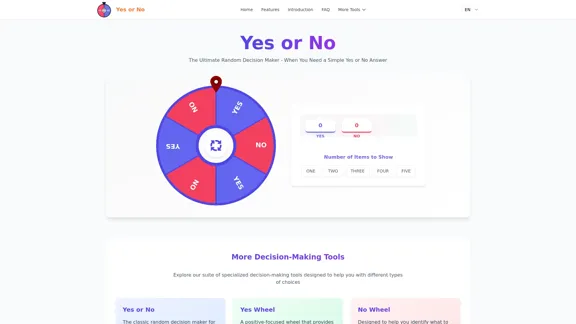
Augurisk: Explore Disaster and Crime risk in the US
View Detail

Augurisk: Explore Disaster and Crime risk in the US

Augurisk: Explore Disaster and Crime risk in the US

Here is the translation: Discover Natural Disaster and Crime risk for cities and counties in your state, including Flood, Hurricanes, Tornadoes, Wildfires, Drought and Earthquakes.

22.03 K
Parabola | Simplify complex logic
View Detail

Parabola | Simplify complex logic

Parabola | Simplify complex logic

Parabola is the spreadsheet alternative that allows you to integrate data from across your company and create automated workflows.

87.60 K
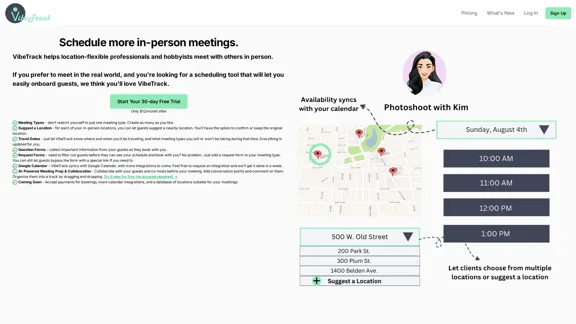
Your AI Meeting Assistant in Multiple Languages
View Detail

Your AI Meeting Assistant in Multiple Languages

Your AI Meeting Assistant in Multiple Languages

JotMe transcribes and translates your meetings, generating meeting notes, documents, emails, task tickets, and more, all based on the context that is important to you.

129.69 K
AI Just Works β€”β€” discover AIs using AI
View Detail

AI Just Works β€”β€” discover AIs using AI

AI Just Works β€”β€” discover AIs using AI

AI Just Works: Discover the Best AI Tools for Your Needs, designed to find AI solutions for your business.

0
OneTask | AI to-do app designed for ADHD
View Detail

OneTask | AI to-do app designed for ADHD

OneTask | AI to-do app designed for ADHD

OneTask is an AI to-do app that assists you in organizing and prioritizing your tasks, allowing you to concentrate on what really matters.

13.99 K
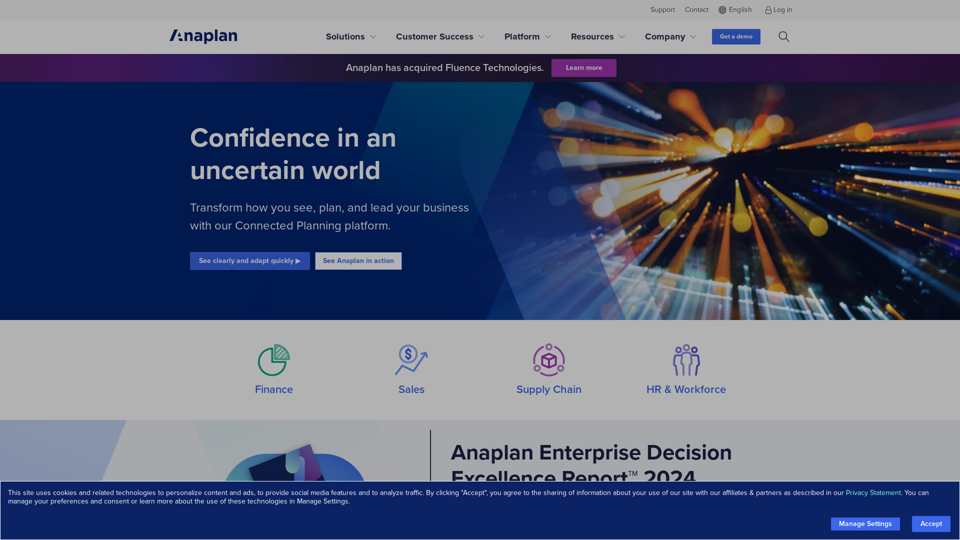
Copilot for Microsoft 365 – Microsoft Adoption

Copilot for Microsoft 365 is a powerful AI assistant that helps you work smarter and faster across Microsoft 365 apps and services. It combines the power of large language models (LLMs) with your organization's data in the Microsoft Graph and Microsoft 365 apps to turn your words into the most powerful productivity tool on the planet.

Copilot is designed to help you:

β€’ Unleash creativity
β€’ Unlock productivity
β€’ Uplevel skills

Copilot is built on Microsoft's comprehensive approach to security, compliance, and privacy. Copilot in Microsoft 365 apps and services:

β€’ Does not use your data to train the underlying LLM
β€’ Does not replace human ingenuity and judgment
β€’ Is designed to keep humans in the loop

Copilot is currently available in Word, Excel, PowerPoint, Outlook, Teams, and more.

Getting Started with Copilot

To get started with Copilot, follow these steps:

1. Check availability: Ensure your organization has access to Copilot.
2. Learn the basics: Familiarize yourself with Copilot's capabilities and how to use it effectively.
3. Explore use cases: Discover how Copilot can help you in your specific role and tasks.
4. Practice and refine: Use Copilot regularly and refine your prompts for better results.
5. Share and collaborate: Collaborate with colleagues using Copilot and share best practices.

Best Practices for Using Copilot

1. Be specific in your prompts
2. Provide context for better results
3. Review and edit Copilot's output
4. Use Copilot as a starting point, not a final product
5. Experiment with different approaches
6. Stay informed about new features and updates

Copilot in Different Microsoft 365 Apps

β€’ Word: Draft, edit, summarize, and rewrite content
β€’ Excel: Analyze data, create formulas, and generate insights
β€’ PowerPoint: Create presentations, design slides, and generate content
β€’ Outlook: Compose emails, summarize threads, and manage your inbox
β€’ Teams: Summarize meetings, generate action items, and create meeting notes

Responsible AI and Copilot

Microsoft is committed to developing AI systems responsibly. When using Copilot, keep in mind:

β€’ AI-generated content may contain biases or inaccuracies
β€’ Always review and verify Copilot's output
β€’ Use your judgment and expertise alongside Copilot's suggestions
β€’ Be aware of your organization's policies regarding AI use

Conclusion

Copilot for Microsoft 365 is a powerful tool that can significantly enhance your productivity and creativity. By understanding its capabilities, following best practices, and using it responsibly, you can make the most of this AI assistant in your daily work.
View Detail

Copilot for Microsoft 365 – Microsoft Adoption Copilot for Microsoft 365 is a powerful AI assistant that helps you work smarter and faster across Microsoft 365 apps and services. It combines the power of large language models (LLMs) with your organization's data in the Microsoft Graph and Microsoft 365 apps to turn your words into the most powerful productivity tool on the planet. Copilot is designed to help you: β€’ Unleash creativity β€’ Unlock productivity β€’ Uplevel skills Copilot is built on Microsoft's comprehensive approach to security, compliance, and privacy. Copilot in Microsoft 365 apps and services: β€’ Does not use your data to train the underlying LLM β€’ Does not replace human ingenuity and judgment β€’ Is designed to keep humans in the loop Copilot is currently available in Word, Excel, PowerPoint, Outlook, Teams, and more. Getting Started with Copilot To get started with Copilot, follow these steps: 1. Check availability: Ensure your organization has access to Copilot. 2. Learn the basics: Familiarize yourself with Copilot's capabilities and how to use it effectively. 3. Explore use cases: Discover how Copilot can help you in your specific role and tasks. 4. Practice and refine: Use Copilot regularly and refine your prompts for better results. 5. Share and collaborate: Collaborate with colleagues using Copilot and share best practices. Best Practices for Using Copilot 1. Be specific in your prompts 2. Provide context for better results 3. Review and edit Copilot's output 4. Use Copilot as a starting point, not a final product 5. Experiment with different approaches 6. Stay informed about new features and updates Copilot in Different Microsoft 365 Apps β€’ Word: Draft, edit, summarize, and rewrite content β€’ Excel: Analyze data, create formulas, and generate insights β€’ PowerPoint: Create presentations, design slides, and generate content β€’ Outlook: Compose emails, summarize threads, and manage your inbox β€’ Teams: Summarize meetings, generate action items, and create meeting notes Responsible AI and Copilot Microsoft is committed to developing AI systems responsibly. When using Copilot, keep in mind: β€’ AI-generated content may contain biases or inaccuracies β€’ Always review and verify Copilot's output β€’ Use your judgment and expertise alongside Copilot's suggestions β€’ Be aware of your organization's policies regarding AI use Conclusion Copilot for Microsoft 365 is a powerful tool that can significantly enhance your productivity and creativity. By understanding its capabilities, following best practices, and using it responsibly, you can make the most of this AI assistant in your daily work.

Copilot for Microsoft 365 – Microsoft Adoption Copilot for Microsoft 365 is a powerful AI assistant that helps you work smarter and faster across Microsoft 365 apps and services. It combines the power of large language models (LLMs) with your organization's data in the Microsoft Graph and Microsoft 365 apps to turn your words into the most powerful productivity tool on the planet. Copilot is designed to help you: β€’ Unleash creativity β€’ Unlock productivity β€’ Uplevel skills Copilot is built on Microsoft's comprehensive approach to security, compliance, and privacy. Copilot in Microsoft 365 apps and services: β€’ Does not use your data to train the underlying LLM β€’ Does not replace human ingenuity and judgment β€’ Is designed to keep humans in the loop Copilot is currently available in Word, Excel, PowerPoint, Outlook, Teams, and more. Getting Started with Copilot To get started with Copilot, follow these steps: 1. Check availability: Ensure your organization has access to Copilot. 2. Learn the basics: Familiarize yourself with Copilot's capabilities and how to use it effectively. 3. Explore use cases: Discover how Copilot can help you in your specific role and tasks. 4. Practice and refine: Use Copilot regularly and refine your prompts for better results. 5. Share and collaborate: Collaborate with colleagues using Copilot and share best practices. Best Practices for Using Copilot 1. Be specific in your prompts 2. Provide context for better results 3. Review and edit Copilot's output 4. Use Copilot as a starting point, not a final product 5. Experiment with different approaches 6. Stay informed about new features and updates Copilot in Different Microsoft 365 Apps β€’ Word: Draft, edit, summarize, and rewrite content β€’ Excel: Analyze data, create formulas, and generate insights β€’ PowerPoint: Create presentations, design slides, and generate content β€’ Outlook: Compose emails, summarize threads, and manage your inbox β€’ Teams: Summarize meetings, generate action items, and create meeting notes Responsible AI and Copilot Microsoft is committed to developing AI systems responsibly. When using Copilot, keep in mind: β€’ AI-generated content may contain biases or inaccuracies β€’ Always review and verify Copilot's output β€’ Use your judgment and expertise alongside Copilot's suggestions β€’ Be aware of your organization's policies regarding AI use Conclusion Copilot for Microsoft 365 is a powerful tool that can significantly enhance your productivity and creativity. By understanding its capabilities, following best practices, and using it responsibly, you can make the most of this AI assistant in your daily work.

Microsoft Copilot combines the power of large language models (LLMs) with your organization's data to turn your words into one of the most powerful productivity tools on the planet.

608.60 K
metastory Β· Empowering Product Owner with AI
View Detail

metastory Β· Empowering Product Owner with AI

metastory Β· Empowering Product Owner with AI

Fastest tool for requirements gathering

309
AI assistant and enterprise search for teams | Findr
View Detail

AI assistant and enterprise search for teams | Findr

AI assistant and enterprise search for teams | Findr

AI assistant to search and chat with information, documents, and insights from multiple apps. Get answers to all your questions with AI search.

12.47 K